Audio Narration and Sound Design for Slide Decks: Essentials
Data-driven guide on Audio narration and sound design for slide decks to boost clarity and engagement.
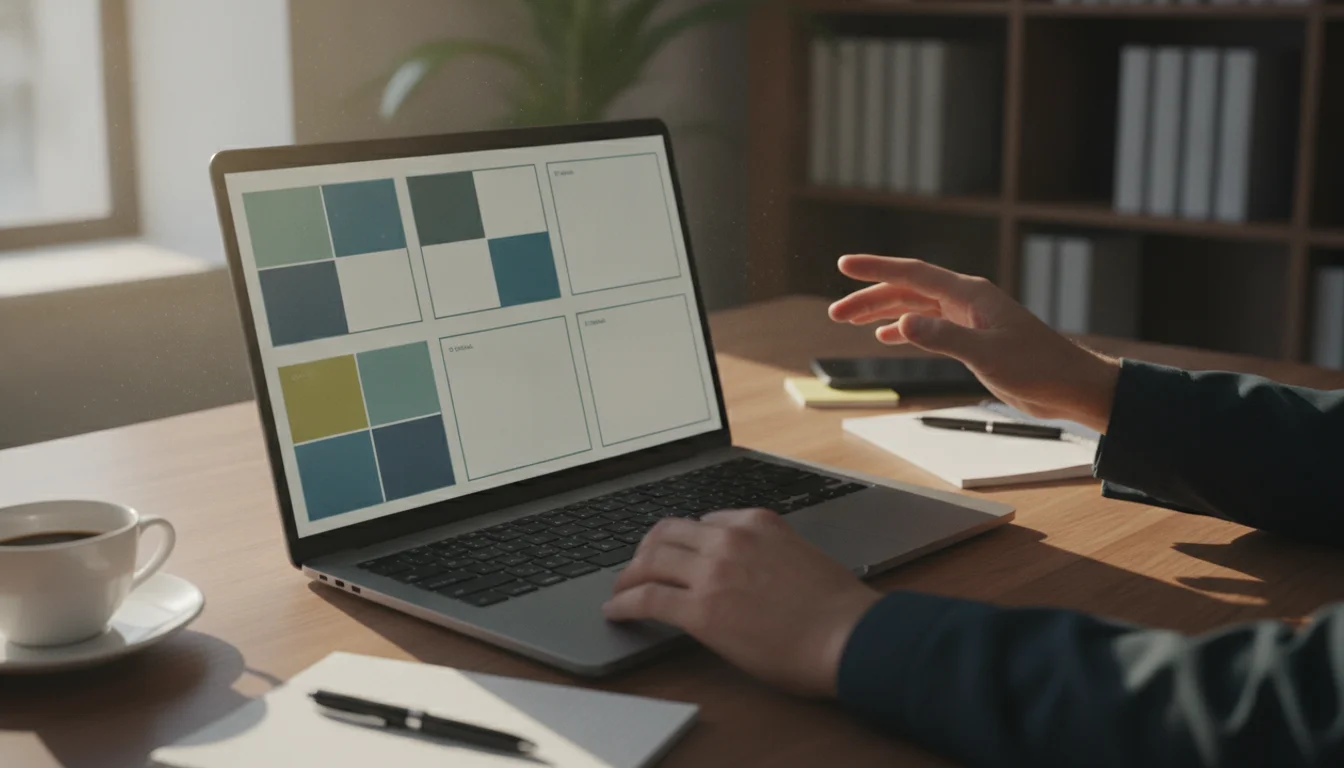
The shift toward hybrid and remote collaboration has made audio a first-class citizen in slide decks. Relying on text and visuals alone often leaves audiences with gaps in understanding, especially when presenting complex data or nuanced concepts. Audio narration and sound design for slide decks can bridge those gaps by guiding attention, clarifying key points, and providing pacing that mirrors how we learn. PowerPoint and other presentation tools now offer built-in narration capabilities, and organizations are exploring professional-grade sound design to maintain brand consistency across slides and channels. For readers focused on technology and market trends, the takeaway is clear: well-crafted audio isn’t ancillary—it's a strategic lever for comprehension and retention. (support.microsoft.com)
This guide meets you where you are: you may be starting from a basic deck or widening a practiced approach into a repeatable, scalable workflow. You’ll learn how to plan, record, and polish audio narration for slide decks; how to apply subtle sound design to heighten impact without overpowering content; and how to troubleshoot common issues that derail narration projects. By the end, you’ll have a concrete, step-by-step method you can reuse across presentations, along with practical tips to avoid typical missteps. We’ll lean on data-driven, best-practice guidance from established sources and present the concepts in a practitioner-focused, accessible way. For readers who want to explore tools beyond PowerPoint, you’ll also find references to modern narration workflows and considerations for AI voices, pacing, and accessibility. (support.microsoft.com)
Prerequisites & Setup
Required Tools
- A presentation platform with narration support (PowerPoint is the most widely used; other tools offer similar features). Understanding how to record per-slide audio or full-slide narration is essential. See Microsoft’s guidance for recording a slide show with narration and slide timings. (support.microsoft.com)
- A reliable microphone and a quiet recording environment to minimize background noise and ensure clear voice capture. If you’re upgrading sound quality, consider a USB condenser mic and basic acoustic treatment for your workspace. Some practical guides emphasize per-slide narration and clean microphone setup as foundational steps. (elearning.champlain.edu)
Accounts & Setup Tips
- Have a readily accessible script or talking points for each slide. Many practitioners use a teleprompter-like approach by leveraging slide notes to stay on message while recording. Modern recording workflows often segment narration by slide to improve editing efficiency and final timing accuracy. (support.microsoft.com)
- Prepare a simple cadence and pause strategy. Consistent timing helps audio stay legible and reduces cognitive load for the audience. Industry guidance for narration emphasizes anchoring each slide with a clear, concise line of narration rather than reading a long paragraph. (typecast.ai)
Script & Asset Preparation
- Create a slide-by-slide script or talking points covering the key value, data takeaway, and any recommended actions. Short, direct statements per slide tend to translate better when recorded, and per-slide narration is widely recommended to keep pacing tight and modular. (2slides.com)
- Decide on any musical or ambient cues. If you plan to use background music or subtle sound design, outline where it will appear (e.g., intro sting, transition cue) to avoid distracting from the message. Research and guidelines emphasize restraint when adding audio to preserve clarity and avoid competing with spoken content.
Optimize Your Slide Narration with ChatSlide
Start a guided narration workflow that scales across decks.
Get Started →
The next steps will help you implement a repeatable setup, including recommended practices for recording and organizing narration assets.
Step-by-Step Instructions
Step 1: Plan the Narrative Structure
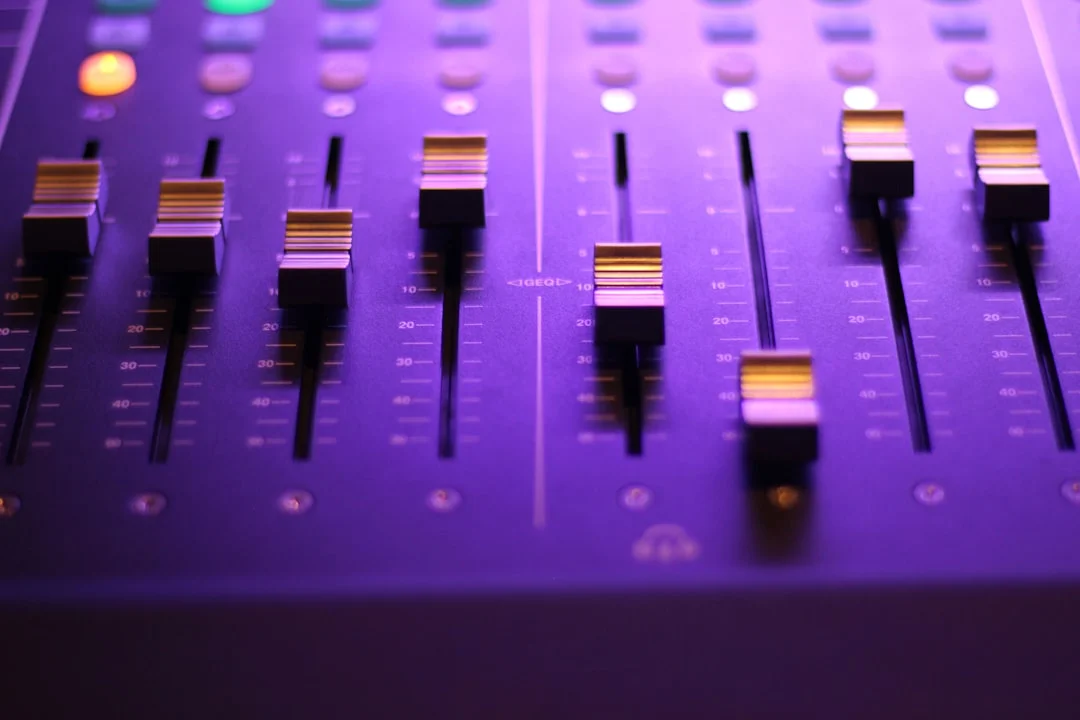
Photo by Denisse Leon on Unsplash
- What to do: outline the core message for each slide and map the narrative flow from introduction to conclusion.
- Why it matters: a well-structured narration helps listeners grasp the logical progression and retain key points.
- Expected outcome: a slide-by-slide outline with clearly defined takeaways and a pacing cue for each section.
- Common pitfalls to avoid: overloading a single slide with too many ideas; skipping a clear cohesion cue between slides.
Step 2: Draft Slide Scripts
- What to do: write concise, speaker-friendly scripts or talking points for every slide (aim for one to three short sentences per slide).
- Why it matters: scripts provide a stable, consistent voice and reduce on-recording editing time.
- Expected outcome: a ready-to-record script that aligns with slide visuals and data.
- Common pitfalls to avoid: reading word-for-word without natural cadence; neglecting pauses that aid comprehension.
Step 3: Prepare Your Recording Environment
- What to do: set up a quiet space, test your microphone, and adjust levels for clear, noise-free capture.
- Why it matters: clean audio without hiss or background noise improves audience comprehension and reduces post-processing needs.
- Expected outcome: a clean, consistent recording baseline before you start per-slide narration.
- Common pitfalls to avoid: recording in a noisy room, clipping from loud mic gain, or inconsistent mic distance.
Step 4: Record Per-Slide Narration
- What to do: using your presentation tool, record narration for each slide (or for the entire deck if preferred), ensuring timing matches slide changes.
- Why it matters: per-slide narration allows precise synchronization with visuals and enables easy re-recording of individual slides without redoing the whole deck.
- Expected outcome: an audio track that plays in sync with each slide, ready for editing.
- Common pitfalls to avoid: forgetting to save each recorded slide; misalignment between audio and slide timing; failing to test playback across slides.
Step 5: Sync & Edit Audio Timings
- What to do: review the deck with narration, adjust slide timings to fit the spoken content, and trim any long pauses.
- Why it matters: proper alignment ensures the audience experiences a smooth, cohesive narrative rather than disjointed audio-visual cues.
- Expected outcome: a deck with well-timed narration and slide transitions.
- Common pitfalls to avoid: poorly synchronized audio; rushed or lagging transitions; inconsistent pacing across sections.
Step 6: Add Subtle Sound Design
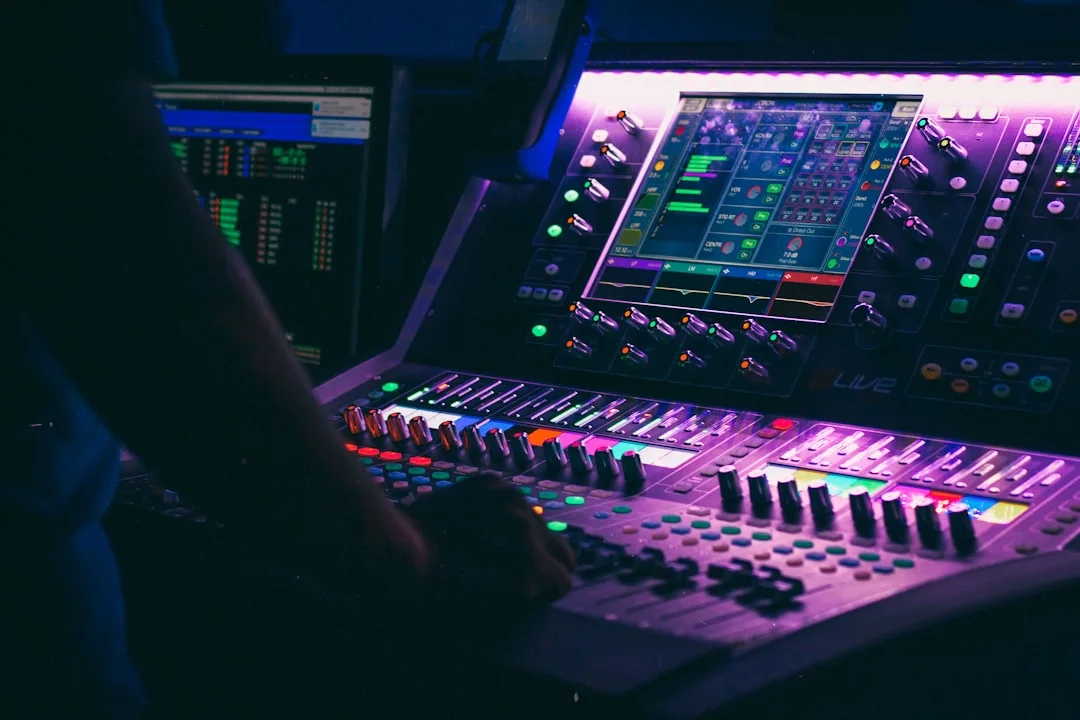
- What to do: introduce light sound-design elements such as gentle ambience, transition cues, or short stingers to emphasize key moments—used sparingly.
- Why it matters: subtle sound design enhances engagement and guides attention without overpowering the voiceover.
- Expected outcome: a more polished, brand-consistent listening experience.
- Common pitfalls to avoid: overpowering music; abrupt or repetitive cues that distract from content.
Step 7: Check Accessibility & Baseline Quality
- What to do: ensure captions or transcripts accompany the narration for accessibility; verify audio quality on multiple devices.
- Why it matters: accessibility expands reach and comprehension; multi-device checks reveal issues other listeners might miss.
- Expected outcome: an inclusive, robust presentation that remains clear across platforms.
- Common pitfalls to avoid: missing captions; relying on a single playback device; neglecting background noise considerations in different environments.
Step 8: Export & Review
- What to do: export the narrated deck as a video or a deck with embedded audio, then perform a final playback review.
- Why it matters: a final pass catches timing issues and ensures that the final format aligns with distribution plans.
- Expected outcome: a ready-to-share narrated slide deck that preserves timing and audio integrity.
- Common pitfalls to avoid: losing audio when exporting; mismatched aspect ratios; failed video rendering.
Step 9: Prepare for Reuse & Versioning
- What to do: save the narration assets in a centralized library, tag by project, and maintain versioned scripts for future updates.
- Why it matters: repeatable templates save time and maintain consistency across multiple decks and teams.
- Expected outcome: a scalable narration workflow that can be reused for future presentations with minimal rework.
- Common pitfalls to avoid: disorganized files; inconsistent naming; failing to document changes.
Step 10: Collect Feedback & Iterate
- What to do: gather audience or stakeholder feedback on clarity, pacing, and impact; plan iterative improvements.
- Why it matters: continuous improvement ensures your narration evolves with audience needs and evolving content.
- Expected outcome: a refined approach that improves comprehension and engagement over time.
- Common pitfalls to avoid: assuming perfection; ignoring user feedback; skipping subsequent revisions.
Elevate Narration with ChatSlide Studio
Turn your guided audio into scalable, branded slide experiences.
Sign Up →
Screenshots/Visuals: Include annotated images showing Step 3 recording interface, Step 5 timing adjustments, and Step 6 subtle sound design tweaks to help readers visualize the workflow.
Troubleshooting & Tips
Troubleshooting Narration Sync Issues
- What to do: re-check slide timings, re-record the problematic slides, and verify that the playback option is set to advance slides automatically with narration.
- Common issues: audio drift, slides advancing before narration finishes, or audio not playing on some devices.
- Quick fix: re-record affected slides, and consider adjusting the slide transition timing to align with spoken content. PowerPoint’s recording features support per-slide re-recording, which helps isolate issues. (support.microsoft.com)
Audio Quality & Equipment Tips
- What to do: optimize your mic setup, maintain a consistent distance, and use a pop filter or windscreen to reduce plosives.
- Why it matters: consistent audio fidelity improves listener comfort and comprehension, particularly in longer decks.
- Expected outcomes: clearer voice, reduced edits, and fewer post-production steps.
- Common pitfalls: clipping from high gain, room reflections, or inconsistent mic position across slides. For practical guidance on hardware and technique, see general recording and mic setup recommendations. (elearning.champlain.edu)
Accessibility & Inclusion
- What to do: provide captions or transcripts for all narration, and consider alternate text descriptions for visual data.
- Why it matters: accessibility broadens audience reach and improves user experience for diverse viewers.
- Expected outcomes: a more inclusive deck with better searchability and comprehension for all users.
- Common pitfalls: missing captions or inaccurate transcripts; failing to consider color and contrast in design that may affect perception of audio cues. Industry sources emphasize the importance of accessible narration workflows in education and business contexts. (customguide.com)
Advanced Techniques & Considerations
- What to do: explore AI-assisted narration options cautiously, test multiple voice profiles, and evaluate brand-appropriate tone.
- Why it matters: AI voices can speed up iteration, but they require thorough quality checks to avoid mispronunciations or tone mismatch.
- Expected outcomes: faster drafting, paired with human review for natural delivery.
- Common pitfalls to avoid: over-reliance on synthetic voices for critical messaging; neglecting localization or audience-specific nuances. Industry discussions and guides discuss both benefits and caveats of AI narration tools for presentations. (slidenarrator.com)
Improve Deck Clarity with Audio Analytics
Measure how narration affects audience understanding and retention with built-in analytics.
Try Analytics →
Screenshots/Visuals: Visuals showing a quality check checklist for audio, a quick-start microphone test, and a before/after comparison of a deck’s audience engagement metrics.
Next Steps
Advanced Narration Techniques
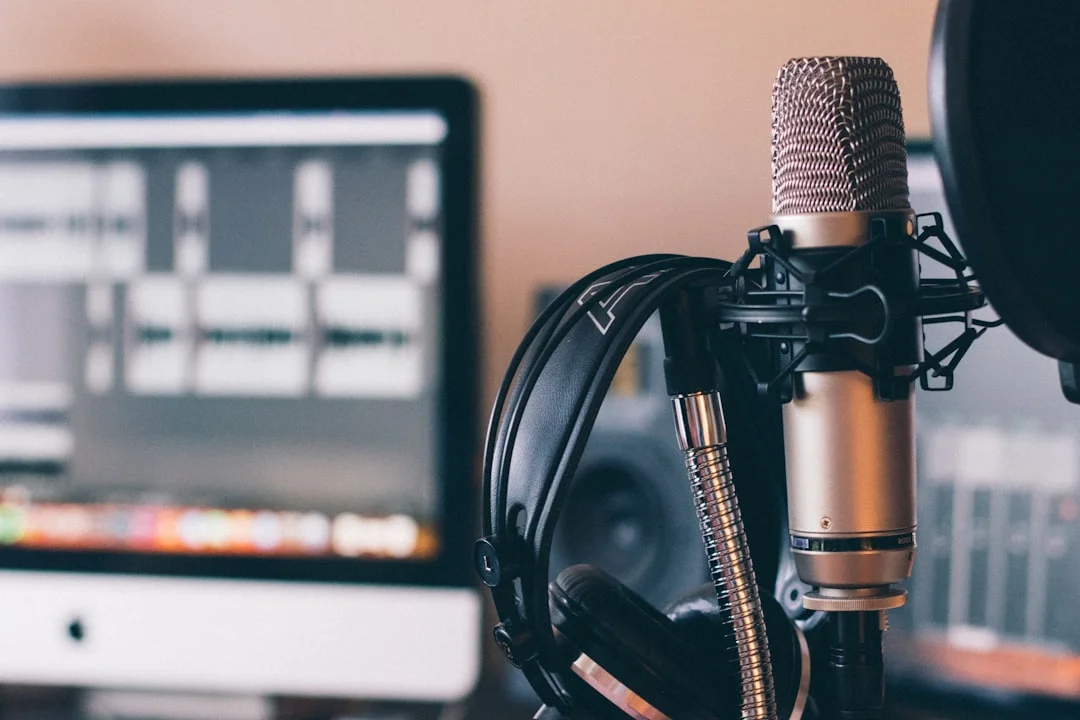
Photo by Will Francis - AI & Marketing on Unsplash
- What to do: adopt modular narration strategies, create a shared voice style guide, and build a library of reusable audio snippets for transitions and emphasis.
- Why it matters: modular narration supports faster iteration across multiple decks and ensures consistent tone.
- Expected outcomes: scalable, brand-consistent slides that convey information with controlled pacing.
- Common pitfalls: drift in voice style across decks or slides; overusing transition sounds that become distracting. Industry best practices emphasize consistency and governance in branding your audio. (typecast.ai)
Beyond PowerPoint: Modern Narration Workflows
- What to do: explore AI-assisted voice options, cloud-based collaboration for narration, and video-export pipelines that preserve timing and quality.
- Why it matters: modern teams require flexible workflows that scale across channels (slides, videos, and social media) while maintaining accuracy and accessibility.
- Expected outcomes: cross-platform narration pipelines with repeatable quality controls.
- Common pitfalls: inconsistent asset management or misalignment between audio and video exports when distributing to multiple channels. Industry discussions highlight evolving workflows that blend traditional narration with AI-assisted solutions.
Related Resources & Tools
- PowerPoint’s built-in narration features and best practices for per-slide recording. (support.microsoft.com)
- Community and expert guidance on scripting, pacing, and delivery for slide narration. (typecast.ai)
- Accessibility considerations and practical tips for making narrated decks usable by a broad audience. (customguide.com)
The next steps bring you into a world where narration isn’t a one-off task but a repeatable practice that elevates your slide-based storytelling.
Closing
Audio narration and sound design for slide decks transforms how audiences perceive and retain information. By planning carefully, recording with purpose, and applying subtle, purposeful sound cues, you can elevate a static deck into a compelling narrative that guides attention, clarifies data, and reinforces your message. The techniques outlined here—planning and scripting, per-slide narration, timing synchronization, and thoughtful sound design—offer a practical path from concept to polished presentation. With the right workflow, you can produce professional, scalable narrated decks that align with your organization’s standards and your audience’s needs.
As you begin or refine your practice, remember that the strongest narrations are clear, concise, and audience-focused. Use the steps and tips in this guide to build confidence, measure impact, and continuously improve your delivery. If you’re ready to take the next step and institutionalize a repeatable narration workflow, consider trying ChatSlide to streamline narration assets, collaboration, and delivery, and to maintain brand consistency across decks.
Author
2026/07/16