
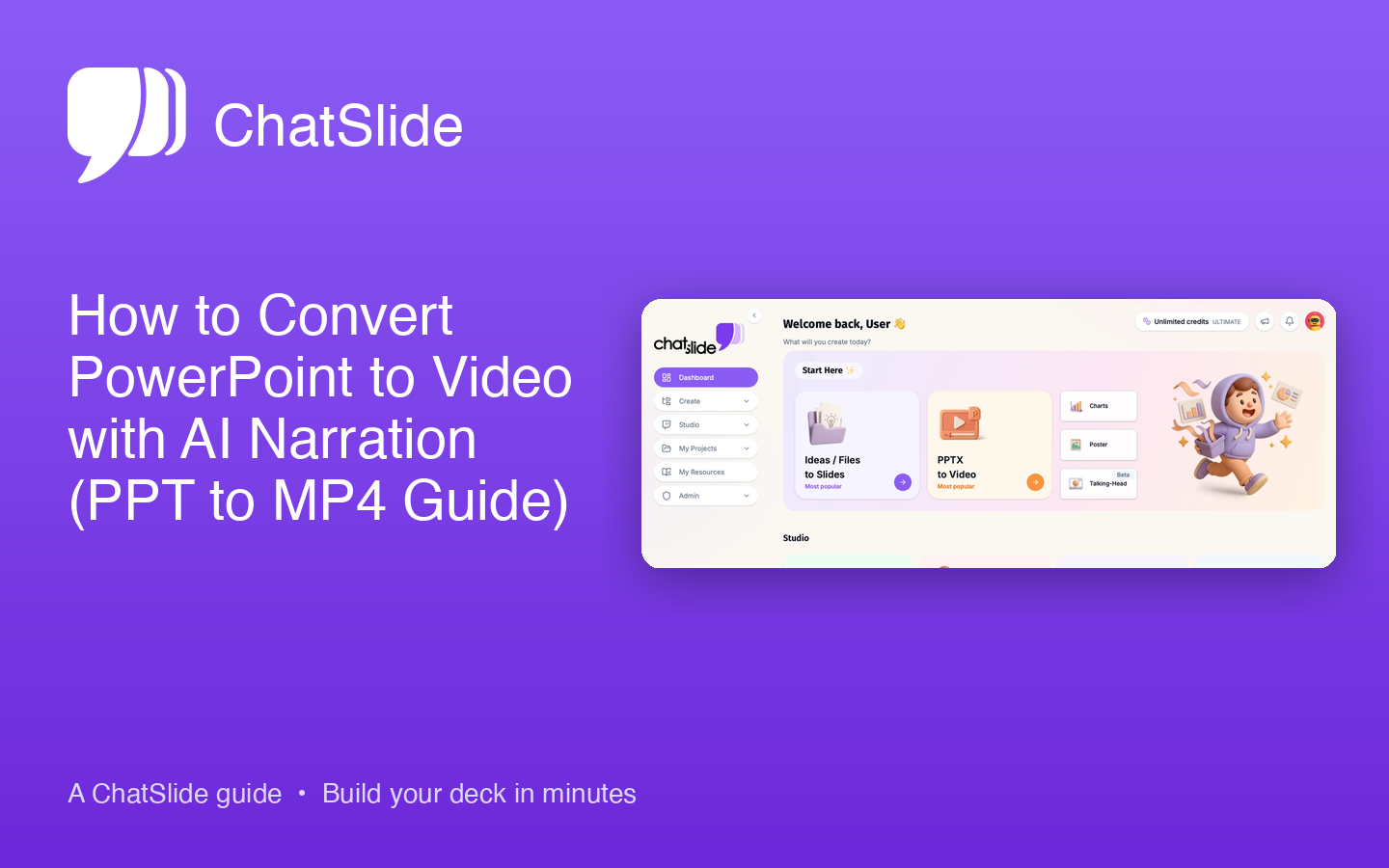
Quick Answer: Three ways to turn a PPT into an MP4: (1) PowerPoint built-in — File → Export → Create a Video → choose 1080p → Create. Silent unless you record narration manually. (2) Online converters — upload .pptx, get .mp4 back; quick but no narration. (3) AI tools with avatars — ChatSlide uploads your .pptx, auto-writes a script, narrates it with a voice clone or 500+ AI avatars, exports MP4. Method 3 takes ~2 minutes and includes Veo 3.1 video backgrounds; the built-in PowerPoint route is free but mute.
Why Convert PowerPoint to Video?
A PowerPoint file is only useful when someone opens it in presentation software. A video works everywhere - email, social media, YouTube, your company's LMS, a client portal. Converting your slides to video expands where your content can go and who can see it.
Common use cases:
- Training content. Record a training presentation as a video so new hires can watch it on their own time. No need to schedule a live session every time someone joins the team.
- Course material. Instructors convert lecture slides to video for asynchronous learning. Students watch at their own pace, pause, and rewind.
- Marketing. Turn a product overview deck into a shareable video for LinkedIn, YouTube, or your website.
- Client deliverables. Instead of sending a static deck that sits in someone's inbox, send a narrated video walkthrough.
- Conference talks. Pre-record your presentation as a backup, or submit a video version for virtual conferences.
The question is which method to use. Each has trade-offs in quality, effort, and features.
Method 1: PowerPoint's Built-In Video Export
PowerPoint has a native export-to-video feature. It works, but it has limitations.
How to Do It
- Open your presentation in PowerPoint (desktop version, not the web app).
- Click File > Export > Create a Video.
- Choose your video quality:
- Ultra HD (4K) - 3840 x 2160. Large file sizes. Only worth it for large displays.
- Full HD (1080p) - 1920 x 1080. The standard choice for most uses.
- HD (720p) - 1280 x 720. Smaller files, good for email.
- Standard (480p) - 852 x 480. Low quality, only for very small files.
- Choose whether to use recorded timings and narrations:
- "Don't use recorded timings and narrations" - Each slide shows for a fixed duration (default 5 seconds, adjustable).
- "Use recorded timings and narrations" - Uses any timings and audio you recorded in the presentation.
- Set the seconds per slide (if not using recorded timings).
- Click Create Video, choose a save location, and wait. Rendering can take several minutes for large decks.
Adding Narration in PowerPoint
To include your voice in the video:
- Go to Slide Show > Record Slide Show.
- Click Record and speak into your microphone while advancing through slides.
- PowerPoint saves your audio and timing for each slide.
- When you export to video, select "Use recorded timings and narrations" to include your audio.
Pros
- Free if you already have PowerPoint.
- No upload to third-party services required.
- Preserves most animations and transitions.
Cons
- Recording narration is tedious. If you mess up one slide, you often need to re-record that entire slide.
- No editing tools. You cannot trim, cut, or adjust the audio after recording without external software.
- No video of you speaking. It is audio-only. There is no way to add a webcam feed or avatar.
- Rendering is slow. A 30-slide deck at 1080p can take 10 to 15 minutes to render.
- The web version of PowerPoint does not support video export.
Method 2: Online PPT to Video Converters
Several web-based tools convert PowerPoint files to video. These include Canva, FlexClip, and VEED. The experience varies, but the general workflow is similar.
How They Work
- Upload your .pptx file to the platform.
- The tool converts your slides into a video timeline.
- You can add voiceover (record or upload), background music, and transitions.
- Export as MP4.
Pros
- Browser-based, works on any device.
- Some offer basic editing (trimming, adding music, adjusting timing).
- Free tiers available (with watermarks or resolution limits).
Cons
- Your file is uploaded to a third-party server. Not ideal for confidential presentations.
- Free plans usually add a watermark or limit video length.
- Formatting often breaks during upload. Complex PowerPoint layouts rarely survive intact.
- Limited narration tools. Most only let you record basic voiceover or upload an audio file.
- No AI-generated narration or avatars on free plans.
Method 3: AI-Powered Video with ChatSlide
ChatSlide takes a different approach. Instead of just wrapping your slides in a video container, it uses AI to generate narration, add a speaking avatar, and produce a polished video from your presentation content.
How It Works
- Upload your .pptx file to ChatSlide. The AI parses your slides, text, and structure.
- ChatSlide generates speaker scripts for each slide based on your content. You can edit these scripts or write your own.
- Choose a voice for narration. ChatSlide offers AI voices, and you can also clone your own voice so the narration sounds like you.
- Add an AI avatar that appears on screen while presenting. Choose from available avatars or use your own likeness.
- Generate the video. ChatSlide renders each slide with synchronized narration, avatar, and transitions.
- Download the MP4 or share directly.
When This Method Makes Sense
- You want narrated video but do not want to record yourself. The AI voice handles narration.
- You want a presenter visible on screen but cannot record a webcam video. The AI avatar fills that role.
- You have a deck with dense text and want the AI to generate natural-sounding speaker scripts from your bullet points.
- You need to produce videos in multiple languages. AI voices support dozens of languages without requiring a human narrator for each.
- You are converting many presentations to video and need a fast, repeatable workflow.
Pros
- AI-generated narration from your slide content. No recording equipment needed.
- Voice cloning so the video sounds like you without recording.
- AI avatars provide a visual presenter.
- Speaker scripts are auto-generated and editable.
- Full video output with synchronized audio and slides.
Cons
- Requires an internet connection and a ChatSlide account.
- AI voices, while good, are not identical to natural human speech (though voice cloning gets close).
- Advanced features (voice cloning, avatar customization) require a paid plan.
Comparing the Three Methods
| Feature | PowerPoint Export | Online Converters | ChatSlide AI |
|---|---|---|---|
Cost | Free (with PowerPoint license) | Free tier with limits | Free tier, paid for advanced |
Narration | Manual recording | Manual recording or upload | AI-generated + voice cloning |
On-screen presenter | No | No (most tools) | AI avatar |
Script generation | No | No | Yes, from slide content |
Video editing | No | Basic | Built-in |
Formatting quality | High (native rendering) | Varies | Rebuilt by AI |
Privacy | Local, no upload | Cloud upload required | Cloud upload required |
Multi-language | Manual only | Manual only | AI voices in 30+ languages |
Time to produce (30 slides) | 30-60 min + render time | 20-40 min | 10-20 min |
Tips for Better Presentation Videos
Write for Speaking, Not Reading
Slide bullet points are not narration scripts. "Q3 revenue: $2.4M (+12% YoY)" works on a slide but sounds robotic when read aloud. A good narration script turns that into: "Revenue hit 2.4 million dollars in Q3, which is a 12 percent increase over last year."
If you are using PowerPoint's built-in recording, write a script for each slide before recording. If you are using ChatSlide, the AI generates speaking scripts automatically, but review them to make sure the tone matches your style.
Keep Slides Visual
Videos where someone reads dense text slides are painful to watch. When converting to video, simplify your slides. Use large images, clean charts, and minimal text. Let the narration carry the detail.
Mind the Pacing
In a live presentation, you control the pace based on audience reactions. In a video, you set the pace once. Aim for 30 to 60 seconds per slide for content-heavy slides and 10 to 15 seconds for transition or title slides. A 20-slide deck should run 8 to 15 minutes.
Add Chapters or Sections
If your video is longer than 5 minutes, break it into clear sections. YouTube supports chapters (timestamps in the description). For internal videos, add a brief table of contents slide at the beginning.
Test the Audio
If you are recording your own narration, use a decent microphone. Built-in laptop microphones pick up fan noise, keyboard clicks, and room echo. A $30 USB microphone makes a noticeable difference. Record in a quiet room, and listen back before exporting.
Start Converting
If you already have PowerPoint installed and just need a quick, no-frills video, the built-in export gets the job done. For polished videos with AI narration, avatars, and auto-generated scripts, upload your .pptx to ChatSlide and generate your first video in minutes.