
Quick Answer: To add speaker notes in Google Slides: (1) open your presentation, (2) click the "Click to add speaker notes" area at the bottom of each slide (or View → Show speaker notes if the panel is hidden), (3) type your notes. To see notes while presenting, click Slideshow ▾ → Presenter view — notes appear on your screen while the audience sees only the slide. Notes are private to the presenter and don't print by default. ChatSlide auto-generates speaker notes for every slide it creates.
What Are Speaker Notes in Google Slides?
Speaker notes are private notes attached to each slide in your presentation. Your audience cannot see them during a live presentation — only you can, through Presenter View. They appear below the slide in the editing view and in a dedicated panel when you present.
Good speaker notes can mean the difference between a confident, natural delivery and reading word-for-word from your slides. They are where you keep your key talking points, statistics to cite verbally, transition cues, and reminders about what comes next.
This guide shows you exactly how to add speaker notes in Google Slides, how to view them while presenting, and how to get the most out of them.
How to Add Speaker Notes to a Slide
Adding speaker notes is straightforward. Here is the step-by-step process:
-
Open your presentation. Go to slides.google.com and open the file you want to edit.
-
Select the slide. Click the slide you want to add notes to in the left panel. The slide will appear in the main editing area.
-
Locate the notes area. Below the main slide, you will see a text area that says "Click to add speaker notes." If you do not see it, the notes panel may be hidden.
-
Click the notes area. Click anywhere in that text area to place your cursor there.
-
Type your notes. Write your talking points, cues, or any information you want to reference during the presentation. The notes can be as long as you need — they scroll.
-
Format your notes if needed. Use the text toolbar to add bold, italics, bullet points, or numbered lists. Bold key words you want to emphasize verbally.
-
Repeat for each slide. Click through your slides in the left panel and add notes to each one.
Your notes are saved automatically. There is no separate save step required.
How to Show or Hide the Notes Panel
If you do not see the notes area below your slide:
- Go to View in the menu bar.
- Click "Show speaker notes."
A checkmark next to this option means the notes panel is visible. Clicking it again hides the panel. You can also drag the divider between the slide and the notes area up or down to give yourself more room.
Keyboard shortcut: There is no default keyboard shortcut for toggling speaker notes in Google Slides. Use the View menu instead.
How to View Speaker Notes While Presenting
This is the key step. To see your notes during a presentation without your audience seeing them, you need Presenter View.
Step-by-Step: Using Presenter View
-
Click the dropdown arrow next to the "Present" button in the top right corner of Google Slides.
-
Select "Presenter view."
-
Two windows will open:
- One is the full-screen slideshow that your audience sees (the one displayed on your projector or shared via screen sharing).
- The other is the Presenter View panel — visible only to you — which shows your current slide, the next slide, a timer, and your speaker notes.
-
Position your windows. If you have two monitors, drag the Presenter View window to your screen and the slideshow to the projector. If you have one monitor, you will need to alt-tab between them (less ideal for live presentations).
-
Read your notes during the presentation. Your speaker notes appear in large, readable text in the lower section of the Presenter View panel.
The Presenter View Panel Explained
| Section | What It Shows |
|---|---|
Current slide | The slide your audience currently sees |
Next slide | Preview of what is coming next |
Timer | Elapsed time or countdown (you can set it) |
Speaker notes | Your notes for the current slide, scrollable |
The timer can count up from zero or count down to a target time. Click the clock icon to switch modes and set your target time if you are working within a specific slot.
How to Print Slides with Speaker Notes
If you want a printed reference to hold during your presentation:
- Go to File > Print settings and preview.
- Click the dropdown that says "1 slide without notes."
- Select "1 slide with notes."
- Review the preview. Each printed page will show the slide image at the top and your notes below.
- Click Print or download as PDF.
This is useful for in-person presentations where you cannot use dual monitors. Print one set of notes pages and keep them on the podium or table in front of you.
How to Export Speaker Notes
You can export your presentation with notes in two ways:
Option 1: PDF with notes
- File > Print settings and preview
- Select "1 slide with notes"
- Click "Download as PDF"
Option 2: Plain text export Google Slides does not export notes as a standalone text file natively. However, you can:
- Download as .pptx (Microsoft PowerPoint format) via File > Download > Microsoft PowerPoint
- Open in PowerPoint and export the notes separately via File > Print > Notes Pages
Tips for Writing Effective Speaker Notes
Speaker notes are most useful when they match how you actually speak. Here are principles that work:
Write keywords, not scripts
Full sentences slow you down when you are trying to read and talk at the same time. Instead, write the 3–5 key words or phrases you need as anchors. Your brain will fill in the rest.
Instead of: "In this section, we will discuss the three primary factors that contributed to the project's success, namely the timeline adherence, the stakeholder communication strategy, and the post-launch review process."
Write: "3 success factors: timeline, stakeholder comms, post-launch review"
Include transition cues
Write a brief note at the end of each slide's notes reminding yourself what the next slide covers: "Next: budget breakdown → pause for questions." This keeps you from stumbling at slide transitions.
Note verbal-only information
Keep statistics, quotes, or data points that are too detailed to show on the slide in your speaker notes. This is especially useful for Q&A preparation — you can note likely questions and your planned answers.
Use formatting to guide your eye
Bold or ALL CAPS the most important word or phrase in each slide's notes. When you are nervous and scanning quickly, your eye jumps to the emphasized text first.
Keep notes short per slide
If your notes for one slide run more than 5–6 lines, your slide has too much content to cover. Consider splitting that slide into two or trimming your talking points.
Speaker Notes vs. Slide Content: What Goes Where
A common mistake is duplicating your slide content in your notes, or putting everything in the notes and leaving slides empty. Here is a clear division:
| On the slide | In speaker notes |
|---|---|
Key headline or title | Expanded explanation |
2–3 bullet points or a chart | Stats to cite verbally |
A compelling image | Story or context behind the image |
A question to the audience | Expected answers and your follow-up |
A quote | Who said it and why it matters |
The slide is what your audience reads. The notes are what you say. They should complement each other, not duplicate.
Using AI to Prepare Your Slides and Notes Together
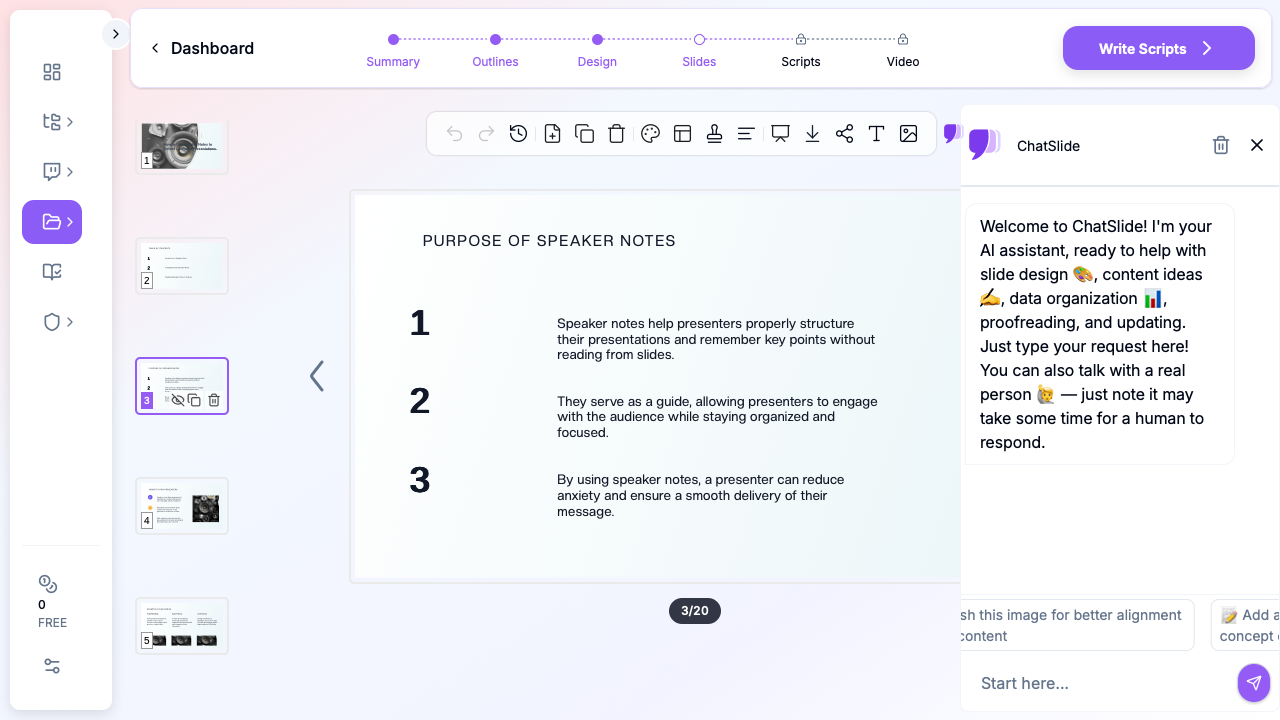
Building a presentation from scratch and writing speaker notes for every slide takes significant time. An alternative approach is to use an AI presentation tool that generates both at once.
ChatSlide AI creates complete slide decks from a topic, document, or outline, then generates talking point scripts for each slide. The scripts function as a starting point for your speaker notes — you review and adjust them to match your voice, then export or copy them into Google Slides.
This works especially well when you are building a new presentation under time pressure, or when you need to quickly prepare notes for an existing deck that currently has none.
Frequently Asked Questions
Can my audience see my speaker notes during a presentation?
No. Speaker notes are only visible in the editing view and in Presenter View (the separate panel shown on your screen). When you present in standard slideshow mode or share your screen showing the full-screen presentation, notes do not appear.
Can I add images or links to speaker notes?
You can add hyperlinks by typing a URL in the notes area. Images cannot be embedded directly in speaker notes in Google Slides.
Do speaker notes sync with the mobile Google Slides app?
Yes. Notes you add on desktop appear in the mobile app. On iOS and Android, you can view and edit speaker notes in the slide editor. The mobile app also has a presenter view that shows notes.
How do I see speaker notes on a Chromebook?
The process is identical. Use Presenter View by clicking the dropdown next to the Present button. If you have an external monitor connected, Chromebook will automatically offer to use it for the slideshow while your main screen shows Presenter View.
Can collaborators see my speaker notes?
Yes. Anyone with edit access to the presentation can see and edit speaker notes. If you share the file in view-only mode, collaborators can see the notes in the editing view but cannot change them. To keep notes private, do not share the underlying file — only share the presented slideshow.
Is there a word limit for speaker notes in Google Slides?
There is no published word limit, but very long notes become impractical to use during a live presentation. Each slide's notes will scroll, so you can technically write as much as you want.
Summary
Speaker notes in Google Slides are added by clicking the notes area below each slide in the editing view. To see your notes during a presentation without your audience seeing them, use Presenter View. For printed notes, export as PDF using the "1 slide with notes" layout.
The most effective speaker notes are short, keyword-focused, and formatted so you can scan them at a glance. Write what you will say, not what is already on the slide. With a solid set of notes prepared, you can present with confidence without memorizing your entire script.