Quick Answer: To draw while editing, use Insert → Line → Scribble — click, hold, and drag to draw freehand; release to finish, then restyle the stroke with the border color/weight buttons. To draw while presenting, start the slideshow and use the pen tool in the presenter toolbar (rolled out to Slides in recent years; if you don't see it, your admin or an older UI is the culprit — the Annotate-style add-ons cover the gap). For anything complex, sketch in Insert → Drawing's bigger canvas instead.
Drawing while editing: the Scribble tool
Google Slides' only freehand tool hides inside the line menu:
- Click the Line dropdown in the toolbar (or Insert → Line) and choose Scribble at the bottom.
- Click and hold on the slide, drag to draw, release to end the stroke. Each release finishes one scribble object.
- Select the stroke to restyle it: Border color for the ink, Border weight up to 24 px, Border dash for dashed strokes.
Scribbles are vector objects — they scale cleanly, group with other elements, and can be reordered like any shape. What they can't do: pressure sensitivity, smoothing, or multi-stroke lasso editing. A mouse scribble looks like a mouse scribble; with a stylus or touchscreen (Chromebook, iPad in the browser) the results improve dramatically.
For arrows, circles and callouts, skip Scribble — dedicated Insert → Shape arrows and ellipses always look cleaner than a drawn approximation.
Drawing while presenting: the pen and the add-ons
Presenting is where most people actually want to draw — circling a number mid-lecture, underlining the key clause.
- Built-in pen: in slideshow mode, move the cursor to the bottom-left toolbar and click the pen icon. You get four ink colors and an eraser, and can draw anywhere on the slide. Annotations persist while you present and clear automatically when the slideshow ends — they never touch the actual deck.
- Laser pointer: the toolbar's pointer (or press L) highlights without leaving marks — often all a talk needs.
- Add-ons: if your UI lacks the pen (older rollout, restricted Workspace domain), Marketplace tools like Annotate overlay a full ink toolbar on presentations, with saved annotations and highlighter colors.
- Hardware route: presenting on a touchscreen or via a tablet mirroring app gives you finger/stylus inking through the device rather than Slides itself.
Complex sketches: use a Drawing canvas
For diagrams with many strokes, sketch in Google Drawings (drawings.google.com) — a full canvas with the same Scribble plus curves, connectors, and word art — then bring it in via Insert → Image → Drive. Inserted this way the drawing stays linked: edit it in Drawings and the slide copy updates, which loose scribbles can never do.
Fully hand-drawn diagram culture (whiteboard-style) lives better in a dedicated canvas: draw in any whiteboard/notes app, export PNG with transparent background, and Insert → Image.
When the drawing is really a diagram
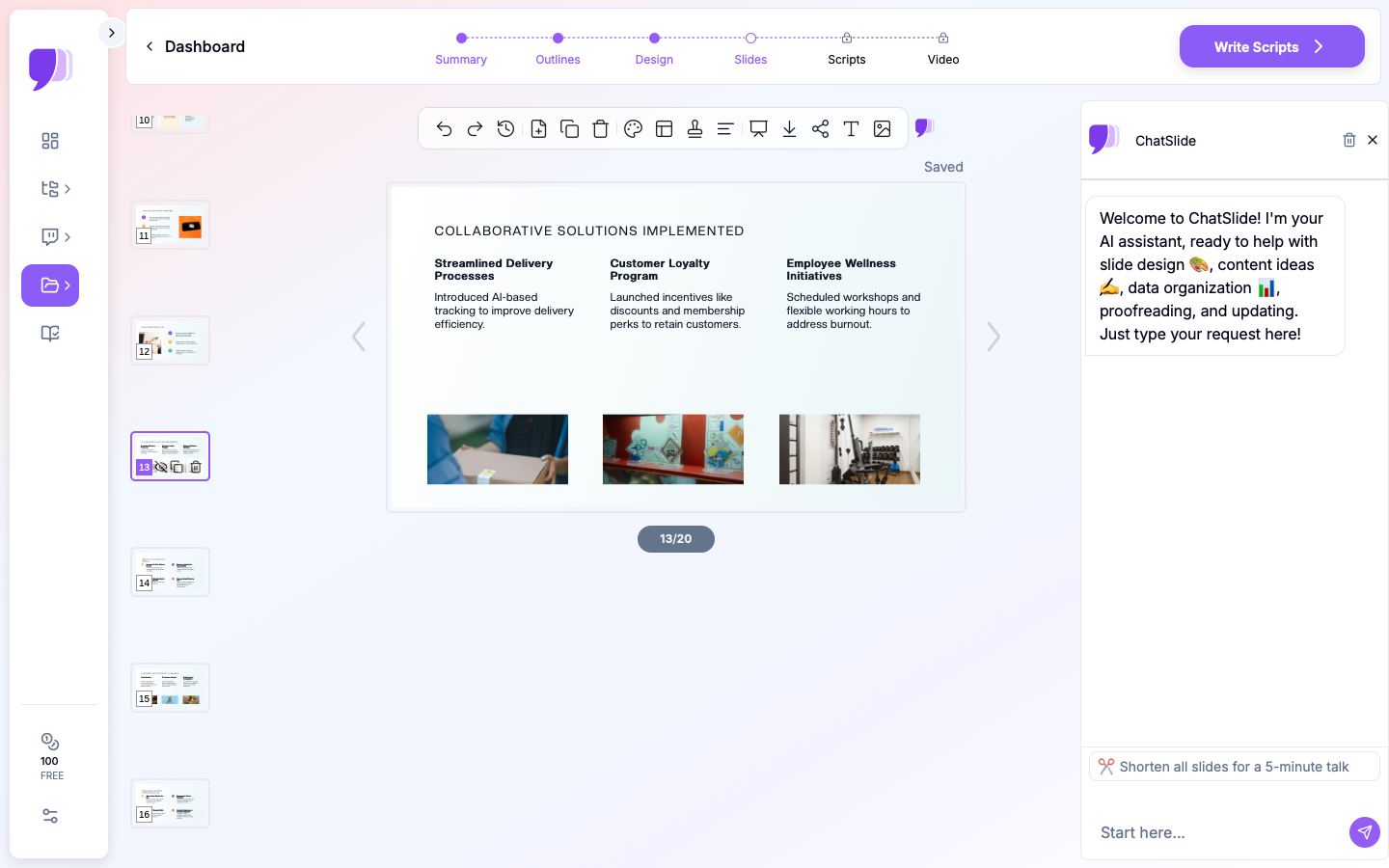
Half of "how do I draw on slides" searches are actually "I need a flowchart/timeline/annotated diagram and don't want to fight shape tools." That's a generation problem now: ChatSlide's AI diagram maker and AI chart maker produce clean flowcharts and data charts from a text description or spreadsheet, dropped straight into decks that export to Google Slides or editable PowerPoint. Scribble for the human touch; generate the rest.
FAQ
Is there a pen tool in Google Slides while editing? Only Scribble (Insert → Line → Scribble). It's a basic vector freehand tool — no pressure or smoothing.
Can I draw on Google Slides during a presentation? Yes — the presenter toolbar's pen annotates live in the current Slides UI, and add-ons like Annotate cover setups where it hasn't appeared. The laser pointer (press L) handles pointing without ink.
Do annotations save after presenting? Presenter-pen ink is temporary by default. To keep markup, draw with Scribble in edit mode, or use an add-on that saves annotations.
Can I use an Apple Pencil or stylus? Yes — in a browser on a touch device, Scribble follows the stylus. Latency depends on the device/browser more than on Slides.