Quick Answer: To build a project-management deck with AI, (1) upload your project brief, sprint notes, or status data; (2) the tool structures it for the audience — sprint scope for engineers, timelines and risks for stakeholders, or a one-slide summary for executives; (3) generate charts from your real numbers and export to PowerPoint. Instead of copying last week's update and reformatting by hand, ChatSlide turns raw project details into a tailored deck in under 2 minutes — free to start.
The PM Deck Problem
Project managers rarely struggle with a lack of information. The real problem is the opposite: too many moving parts, too many audiences, and too little time to turn raw project details into a presentation that people can understand quickly.
One deck might need to align an engineering team on sprint scope. The next needs to explain resource constraints to department leads. Another has to reassure executives or clients that the timeline is still under control. These are not interchangeable presentations. Each one requires a different level of detail, a different tone, and a different structure.
Yet many PMs still build decks the slow way — copying last week's update, rearranging screenshots, rewriting bullet points, and manually cleaning up formatting. By the time the slides look polished, the plan has already changed. That makes project communication feel reactive instead of strategic.
The challenge is even bigger in agile environments. Sprint planning moves fast. Priorities shift. Team capacity changes. Dependencies appear mid-cycle. A project manager needs slides that can keep up with the work, not slow it down. That is why more teams are looking for a project management presentation AI workflow that helps turn outlines, notes, meeting summaries, and status updates into usable slides in minutes.
What Good PM Presentations Need
Project presentations succeed when they help people make decisions. A PM deck is not just a record of activity. It is a communication tool that should reduce ambiguity, clarify trade-offs, and create alignment around what happens next.
Clear purpose. Every deck should answer one main question. Is this presentation for sprint planning, resource allocation, a steering committee review, or a stakeholder update? A focused purpose keeps the content relevant and prevents slide sprawl.
Audience-specific detail. Engineers need backlog context, dependencies, and acceptance priorities. Executives want delivery confidence, timeline risk, and business impact. Cross-functional stakeholders need a shared view of milestones, owners, and blockers. Good stakeholder communication slides always match the audience's decision-making needs.
Visible priorities. PM decks should make trade-offs easy to see. Which work is committed? Which items are at risk? Where are resources tight? Where does a deadline depend on another team? A strong presentation surfaces these realities early instead of burying them in appendices.
Simple timeline logic. A project timeline presentation AI workflow only helps if the resulting deck clearly shows sequence, ownership, and milestones. People should understand what is happening now, what is next, and what could shift the plan.
Brevity with structure. Project managers often over-explain because they know the context too well. Good slides do the opposite. They compress complexity into a few clean sections: goals, scope, progress, risks, resources, and next steps.
Consistency across recurring meetings. Sprint reviews, weekly status updates, and monthly steering meetings work best when the format is predictable. Familiar structure helps teams compare changes over time instead of relearning the deck every meeting.
Building PM Decks with ChatSlide
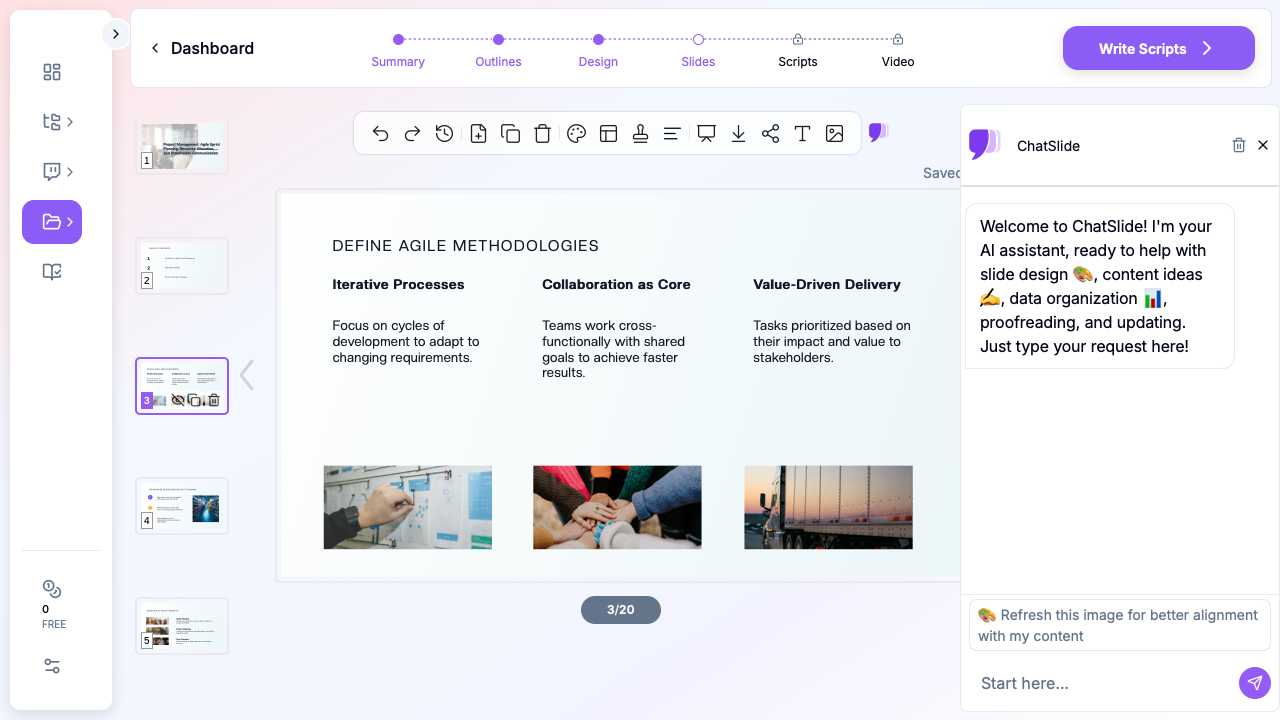
ChatSlide is especially useful for project managers because it helps turn rough project inputs into a structured narrative. Instead of starting with a blank canvas, you begin with the meeting goal and let the AI draft the backbone of the presentation.
Start with the Meeting Type and Project Context
Begin by describing the exact deck you need. For example: "Create a sprint planning presentation for a product and engineering team launching a new reporting dashboard in a two-week sprint." Or: "Build a stakeholder update presentation for a cross-functional website migration project, including timeline, risks, resource constraints, and next steps."
This matters because sprint planning decks, leadership updates, and resource reviews should not look the same. When you define the context clearly, ChatSlide can generate a structure that fits the meeting instead of giving you a generic business template.
Add Audience, Scope, and Constraints
Once the basic topic is in place, add the audience and the operational constraints. This helps the AI frame the deck at the right altitude.
- Audience: Scrum team, product leadership, executives, clients, or cross-functional stakeholders
- Scope: Single sprint, quarterly roadmap, staffing review, release update, or risk escalation
- Constraints: Limited engineering capacity, dependency on another team, fixed deadline, or shifting priorities
For example, a PM deck maker becomes much more useful when you tell it: "Audience is engineering managers and product leads. Emphasize sprint goal, resource allocation, unresolved dependencies, and delivery risk."
Generate the First Outline
At this point, ChatSlide can create a first-pass outline that typically includes the sections a project manager would build manually: project summary, goals, current status, milestone view, sprint scope, resource plan, risks, decisions needed, and next steps.
This is where AI saves the most time. Instead of deciding slide by slide what belongs in the deck, you get a structure you can refine. For agile sprint planning slides, that often means an opening slide with sprint objective, a scope slide with key stories or themes, a capacity slide, a dependency slide, and a final slide that captures commitments.
Refine the Deck for Sprint Planning
Sprint planning presentations need to create shared understanding before the team commits. After the outline is generated, sharpen the slides for execution:
- Clarify the sprint goal: Make sure the deck states the intended outcome, not just the ticket list
- Group work into themes: Cluster stories by feature area, bug fix stream, or dependency track
- Show capacity clearly: Include team availability, major time-off, and any non-project commitments
- Call out blockers early: Put unresolved dependencies and open questions before the commitment slide
If you are preparing a scrum meeting presentation AI workflow for recurring team rituals, keep each sprint deck short and repeatable. The team should be able to scan it quickly and focus discussion on trade-offs, not on decoding the slide structure.
Adapt the Outline for Resource Allocation Reviews
Resource allocation decks are often where project managers need the most diplomatic clarity. These presentations should show where work is concentrated, which skills are overloaded, and what choices leaders need to make.
With ChatSlide, ask for slides that separate committed work from proposed work. This makes staffing discussions more concrete. You can also prompt for views such as team-by-team ownership, role-based capacity, project priority tiers, or milestone staffing requirements.
The goal is not to overwhelm the audience with a staffing spreadsheet. It is to show which resources are sufficient, which are stretched, and what changes are needed to keep delivery realistic.
Shape Stakeholder Update Slides
Stakeholder updates need confidence, clarity, and a tight storyline. Most audiences do not want every project detail. They want to know whether the work is on track, where the risk sits, and what support is needed.
When generating stakeholder communication slides, ask ChatSlide to organize the deck around five questions:
- What is the objective?
- What has changed since the last update?
- Are key milestones on track?
- What risks or blockers need attention?
- What decisions or next steps are required?
This structure keeps the update focused. It also prevents the common PM mistake of spending too many slides on completed tasks and too few on decisions that matter now.
Edit for Your Operating Style
AI should give you speed, not replace judgment. After ChatSlide generates the presentation, adjust the language to match how your organization communicates. Some teams prefer direct, tactical language. Others want more executive framing. Some want concise project timeline slides. Others need more narrative around trade-offs and delivery impact.
This final editing step is also where you insert project-specific items such as product terminology, internal milestone names, owner assignments, or meeting decisions from the latest planning session.
Export and Share
Once the deck is ready, export it for the meeting and make any final branding or formatting adjustments if needed. Many project managers use ChatSlide to create the first version quickly, then reuse the structure for recurring agile sprint planning slides, leadership reviews, and stakeholder updates throughout the project lifecycle.
Project Presentation Types That Work Well
Project managers create several repeatable presentation formats. ChatSlide works best when you treat each one as a distinct communication pattern.
Sprint Planning Decks
These presentations help the team align on sprint objective, scope, capacity, and dependencies. The best sprint planning decks are not bloated backlog exports. They summarize the work in a way that supports commitment and focus.
Resource Allocation Reviews
These decks are useful when several initiatives compete for the same people or skills. A strong resource review presentation makes workload visible without turning the meeting into a spreadsheet reading session.
Stakeholder Status Updates
This is the classic PM communication format: progress since last update, milestone confidence, decisions needed, and major risks. Clean stakeholder communication slides can reduce follow-up confusion and keep sponsors aligned.
Timeline and Milestone Presentations
Sometimes the main job of a deck is sequencing. A project timeline presentation AI workflow is especially useful here because it helps translate a complex plan into clear phases, milestone checkpoints, and critical dependencies.
Steering Committee and Executive Reviews
These decks should stay high-level and decision-oriented. Keep details in reserve, but lead with business impact, delivery confidence, major trade-offs, and requests for support.
Tips for Better Project Management Presentations
Lead with the Decision
Open with the point of the meeting. If you need approval, re-prioritization, added capacity, or risk acknowledgement, say so early. A good PM presentation does not hide the key ask on slide twelve.
Keep One View per Slide
Avoid slides that mix sprint scope, resource constraints, risk detail, and timeline changes all at once. One slide should answer one question. This makes the deck easier to present and much easier to discuss.
Translate Detail into Meaning
A list of tickets or milestones is not enough. Explain what the information means. If capacity is lower this sprint, what moves? If a dependency slips, which milestone becomes uncertain? Decision-makers need implications, not just data.
Make Risks Specific
Generic risk slides are easy to ignore. Name the actual issue, the likely impact, the mitigation plan, and the owner. This makes your project management presentation AI output more actionable once you refine it.
Reuse a Stable Structure
Recurring PM meetings benefit from a familiar flow. When teams know where to find status, timeline, risk, and next steps, they spend less time navigating the deck and more time making decisions.
Leave Space for Discussion
A sprint planning or stakeholder review deck should create conversation, not eliminate it. Keep the slides concise enough that the meeting still has room for questions, trade-offs, and alignment.
From Project Notes to Presentation-Ready
Project managers already do the hard work: clarifying scope, tracking progress, managing dependencies, and coordinating people with different priorities. The slide creation process should support that work, not become another drain on it.
ChatSlide helps turn planning notes, sprint goals, roadmap summaries, and status updates into a clean first draft you can actually use. Whether you need agile sprint planning slides for a fast-moving team, a resource allocation review for leadership, or stakeholder communication slides for a high-visibility project, the value is speed with structure.
If you want a faster way to build your next PM deck maker workflow, start at ChatSlide and turn your project brief into a presentation before the meeting starts.