
Quick Answer: To turn Excel or spreadsheet data into a presentation, upload the file to an AI presentation tool that reads tables natively — the tool extracts numeric columns, picks the right chart type per dataset, and lays each chart on its own slide with a caption. ChatSlide handles .xlsx, .csv, .pdf reports, and pasted tables; it generates Chart.js/D3 visualizations (bar, line, pie, scatter, geo) directly from your figures and writes the takeaway sentence above each chart. Free, no signup, ~60 seconds per deck.
The Data Presentation Gap
Every business runs on data. But presenting data effectively remains one of the hardest communication challenges:
- 72% of executives say they receive presentations with poorly visualized data (Source: McKinsey)
- The average analyst spends 5+ hours per week creating data presentations
- 65% of charts in business presentations are the wrong chart type for the data they represent
- Most AI presentation tools generate fake placeholder charts — not real data visualizations
The gap between having data and presenting data effectively is enormous. It's partially solved — AI can now generate real charts from document content and online sources — but direct spreadsheet-to-slides workflows are still maturing.

What "Data to Slides" Actually Means
True data-to-slides conversion isn't just dropping a screenshot of your spreadsheet onto a slide. It involves:
1. Data Understanding
The AI reads your data and understands:
- What the data represents (revenue, patients, test results, survey responses)
- The relationships between variables
- Trends, outliers, and key insights
- The appropriate visualization type
2. Chart Selection
Different data needs different visualizations:
| Data Type | Best Visualization |
|---|---|
Trends over time | Line chart, area chart |
Comparisons | Bar chart, grouped bar chart |
Proportions | Pie chart, donut chart, stacked bar |
Distributions | Histogram, box plot |
Correlations | Scatter plot, bubble chart |
Geographic | Map, choropleth |
Hierarchical | Treemap, sunburst |
Flow/Process | Sankey diagram, funnel chart |
Generic AI tools don't make these distinctions. They generate generic bar charts regardless of data type.
3. Data Storytelling
Numbers alone don't persuade. The AI must:
- Identify the narrative in your data
- Highlight key insights and trends
- Compare against benchmarks or targets
- Add context that makes numbers meaningful
- Structure the presentation to build an argument
4. Design and Layout
Data slides require special design consideration:
- Proper chart sizing and positioning
- Readable axis labels and legends
- Consistent color coding across slides
- Data source attribution
- Key takeaway callouts
How ChatSlide Handles Data-to-Slides
How It Works Today
ChatSlide generates charts from your content using Chart.js and D3 — producing real data visualizations, not AI-generated fakes. Here's how the current workflow works:
- PDF reports — Upload financial statements, analytics exports, research papers with data tables
- Word documents — Upload reports containing data and statistics
- URLs — Point to a data-rich webpage; the AI extracts and visualizes key data
- Online search — The AI can search the web for relevant data to include in your charts
- Images with OCR — Upload screenshots of data; AI extracts the content
Important note: Direct Excel/spreadsheet upload for chart generation is not yet supported but is coming soon. Currently, the AI generates charts from data it finds within your documents and online sources.
AI Analyzes and Visualizes
The AI:
- Reads the content in your uploaded documents or fetched URLs
- Identifies data points, metrics, trends, and insights within the text
- Selects the optimal chart type for each data set
- Creates accurate Chart.js/D3 visualizations with proper labeling
- Writes data-driven narrative text for each slide
- Structures the presentation logically (overview → details → conclusions)
Example: Report to Data Presentation
Input: A PDF quarterly report containing revenue figures, growth percentages, and regional breakdowns.
Output (8 slides):
- Title: Q4 2025 Sales Performance Overview
- Executive Summary: Key metrics at a glance (revenue, growth, top products)
- Revenue Trend: Line chart showing monthly revenue vs. target
- Regional Breakdown: Bar chart showing revenue by region
- Product Performance: Stacked bar chart by product line
- Top/Bottom Performers: Table highlighting best and worst performing segments
- Year-over-Year Comparison: Grouped bar chart showing Q4 2024 vs Q4 2025
- Outlook & Recommendations: Key takeaways and next steps
Time: Under 60 seconds.
Use Cases for Data-to-Slides
Quarterly Business Reviews (QBRs)
Upload your QBR report (PDF or Word). ChatSlide reads the data within and creates a structured presentation with:
- Performance vs. targets with AI-generated charts
- Trend analysis visualizations
- Departmental breakdowns
- Action items and recommendations
Financial Presentations
Upload financial reports or statements as PDFs. Get:
- Income statement walkthrough with visualizations
- Key ratio trends as charts
- Budget vs. actual comparisons
- Cash flow analysis
Marketing Analytics
Upload your marketing report document. Get:
- Traffic and conversion trends as line charts
- Channel performance comparison bar charts
- Campaign ROI analysis
- Recommendations based on data patterns
Research Data
Upload your research paper or paste a PubMed URL. Get:
- Results summary with proper statistical notation
- Comparison charts with data extracted from your paper
- Methodology summary with sample characteristics
- Built-in PubMed search to find additional literature
Data Visualization Best Practices the AI Follows
The ChatSlide Approach to Data Slides
-
One insight per slide — Never overcrowd a data slide. Each slide makes one clear point.
-
Title = Takeaway — Slide titles state the insight, not describe the chart. "Revenue grew 23% in Q4" instead of "Q4 Revenue Chart."
-
Right chart for the data — The AI selects chart types based on what the data actually represents, not defaults.
-
Consistent formatting — Colors, fonts, and chart styles remain consistent across all slides.
-
Source attribution — Every data slide includes a source note (e.g., "Source: Company sales database, Q4 2025").
-
Accessible design — Charts use color-blind friendly palettes and sufficient contrast.
Editing and Refining Data Slides
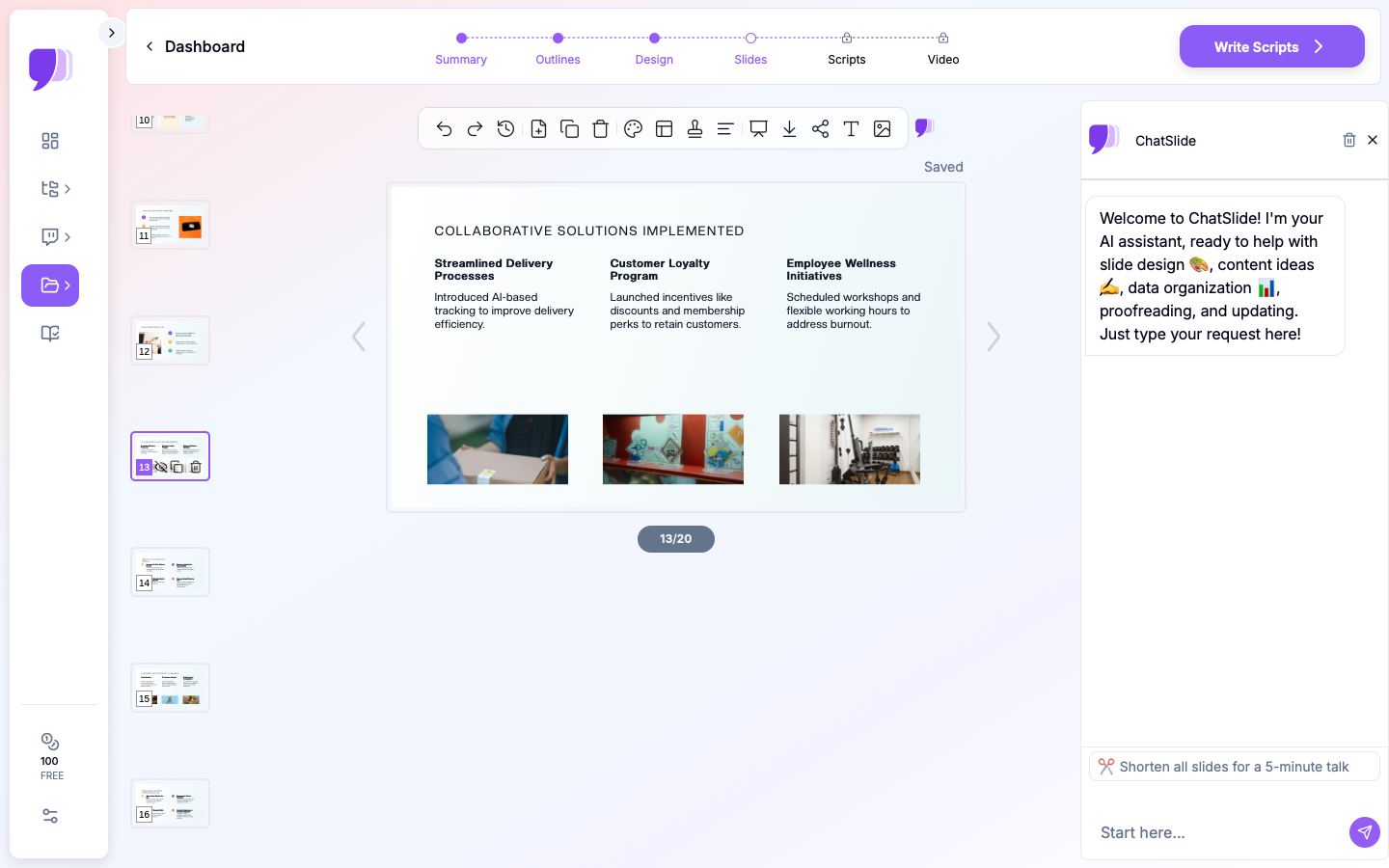
After generation, ChatSlide's 19 AI editing tools — its strongest feature — let you refine your data presentations:
- Chat-based editing — "Change the bar chart on slide 4 to a line chart" or "Add a comparison table"
- Text regeneration — Rewrite data narratives for different audiences
- Batch editing — Apply formatting or content changes across multiple slides at once
- Manual editing — Fine-tune individual chart labels, data points, and layouts
These 4 editing modes, powered by function calling, mean you can iterate quickly on AI-generated data visualizations until they tell exactly the story you need.
Comparison: Data-to-Slides AI Tools (2026)
| Feature | ChatSlide | Beautiful.ai | Gamma | Canva | PowerPoint Copilot |
|---|---|---|---|---|---|
Charts from document content | Yes (Chart.js + D3) | No | Partial | No | Partial |
Excel upload for charts | Coming soon | Partial | No | No | Yes |
3 input modes (file, URL, text) | Yes | No | No | No | No |
Auto chart type selection | Yes | No | No | No | Partial |
Data storytelling | Yes | No | Partial | No | Partial |
19 AI editing tools | Yes | No | No | No | No |
Real data (not fake) | Yes | N/A | Generates fake | N/A | Yes |
Built-in PubMed search | Yes | No | No | No | No |
OCR for image/scan data | Yes | No | No | No | No |
Free tier | Yes | No | Yes | Yes | No (requires M365) |
Advanced Tips for Data-Heavy Presentations
Structuring Your Source Documents for Better Charts
The quality of AI-generated charts depends heavily on how data appears in your source documents. Here are practical ways to improve results:
- Use clear labels in your tables. If your PDF report contains a table with columns labeled "Q1," "Q2," "Q3," "Q4," the AI will correctly identify these as time-series data and select a line or bar chart. Ambiguous column headers like "A," "B," "C" force the AI to guess.
- Include units and context. A table showing "Revenue: 4.2, 4.8, 5.1" is less useful to the AI than "Revenue (USD millions): 4.2, 4.8, 5.1." Units help the AI format axis labels and annotations correctly.
- Separate data from commentary. Documents that mix narrative text with data tables work well — the AI uses the narrative to add context to charts. But avoid placing unrelated data sets in the same table, as this can confuse chart generation.
When to Use Multiple Chart Slides vs. Dashboard-Style Slides
A common question is whether to show one chart per slide or combine several charts into a single dashboard view. The answer depends on your audience and context:
- One chart per slide works best for live presentations where you walk through each data point. It keeps the audience focused and gives you room to explain the insight behind each visualization.
- Dashboard-style slides with two or three smaller charts work well for leave-behind documents or executive summaries where the reader will review at their own pace. They allow for at-a-glance comparison across metrics.
ChatSlide defaults to one insight per slide, which is the safer choice for most presentation contexts. If you need a dashboard layout, use the chat-based editing to request "combine slides 4 and 5 into a single comparison view."
Handling Incomplete or Messy Data
Real-world data is rarely clean. Reports may have gaps, inconsistent formatting, or preliminary numbers. When working with imperfect data:
- Flag preliminary numbers. If your document contains estimates or projections, the AI will include them in charts. Add a note in your generation instructions like "Label all 2026 figures as projected."
- Be explicit about what to exclude. If your report includes outdated data alongside current figures, instruct the AI to "Use only 2025 and 2026 data for charts."
- Verify generated visualizations. Always review AI-generated charts against your source document. The AI extracts data accurately in most cases, but complex nested tables or unusual formatting can occasionally lead to misread values.
Presenting Data to Non-Technical Audiences
Data presentations often fail not because the data is wrong, but because the audience cannot interpret it. When your audience is non-technical:
- Use the chat editing feature to request simpler chart types — bar charts and pie charts are universally understood, while scatter plots and box plots require statistical literacy.
- Ask the AI to "add a plain-language summary below each chart" so viewers who skip the visualization still get the insight.
- Replace precise numbers with rounded figures or ranges when exact precision is not critical. "Revenue grew approximately 20%" is more memorable than "Revenue grew 19.7%."
Getting Started
Try ChatSlide free — Upload a data-rich document or paste a URL, and get a professional presentation with real AI-generated charts in under 60 seconds.
No more fake AI charts. No more manual formatting. Just real data extracted from your documents, beautifully visualized with Chart.js and D3.
ChatSlide is trusted by 290,000+ professionals for turning documents and data into presentations. Free to start — no credit card required.