
Quick Answer: Google Slides has no built-in recorder — the only supported method is upload-to-Drive-then-insert: (1) save your audio as .mp3 or .wav to Google Drive; (2) in Slides, Insert → Audio and pick the file; (3) click the speaker icon → Format options to set Autoplay, Loop, or hide the icon. If the audio won't play, set the Drive file's sharing to "Anyone with the link" — the #1 cause of playback failures. For narrated decks, ChatSlide can generate AI voiceover automatically instead.
The Challenge
Unlike PowerPoint, Google Slides has no built-in audio recorder. There's no microphone button hidden in the toolbar, no drag-and-drop from your desktop, and no "record narration" wizard. The only supported flow is upload-an-audio-file-to-Drive-then-insert — and the steps are spread across three different surfaces (Drive, Slides, and the audio playback panel).
The result: people who just want a clip of background music, a narrated intro, or a recorded voiceover end up bouncing between tutorials, hitting permission errors, and watching their audio fail to play during the actual presentation. This guide walks through the exact flow that works in 2026, the playback settings that matter, and the workaround for narration since Slides still won't record directly.
What Google Slides Actually Supports
Google Slides accepts only two audio formats: MP3 and WAV. AAC, M4A, OGG, FLAC, and WMA are silently rejected — the Insert dialog will simply not show the file, even if it's right there in your Drive.
The audio must be uploaded to the same Google account's Drive as the Slides file. You can use Shared Drive files, but the sharing permissions have to match (more on this below). Audio from Drive folders you've been shared into will work; audio sitting in a co-worker's drive that you only have View access to will fail with "Audio cannot be played."
Slides supports one inserted audio file per slide, but you can have a different audio file on every slide. There's no global "soundtrack across all slides" toggle, but you can fake it with a single audio file set to autoplay + continue-across-slide-changes — the official setting is called "Stop on slide change: off".
Step-by-Step: Add an Audio File to a Single Slide
1. Get your file into MP3 or WAV. If you have an M4A or AAC file from voice memos, convert it first. Free converters work, but the cleanest path is to drag the file into Audacity (or any DAW) and File → Export As → MP3. Aim for 128–192 kbps; higher bitrates bloat the Drive file with no real audio benefit for spoken word.
2. Upload to Google Drive. Open drive.google.com → New → File upload → pick the MP3 or WAV. Wait for it to finish uploading. Tip: drop it into a folder named after the deck (e.g., Pitch deck — assets) so you can find it later when the audio breaks two weeks before the keynote.
3. Open your Slides deck and pick the target slide. Click the slide in the left rail where the audio should attach. Audio is anchored to a single slide — when that slide is no longer visible, the audio either stops or continues based on your settings.
4. Insert → Audio. From the top menu: Insert → Audio. A file picker opens, scoped to your Drive. Navigate to the folder, click the audio file, then click Select. A small speaker icon appears on the slide.
5. Configure playback. Click the speaker icon to select it. A Format options sidebar appears on the right. Open the Audio playback section. The settings that matter:
- Start playing: On click (default) or Automatically. For background music and narration, choose Automatically.
- Volume when presenting: 0–100%. Background music should sit around 20–35% so it doesn't drown out the speaker.
- Hide icon when presenting: Check this for clean-looking slides. The icon disappears in present mode but the audio still plays.
- Loop audio: Toggle on if the clip is short and the slide will sit on screen longer than the audio runtime.
- Stop on slide change: Off if you want music to keep playing across multiple slides; on if the audio is tied to this slide only.
6. Test in present mode. Press Ctrl+F5 (Cmd+Enter on Mac) to enter the presenter view, then advance to the slide and confirm the audio fires. If you used Automatically + Hide icon, you should hear audio with no visible speaker icon.
Add Background Music Across Multiple Slides
The official approach is to insert one audio file on slide 1 and configure it to keep playing as you advance:
- Insert the audio on slide 1 (Insert → Audio).
- In Format options → Audio playback:
- Start playing: Automatically
- Stop on slide change: Off
- Loop audio: On (so it doesn't end if your speaker monologues longer than the track)
- Hide icon when presenting: On
- Test from slide 1, then advance to slides 2, 3, 4 — the music should continue uninterrupted.
If you instead want different music per slide, insert a separate audio file on each slide and set Stop on slide change: On for each. The previous slide's audio will fade out as the next slide's audio starts.
The one combination that does not work cleanly: cross-fading. Slides will hard-cut between two audio clips. If you need cross-fades, mix the audio externally (Audacity, Logic, Reaper) into a single MP3 with built-in fades, then insert that as one file.
How to Add Narration (the Workaround)
Google Slides cannot record audio. To narrate, you record outside Slides and then import:
Option A — One audio file for the whole deck
- Open QuickTime (Mac) or Voice Recorder (Windows). Hit record.
- Speak the entire narration straight through, in order.
- Save as M4A, then convert to MP3 (use a free converter like CloudConvert, or open in Audacity and File → Export As → MP3).
- Upload to Drive, insert on slide 1, set autoplay + don't-stop-on-slide-change.
This approach works only if your slide advances are predictable — i.e., you've timed the narration to specific slide durations.
Option B — One audio file per slide (recommended for self-running decks)
- For each slide, write the narration in the speaker notes panel.
- Record each slide's narration as a separate clip. Name them
slide-01.mp3,slide-02.mp3, etc. - Upload all clips to a single Drive folder.
- For each slide in Google Slides: Insert → Audio → pick the matching clip → set Start: Automatically, Stop on slide change: On, Hide icon: On.
Option B is more work but every slide is independently editable — if you want to re-record slide 7, you don't have to re-record the entire deck.
If you'd rather not record the narration yourself, Fish Audio is a massive time-saver here. Instead of dealing with microphones and endless retakes, you can just paste each slide's script and pick from 2M+ community voices (across 80+ languages), or even clone your own voice from a 15-second sample. It generates a clean MP3 instantly, ready to be dropped straight into your workflow.
Option C — Slides + Loom-style screen recording If you need to share a recorded presentation rather than present it live, Loom, Vidyard, or Google Meet's Record feature lets you screen-share Slides while narrating into your mic, then export an MP4. This skips the audio-in-Slides flow entirely but produces a video, not an interactive deck.
Common Errors and Fixes
"Audio cannot be played" (during present mode)
- The audio file is in a Drive folder the viewer doesn't have access to. Right-click the audio file in Drive → Share → set to Anyone with the link can view, or share it with everyone who needs to view the deck.
- The format is wrong — re-export to MP3 or WAV.
Audio doesn't autoplay in mobile Slides
- Mobile Google Slides has spotty audio autoplay support. For presentations that will run on iPad or Android, test in advance — and consider exporting to MP4 (via screen recording) if mobile playback is critical.
Audio plays once, then doesn't play again on revisit
- Slides caches audio playback. Reload the deck in a new browser tab and the audio will play from the beginning. This is annoying but not fixable client-side.
Inserted audio shows the speaker icon at presentation time
- Format options → Audio playback → Hide icon when presenting wasn't checked. Re-open the panel and toggle it on.
Background music cuts off when advancing to slide 2
- Stop on slide change is on. Toggle it off in the slide 1 audio's Format options.
Audio works in your browser but not the audience's
- The audio is private to your Drive. Click the audio file's Drive entry, set sharing to Anyone with the link → Viewer, then re-insert it into Slides if necessary.
When Google Slides Stops Being Enough
The Insert → Audio flow works, but it has hard limits: no recording inside Slides, no waveform editing, no cross-fading between clips, no per-slide automatic narration timing, no AI voice generation. For decks where audio is core to the experience — explainer videos, async product demos, training modules, podcast pitch decks — you'll end up bouncing between Slides, Audacity, Drive, and a screen recorder.
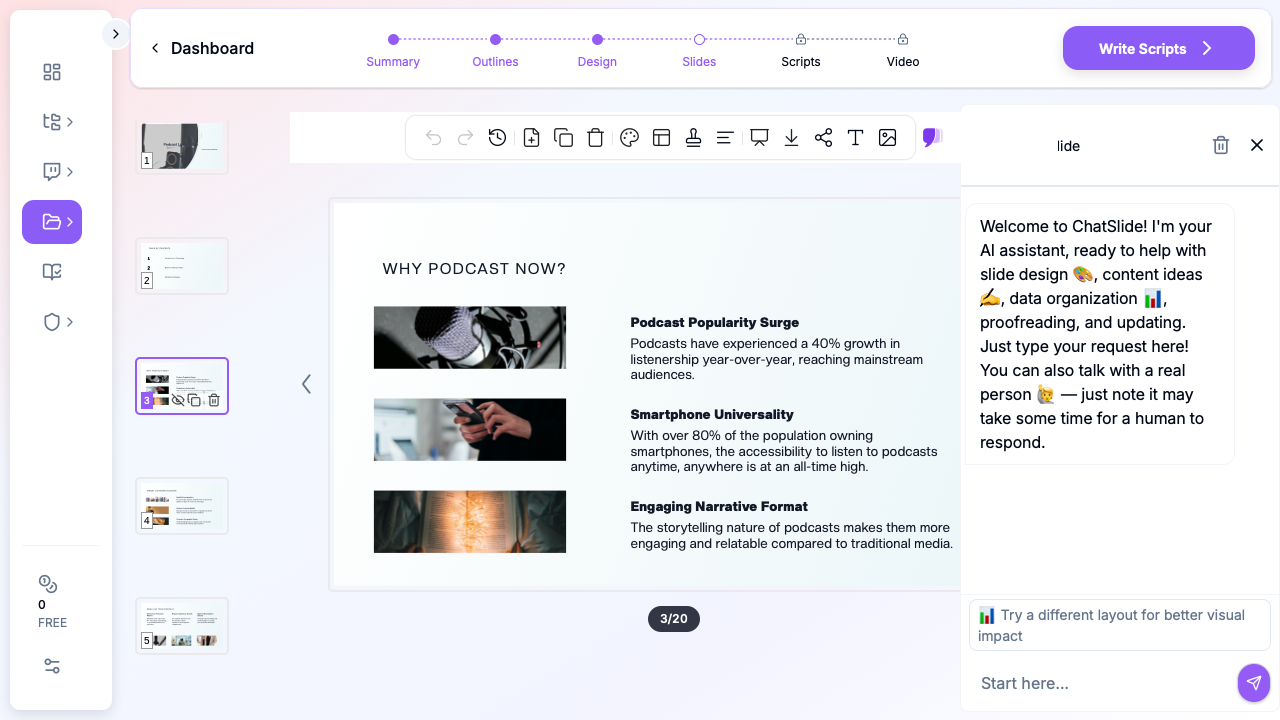
ChatSlide is built to skip that workflow entirely. Generate a presentation from a topic, PDF, or document, then add AI-generated narration in 80+ voices (or clone your own voice with a 60-second sample), preview it on every slide, and export the result as an MP4 video with synced audio and slide advances. No Drive uploads, no format conversion, no Insert → Audio menu.
If you're already invested in Google Slides for editing, you can still use ChatSlide to generate narration audio (export each slide's voice as MP3) and then import those MP3s into Slides via the standard flow above — it's faster than recording yourself and the AI voices sound considerably better than typical screen-recorder mic audio.
Get Started
You can use ChatSlide on the free tier to test the narration and video-export flow — no credit card required.
- Sign up at app.chatslide.ai
- Create a presentation from a topic, PDF, or document
- Open the Scripts tab to review per-slide narration text
- Open the Video tab to generate AI voiceover and export MP4
- Optionally, download each slide's narration as MP3 and import into Google Slides
For most presentations, the answer to "how do I add audio to Google Slides" is "use ChatSlide to generate the audio, then import the MP3 into Slides." The Google Slides audio insertion flow itself is a five-minute job once you have a properly-formatted MP3 in Drive — the time-consuming part has always been producing the audio in the first place.