
Quick Answer: Three ways to convert Google Slides to PowerPoint: (1) Direct download — File → Download → Microsoft PowerPoint (.pptx); (2) Google Drive — right-click the file → Download, which exports the same .pptx; (3) AI rebuild if formatting breaks — regenerate the deck cleanly. Fonts and animations are the usual casualties, so check the slide master after exporting. To rebuild a broken converted deck fast, ChatSlide can regenerate it as clean slides in under 2 minutes — free to start.
Why Convert Google Slides to PowerPoint?
Google Slides is great for collaboration, but plenty of audiences still expect a .pptx file. The conference organizer running a Windows laptop on the venue projector. The client who edits in PowerPoint and won't change tools for one deck. The corporate template team who needs a real PowerPoint master to swap themes. Email attachments that should not require a Google account to open.
Common reasons people convert:
- Offline editing. PowerPoint works without internet; Google Slides degrades fast on a flaky conference Wi-Fi.
- Animation and transition fidelity. PowerPoint supports more nuanced transitions, motion paths, and morph effects that Google Slides either approximates or drops entirely.
- Corporate templates and master slides. Many enterprises maintain
.potxmaster templates with brand-locked fonts, footers, and color schemes that only render correctly in PowerPoint. - Embedded media compatibility. PowerPoint plays a wider range of audio/video formats natively, including older codecs that Google Slides refuses.
- Portable file sharing. A
.pptxlives in email, USB drives, and SharePoint without anyone needing a Google Workspace login.
The conversion is usually quick — a 30-slide deck takes under a minute. But it's rarely 100% lossless. Below are the three methods that actually work in 2026, plus what each one breaks.
Method 1: File → Download → Microsoft PowerPoint (.pptx)
This is the official, fastest method. It works for any Google Slides deck, including ones shared with you.
Steps
- Open your presentation in Google Slides.
- In the top menu, click File.
- Hover over Download.
- Click Microsoft PowerPoint (.pptx).
- Your browser downloads a
.pptxfile with the same name as the Google Slides deck. - Open the file in PowerPoint, Keynote, LibreOffice Impress, or any tool that supports
.pptx.
What to Watch For
- Custom fonts. If your deck uses a Google Fonts family that isn't installed in PowerPoint (Lora, Inter, DM Sans), PowerPoint substitutes the closest local font, and text spacing shifts. Install the font in Windows or macOS first, or switch to a PowerPoint-safe font (Calibri, Arial, Cambria) before downloading.
- Animations and transitions. Google Slides has a smaller animation library than PowerPoint. Most transitions survive intact, but custom timing curves and chained build-ins may simplify into a default fade.
- Embedded videos from Google Drive. Drive-hosted videos do not embed in the exported
.pptx. PowerPoint will show a broken video frame. Re-insert the video as a YouTube link or local file once in PowerPoint. - Speaker notes and comments. Notes are preserved. Comments are not — they get stripped during export.
- Linked Google Sheets charts. A live-linked chart from Google Sheets becomes a static image in the
.pptx. Re-create the chart natively in PowerPoint if you need it to update.
macOS Quirk
On Safari with strict download settings, the .pptx sometimes lands as presentation.pptx.xml. If that happens, switch to Chrome or Firefox, or right-click the download and rename the extension back to .pptx. PowerPoint still opens it.
Method 2: Export Through Google Drive
Useful when you want to convert a folder of decks at once, or when the original presentation lives in a shared drive you only have view access to.
Steps
- Open Google Drive and find the Google Slides file.
- Right-click the file.
- Hover over Download, or for older Drive UIs, just click Download.
- Drive auto-converts the file to
.pptxand triggers the download.
Bulk Conversion
For multiple decks at once:
- Hold Cmd (macOS) or Ctrl (Windows) and click each Google Slides file you want to convert.
- Right-click any selected file and choose Download.
- Google Drive zips the converted
.pptxfiles together for download. - Unzip on your local machine — each Google Slides deck becomes its own
.pptx.
What to Watch For
- View-only files. If the file is shared with you in view-only mode, Drive may block downloading. Ask the owner to either grant Editor access, or run the conversion themselves and share the
.pptxdirectly. - File size cap. Drive can balk on extremely large decks (hundreds of MB with 4K embedded images). The download button just doesn't respond. Workaround: open the deck in Google Slides, then use Method 1 (File → Download → .pptx), which streams the file directly without bundling.
- Naming. The downloaded
.pptxkeeps the Google Slides title, including emoji and spaces. Some corporate file systems reject filenames with/,:, or emoji — rename before uploading to SharePoint.
Method 3: Rebuild with AI (When Conversion Loses Too Much)
If your Google Slides deck relies on Drive-hosted videos, custom Google Fonts, complex animations, or live-linked Sheets charts, the converted .pptx will arrive with broken pieces. Rather than spending an hour patching it, you can rebuild the deck cleanly in PowerPoint format using AI.
This is the path I take when:
- The original deck was built quickly in Google Slides as a draft, and the audience now wants a polished
.pptx. - Brand guidelines changed, and recreating the deck in a fresh PowerPoint template is faster than fixing dozens of layout breaks after export.
- The original creator is unavailable, the source file lost, and only the speaker notes or an outline remain.
Steps with ChatSlide
- Sign up at chatslide.ai. Free accounts can generate full decks.
- Upload your existing Google Slides export, paste in the speaker notes, or just describe the topic and audience. ChatSlide also accepts PDF, DOCX, and direct URL imports.
- Pick a scenario — Team & Projects, Conference & Keynote, Education & Lecture, Sales — and a slide template.
- The AI generates the outline, then full slides with titles, bullets, structured layouts, and stock imagery.
- Edit any slide directly. Add charts via the chart builder, embed videos, swap images.
- Click Export → PowerPoint (.pptx) to download a clean
.pptx. The export uses real PowerPoint shapes, not flattened images, so you can edit every text box and recolor every element after opening it in PowerPoint.
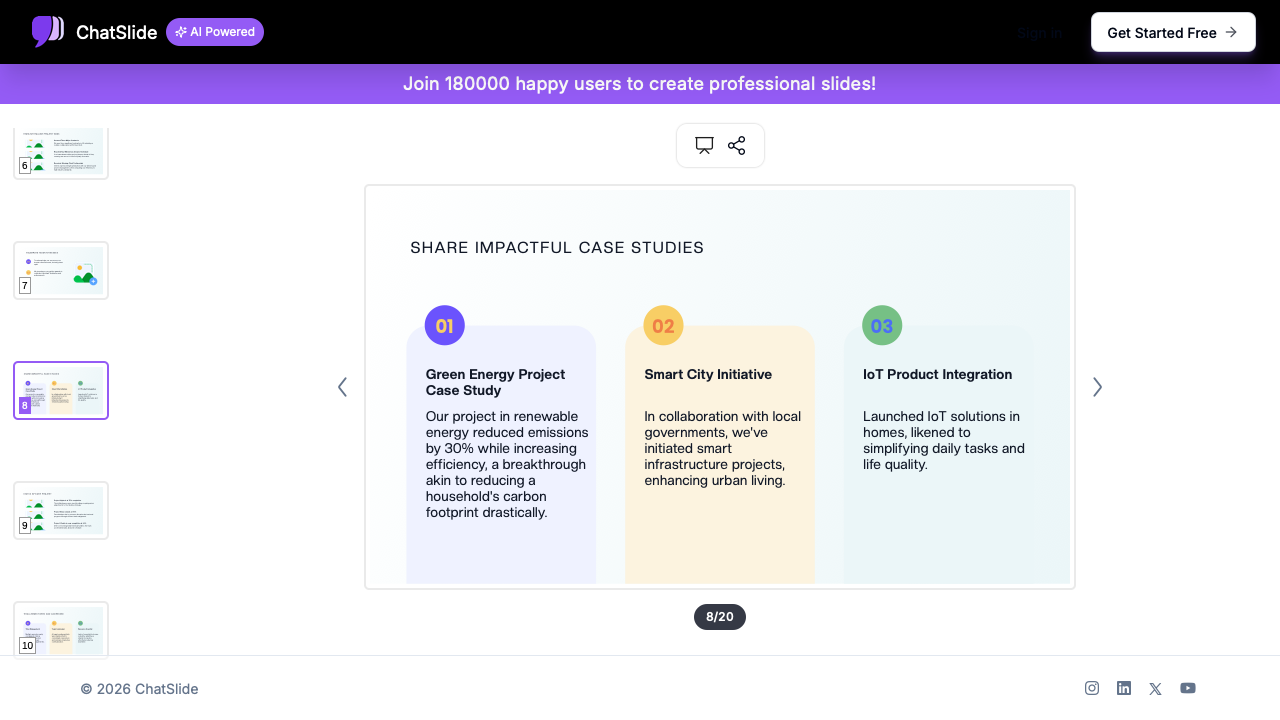
The output is a native PowerPoint file — no conversion artifacts, no missing fonts, no broken Drive videos.
Side-by-Side: Which Method to Use
| Situation | Best Method |
|---|---|
Quick one-off export, deck has standard fonts and transitions | Method 1: File → Download |
You need to convert 5+ decks at once from Drive | Method 2: Drive bulk download |
Deck has Drive-hosted videos, custom fonts, or live charts | Method 3: Rebuild with AI |
You only have view access | Ask owner, or recreate from notes via Method 3 |
You need to apply a corporate PowerPoint template | Method 3 (template-aware rebuild) |
You want a presentation that an offline laptop can run reliably | Method 1, then test in PowerPoint with internet off |
Common Issues After Conversion
Fonts Look Wrong
PowerPoint substitutes fonts it doesn't have installed. If your Google Slides deck used Open Sans, Roboto, or any Google Fonts family, install those families locally before opening the .pptx. On macOS, download the font files from fonts.google.com and double-click each .ttf to install. On Windows, right-click the .ttf and choose Install. Re-open the .pptx and the substitution warning disappears.
Slides Look Slightly Off
Google Slides defaults to a 16:9 widescreen, but its rendering engine handles spacing slightly differently from PowerPoint. After conversion, check:
- Text boxes near slide edges — they may overflow the safe area in PowerPoint.
- Tables — column widths sometimes redistribute.
- Grouped objects — Google's group hierarchy converts to PowerPoint's group hierarchy, but nested groups may flatten.
A quick pass through View → Slide Master in PowerPoint catches most issues.
Embedded Videos Don't Play
Google Slides supports YouTube embeds and Drive-hosted videos. After converting to .pptx:
- YouTube videos survive as live web objects and play if PowerPoint has internet access.
- Drive videos become a static thumbnail. Replace by inserting the video as a local file (Insert → Video → This Device) or as a YouTube link.
Animations Disappear
Google Slides has a smaller animation set. Most basic animations (fade, slide in, appear) convert cleanly. Complex chains and motion paths flatten to a single appear effect. If animation matters, add it back inside PowerPoint after the conversion.
Speaker Notes Are Missing
They aren't — they're hidden. In PowerPoint, click View → Notes Page or toggle the notes pane at the bottom. The notes carry over with formatting intact.
File Won't Open
If PowerPoint says "The file is corrupt and cannot be opened":
- Check the file extension. Some browsers append
.zipor.xmlafter.pptx. - Re-download the file from Google Slides directly via Method 1 — Drive bulk downloads occasionally produce malformed archives for very large decks.
- As a last resort, open the file in LibreOffice Impress, then save as
.pptx. LibreOffice can repair some malformed structures that PowerPoint rejects.
Frequently Asked Questions
Can I convert Google Slides to PowerPoint without losing formatting?
Lossless conversion is rare for any presentation tool, including PowerPoint to Keynote. To minimize loss, use PowerPoint-safe fonts (Calibri, Arial, Cambria) in your Google Slides deck before exporting, avoid Drive-hosted videos, and stick to the standard animation set. For decks that depend on complex effects, use Method 3 to rebuild cleanly.
Is the converted PowerPoint editable?
Yes. The .pptx is fully editable — every text box, shape, and image is a real PowerPoint object. You can change content, recolor, restyle with PowerPoint's design ideas, or apply a different template.
How do I convert PowerPoint back to Google Slides?
The reverse direction works similarly. Upload the .pptx to Google Drive, right-click, and choose Open With → Google Slides. See our guide on how to convert PowerPoint to Google Slides for a full walkthrough.
Will my Google Slides comments transfer to PowerPoint?
No. Comments and suggestion-mode edits do not survive the export. If comments contain decisions or feedback you need to keep, copy them into a separate document or paste them into speaker notes before downloading.
Can I batch-convert many Google Slides decks at once?
Yes — see Method 2's bulk conversion section. Drive will zip multiple converted files together. For very large batches (50+ decks), the Drive UI gets slow; consider scripting the conversion via the Google Drive API.
What file size should I expect?
A .pptx is usually 1.5–2x larger than the original Google Slides file because PowerPoint stores each image as a separate XML part. A 30-slide deck with stock images typically lands between 5 and 20 MB. Keep this in mind when emailing.
Get Started
Whether you need a quick .pptx for tomorrow's offsite or a clean rebuild for a brand-new corporate template, the path is the same: download, open, fix the small things, present.
If conversion keeps breaking your deck or you'd rather skip the cleanup, try ChatSlide for free. Generate a polished presentation from a topic, document, or rough outline, then export native .pptx in one click. No font substitution warnings, no missing videos, no animations dropping into placeholder fades.
The deck that opens correctly on the conference projector is worth more than the deck that almost did.