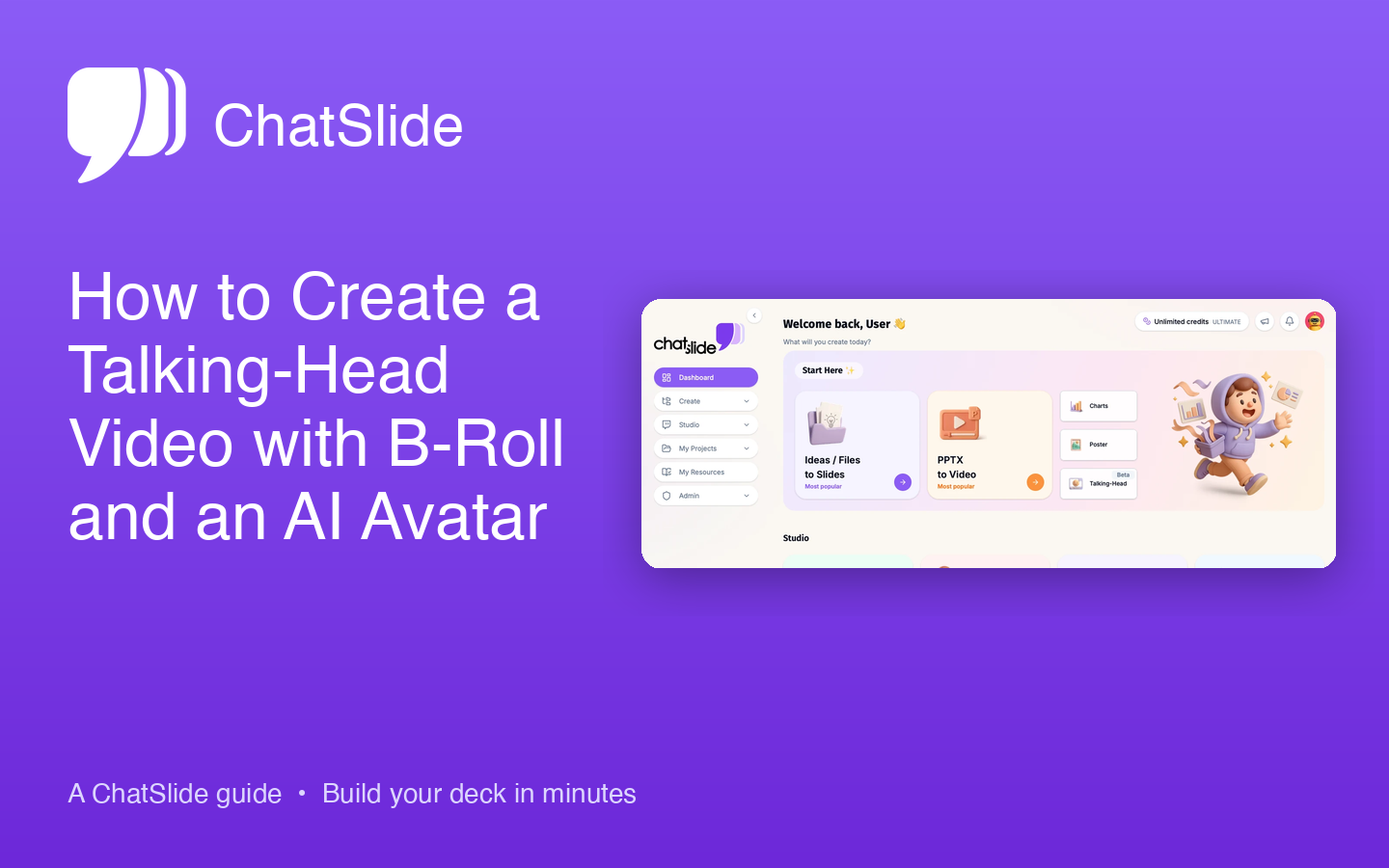
Quick Answer: ChatSlide can turn a deck into a talking-head video with the AI avatar in a sidebar on the right and stock B-roll filling the slide region on the left — the doctorbecker / explainer YouTube format. Open any project, go to Scripts, expand the Avatar section, flip on Sidebar avatar layout, pick your avatar voice, and click Generate Video. ChatSlide extracts visual keywords from each slide's script, pulls a matching free landscape clip from Pexels, and composites it into the slide region next to the talking-head — fully automatic, no manual editing.
Why this format works on YouTube
The "talking head on the side + B-roll filling the rest of the frame" layout is what successful explainer channels use — doctorbecker hit ~$7k/mo in three months using exactly this format. It works because:
- The presenter stays on-screen so viewers stay attached to a face.
- B-roll changes every 4–8 seconds, which is what the YouTube algorithm rewards (high "retention curve" with constant visual change).
- No empty static slides — every second of audio is paired with motion.
Until recently, this required Adobe Premiere or DaVinci Resolve plus 4–6 hours of cutaway editing per video. ChatSlide automates the whole pipeline: script → keywords → stock clips → composited video.
Before you start
You'll need:
- A ChatSlide account (free plan works — avatar video itself is a paid feature).
- A topic for the deck (10–20 slides is the sweet spot for a 2–3 minute video).
- An avatar voice — built-in Azure / Jogg avatars, or upload your own via Voice Cloning.
That's it. You don't need a Pexels account, you don't need to manually pick B-roll clips, and you don't need any editing software.
Step 1: Generate the deck
Open the dashboard and create a new presentation from your topic, file, or PDF. ChatSlide writes the outline, fills in slide content, and picks a theme. If you want the avatar to read your script word-for-word, edit the per-slide scripts in the Scripts step before generating the video.
For B-roll to work well, write scripts that describe concrete, filmable things: "a doctor checking a stethoscope" works; "leveraging synergies in the value chain" does not. The keyword extractor needs visual nouns.
Step 2: Open the Scripts step
After generating slides, click Scripts in the top navigation. You'll see one script per slide on the left, and the Voice / Avatar / Music / Subtitles settings panel on the right.
Step 3: Pick a voice and avatar
Expand the 🎙️ Voice section and pick a voice — for the doctorbecker format, a clear conversational voice (Azure Andrew, OpenAI Onyx, or a cloned voice) works better than the more "TV anchor" voices.
Expand 🦹♂️ Avatar and pick the avatar character. Built-in Azure avatars are fastest; Jogg avatars look more cinematic; uploaded avatars (Pro+) let you use your own face.
Step 4: Turn on Sidebar Avatar Layout
Inside the Avatar section, you'll see Sidebar avatar layout with a toggle and a short description. Flip it on. The video will render with:
- 70% of the frame on the left for the slide content or B-roll clip
- 30% of the frame on the right for the avatar presenter (vertically centered, watermark stripped)
If you leave it off, ChatSlide renders the legacy picture-in-picture layout (small avatar in a corner of the slide).
Step 5: Enable B-Roll insertion (optional)
When you flip on Sidebar avatar layout, ChatSlide can also fetch automatic B-roll for each slide. The flow runs entirely server-side:
- ChatSlide sends each slide's script to a small language model that extracts 1–3 visual keywords ("doctor stethoscope", "sunrise mountain", "busy office").
- Those keywords hit the Pexels stock-video API, looking for landscape clips between 4 and 30 seconds.
- The first matching clip is downloaded and composited into the slide region, behind the avatar.
- If no good clip is found for a slide, ChatSlide gracefully falls back to the static slide image — no failures, no skipped slides.
You don't manage any of this. There's no Pexels account to set up, no clip library to maintain, no manual selection. The whole pipeline is capped at 20 B-roll lookups per video so a 100-slide deck won't fan out into hundreds of API calls.
Step 6: Generate the video
Click Generate Video. The job takes 2–8 minutes depending on slide count and avatar provider:
- Avatar synthesis (Azure or Jogg) per slide
- B-roll fetch per slide (parallel to avatar)
- FFmpeg composition: slide/B-roll on left, avatar on right
- Optional background music + transitions
- Final encode at 1920×1080, 24fps, libx264
You'll get an email when it's done. The video shows up in the Video step inside the project.
How the layout actually composes
For curious users, here's what FFmpeg does per slide:
Final frame: 1920 × 1080
┌────────────────────────────────────┬──────────────┐
│                                    │              │
│   Slide image OR Pexels B-roll     │   Avatar     │
│   1344 × 1080                      │   576 × 1080 │
│   (centered, letterboxed if 16:9)  │   (cropped   │
│                                    │   to remove  │
│                                    │   watermark) │
└────────────────────────────────────┴──────────────┘
The slide region is letterboxed for 16:9 source content; the avatar region pads the talking-head clip vertically to fill the height. The avatar's bottom 50px is cropped automatically to remove provider watermarks.
Tips for better videos
- Write conversational scripts. "Today I want to show you three things" beats "This presentation covers three key topics."
- Keep slides short. 6–12 words on screen at most. The viewer is reading you, not the slide.
- Use specific nouns. "A busy hospital corridor" gets a useful B-roll match; "the healthcare ecosystem" does not.
- Match voice to topic. Conversational voices work for educational content; news anchor voices work for finance and corporate.
- Don't over-edit. ChatSlide's per-slide regeneration is fast — re-roll a single slide that didn't read well, rather than restarting the whole video.
When to use sidebar avatar vs. fullscreen avatar
| Use sidebar avatar when… | Use fullscreen (legacy PiP) when… |
|---|---|
Making YouTube/explainer content | Generating internal training videos |
Script is conversational and specific | Slides have dense data the viewer needs to read |
You want B-roll cutaways | Slides are charts, screenshots, code |
Target length is 2–10 minutes | Target length is under 60 seconds |
Limitations and what's coming next
- B-roll requires Pexels availability for your keywords. Abstract content (financial concepts, mathematics) often won't find good visuals — the static slide is shown instead.
- The layout is fixed at 70/30. A configurable split is on the roadmap.
- Slides authored at 16:9 letterbox slightly inside the 1344×1080 left region. Square or 4:3 slides fit edge-to-edge.
- B-roll selection is "first matching" rather than semantic re-ranking. Smarter selection (CLIP-based ranking, brand-safe filtering) is on the roadmap.
Try it
Open ChatSlide and run through a deck. The whole flow from topic to YouTube-ready talking-head video takes under 15 minutes. If you've been hand-cutting talking-head videos in Premiere or CapCut, this is the closest thing to "press a button and ship" that exists today.
If a specific feature is missing for your workflow — alternate layouts, vertical (Shorts) format, smarter B-roll matching — send us feedback. The original sidebar feature shipped because a single user described what worked for them on YouTube.