
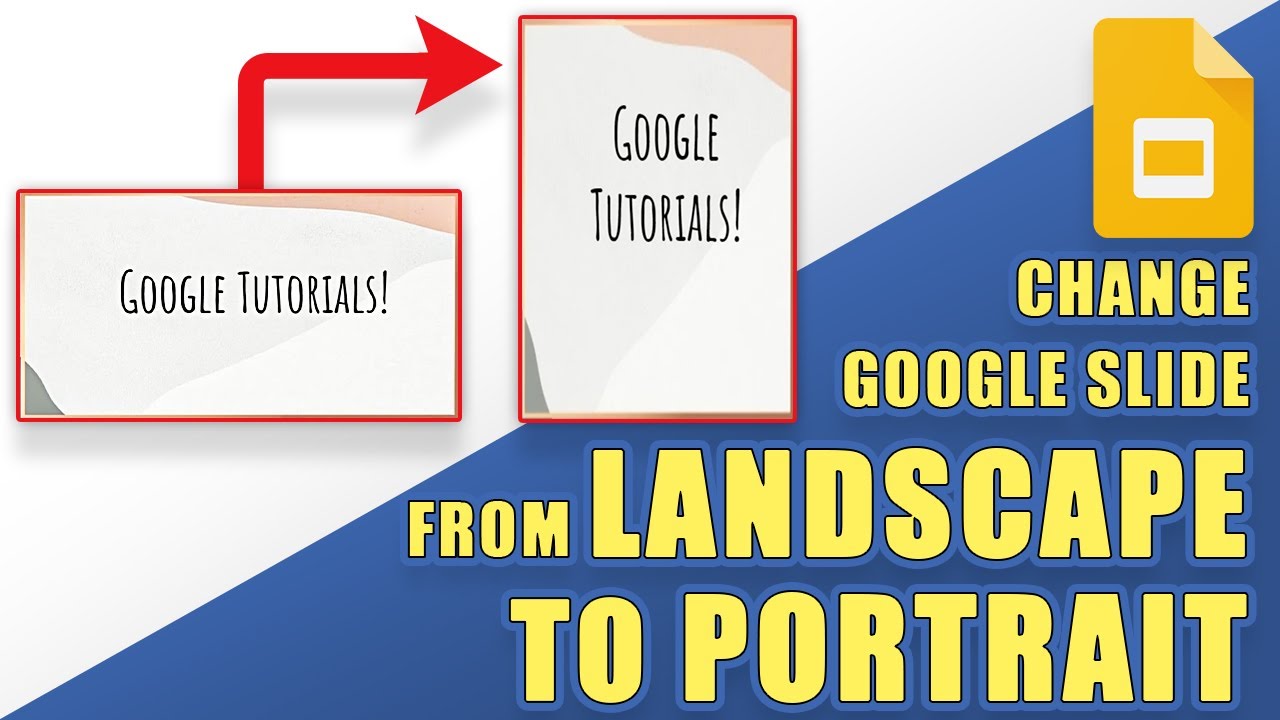
Quick Answer: Google Slides has no "portrait" button — you change the whole deck's canvas instead. Go to File → Page setup → Custom and swap the dimensions: enter 7.5 × 10 inches for a classic portrait page, or 1080 × 1920 px (5.63 × 10 in) for phone-story 9:16. The change applies to every slide in the deck — Google Slides cannot mix portrait and landscape slides in one file.
Where the setting hides
Google Slides decks are landscape 16:9 by default, and there is genuinely no orientation toggle — the feature people search for doesn't exist under that name. What exists is a custom canvas size:
- Open your deck and click File → Page setup. (If you don't see Page setup, you're in a Microsoft PowerPoint file opened in Slides — use File → Save as Google Slides first.)
- In the dropdown that says Widescreen 16:9, choose Custom.
- Swap width and height. For portrait letter-page proportions, enter 7.5 × 10 inches. For true 9:16 phone format, enter 5.63 × 10 inches (the same ratio as 1080 × 1920).
- Click Apply.
Every slide instantly becomes vertical. Existing content does not reflow — text boxes and images keep their absolute positions, so a deck you've already built will need manual cleanup after the switch. If you can, set the orientation before adding content.
The sizes that actually matter
| Use case | Enter in Page setup | Ratio |
|---|---|---|
Portrait document / handout | 7.5 × 10 in | 3:4 |
Phone story / Reels / TikTok slide | 5.63 × 10 in | 9:16 |
Printable US Letter poster | 8.5 × 11 in | letter |
A4 poster | 8.27 × 11.69 in | A4 |
Pinterest pin | 6.67 × 10 in | 2:3 |
Flipped widescreen (16:9 rotated) | 7.5 × 13.33 in | 9:16 |
Tall phone (modern displays) | 9 × 19.5 in | ~9:19.5 |
Google Slides accepts inches, centimeters, points, or pixels — type the unit directly into the field (e.g. 1080 px).
The three catches
1. It's all-or-nothing. The canvas size is a deck-wide property. If you need one vertical slide inside a landscape deck, the standard workaround is a second deck for the vertical content, linked from the main deck — or place a rotated image of the vertical content on a landscape slide.
2. Templates break. Theme backgrounds and layout placeholders were designed for 16:9; after switching, open Slide → Edit theme and stretch the background and placeholders to the new canvas.
3. Printing needs matching settings. When you print a portrait deck, choose portrait orientation in the print dialog too, or the printer will letterbox your vertical slides onto landscape pages. Printing speaker notes alongside vertical slides is its own maze — see our guide on how to print Google Slides with notes.
Vertical decks without the manual cleanup
If the reason you want portrait slides is a document-style deliverable — a one-pager, a handout, a study sheet — it's often faster to generate it at the right dimensions from the start. ChatSlide builds presentations from a PDF, Word document, or topic and exports to PowerPoint, PDF, or social-format video; for study material specifically, the AI cheat sheet maker produces dense one-page portrait sheets directly from your notes.
FAQ
Can I make just one slide vertical in Google Slides? No. Canvas size applies to the entire deck. Use a second linked deck, or rotate that slide's content 90° so it reads vertically on a landscape canvas.
What is the exact 9:16 size for Google Slides? Any pair with a 9:16 ratio works: 5.63 × 10 inches or 1080 × 1920 pixels are the common choices.
Why is Page setup missing from my File menu? You're editing a .pptx file in compatibility mode. File → Save as Google Slides restores the full menu — or keep it as PowerPoint and change the slide size there instead (convert between the two whenever you need).
Does switching orientation resize my content? No — objects keep their positions and sizes, which is why decks look scrambled after the switch. Set orientation first, add content second.