
Quick Answer: Open your deck and go to File → Print preview. In the toolbar dropdown that says 1 slide without notes, choose "1 slide with notes" — each page now shows the slide on top and its speaker notes below. From there, click Print, or Download as PDF to keep a notes copy. There is no built-in layout with more than one notes-slide per page; the workaround is below.
The exact steps
- File → Print preview. Slides opens a special preview toolbar (this is different from hitting Ctrl+P, which skips the layout options). Depending on your UI version the menu item is labeled Print preview or Print settings and preview — same feature.
- Click the leftmost dropdown — it defaults to 1 slide without notes — and select 1 slide with notes.
- Check the preview: each page = one slide image + that slide's speaker notes underneath.
- Click Print for paper, or Download as PDF for a digital notes copy (this is also the reliable way to share notes with someone else).
If a slide's notes are long, they continue onto a second page automatically — nothing is silently cut off in the notes layout.
Printing multiple slides per page (handouts)
The notes layout is locked to one slide per page. For audience handouts without notes, the same Print preview dropdown offers 2, 3, 4, 6, or 9 slides per handout page.
Want handouts with notes at more than one slide per page — the classic PowerPoint "3 slides + note lines" layout? Google Slides can't do it natively. Two workarounds:
- Route through PowerPoint: File → Download → Microsoft PowerPoint (.pptx), open it in PowerPoint, and use its Notes Pages / 3-per-page handout printing. (Round-tripping is painless — see converting between Slides and PowerPoint.)
- Print the PDF at N-up: Download as PDF with notes (one slide per page), then in your system print dialog set "Pages per sheet: 2". Compact, though the notes text shrinks accordingly.
A related sub-case: handouts with blank lines for handwritten notes (the classic lecture printout). Google Slides has no such layout; the reliable route is the same PowerPoint round-trip — its "3 slides" handout layout prints ruled lines beside each slide.
Common problems and fixes
The "with notes" option is greyed out or missing. You're in a .pptx opened in compatibility mode — File → Save as Google Slides first.
Notes print too small. The notes area inherits its font size from the notes pane. Click into the speaker notes on each slide (or the master via View → Theme builder) and raise the font size; 12–14 pt survives printing well.
Speaker notes missing on someone else's copy. Viewers with comment-only access can print with notes, but if the file was shared as view only with "disable download/print" set, the Print preview menu is blocked entirely — ask the owner for standard view access.
Printing a vertical/portrait deck. Match the printer orientation to the deck or you'll get letterboxing — details in how to make Google Slides vertical.
If the notes are the hard part
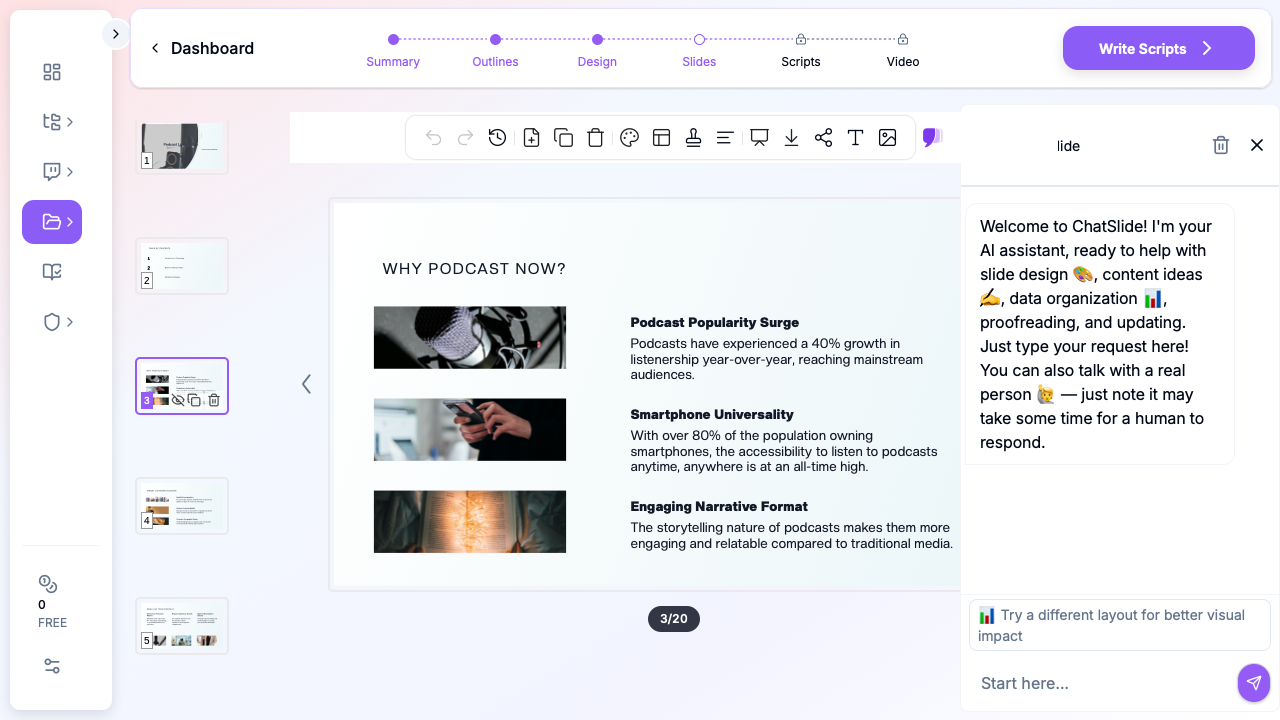
Printing notes is easy — writing them is the time sink. If your deck exists but the narration doesn't, ChatSlide generates speaker notes automatically for every slide when it builds a presentation from your documents, and its AI script generator drafts full talk tracks for existing decks. Present from printed notes, or skip the paper entirely and let it produce a narrated video of the deck.
FAQ
Can I print only the speaker notes, without slide images? Not natively. Download as PDF with notes, then copy the notes text from the PDF — or keep notes in a Doc from the start if you need text-only printing.
How do I save Google Slides as a PDF that includes notes? File → Print preview → "1 slide with notes" → Download as PDF. A plain File → Download → PDF export does not include notes.
Can I print 3 slides per page with note lines like PowerPoint? Not in Google Slides. Export to .pptx and print from PowerPoint, or 2-up the notes PDF in your print dialog.