
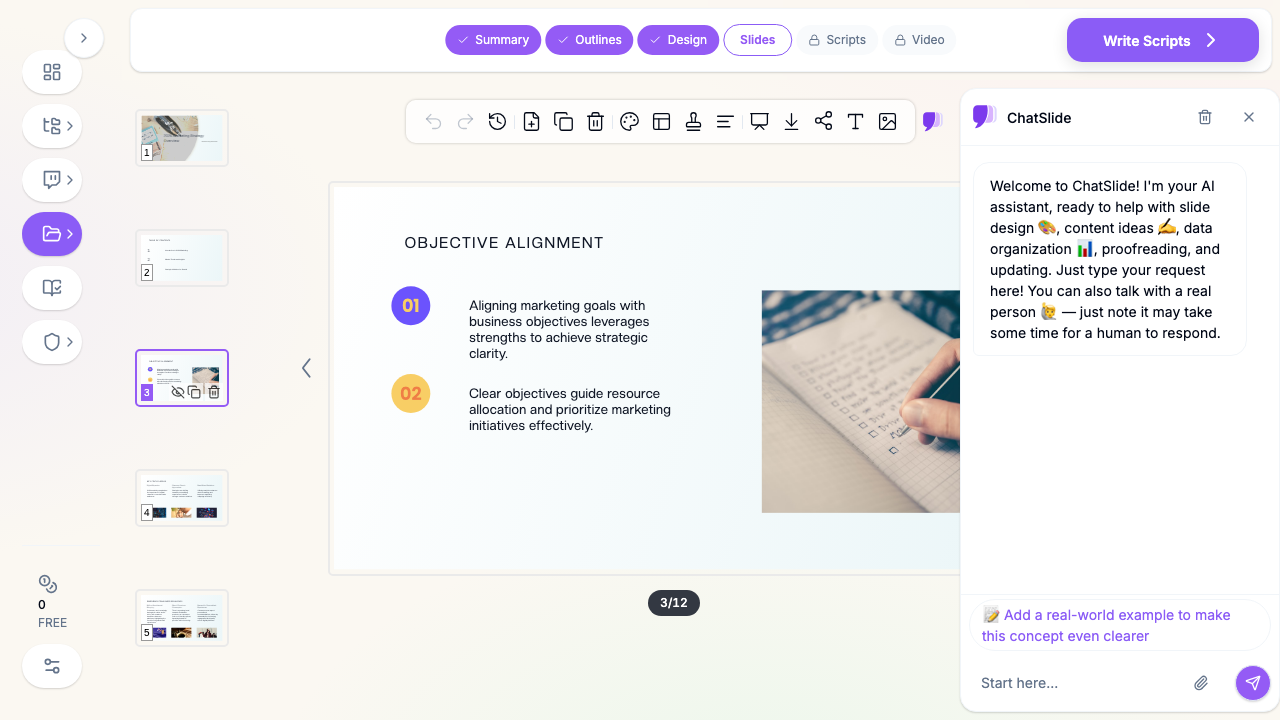
Quick Answer: To remove Copilot from PowerPoint: File → Options → Copilot → uncheck "Enable Copilot," then restart PowerPoint. If you do not see that checkbox, disable it through privacy settings instead: File → Options → Trust Center → Trust Center Settings → Privacy Options → uncheck "Turn on optional connected experiences." On Mac use PowerPoint → Preferences → Privacy. On the web and across a company, Copilot is controlled by the Microsoft 365 admin, not the individual app. You cannot fully uninstall Copilot from a licensed Microsoft 365 install — you can only turn it off. If what you actually wanted was AI that builds the whole deck (not a sidebar that suggests edits), a dedicated tool like ChatSlide generates a finished, on-brand presentation from your content in one step.
Why People Want Copilot Gone
Microsoft added Copilot across the Office apps, and the PowerPoint button shows up whether you asked for it or not. The frustration is well documented — the r/powerpoint thread asking how to remove Copilot runs 59 comments deep, full of people who never wanted it. The reasons are consistent:
- It is distracting. A glowing button in the ribbon and inline suggestions pull focus while you are trying to design a slide.
- Privacy and data concerns. Copilot runs through Microsoft's cloud "connected experiences." In regulated workplaces, legal, or education settings, people do not want slide content leaving the machine.
- It is not free. The genuinely useful Copilot features sit behind a separate paid license. The button is still there even if you never bought it — a constant upsell.
- The output is shallow. Copilot rewrites or restyles what is already on the slide. It does not know your source material, so for most users it adds friction without adding much value.
The good news: you can shut it off. The steps depend on your platform and on whether you control the machine or your IT department does.
Method 1: Turn Off the Copilot Toggle (Windows)
Recent Microsoft 365 builds added a dedicated switch. This is the cleanest way to remove Copilot for a single user.
- Open PowerPoint and click File.
- Click Options at the bottom of the left menu.
- In the Options dialog, select Copilot in the left sidebar.
- Uncheck Enable Copilot.
- Click OK and restart PowerPoint.
After the restart, the Copilot button disappears from the Home tab and the inline prompts stop. If the Copilot category is not in your Options sidebar, your build is older or the feature is managed by your organization — use Method 2 or Method 4 instead.
Method 2: Disable Optional Connected Experiences
Copilot depends on Microsoft's cloud "connected experiences." Turning those off disables Copilot across every Office app at once, and it is available even on builds that lack the dedicated toggle.
- Click File → Options.
- Select Trust Center, then click Trust Center Settings.
- Choose Privacy Options (sometimes labeled Privacy Settings).
- Uncheck Turn on optional connected experiences.
- Click OK, then close and reopen PowerPoint.
This is the most thorough single-user option because it cuts the underlying service, not just the button. The trade-off is that other cloud-dependent features (some online templates, certain stock content, and the dictation/translation tools that rely on the cloud) also turn off. For privacy-conscious users that is usually the point.
Method 3: Remove the Copilot Button from the Ribbon
If you do not mind Copilot existing but just want the button out of your face, hide it instead of disabling the service.
- Right-click anywhere on the ribbon and choose Customize the Ribbon.
- In the right-hand list, find the Home tab and expand it.
- Locate the Copilot group, select it, and click Remove.
- Click OK.
The button is gone from view, though the feature is still installed and active in the background. Combine this with Method 1 or 2 for a clean experience.
Method 4: Disable Copilot for a Whole Organization (Admins)
For IT administrators who need to remove Copilot across many machines, do it centrally rather than asking every user to dig through Options.
- Microsoft 365 Apps admin center / Cloud Policy: Create a policy configuration that sets the "Enable Copilot" / connected-experiences settings to disabled and assign it to the relevant user groups. This enforces the setting and greys it out so users cannot turn it back on.
- Group Policy (domain-joined Windows): Install the Office Administrative Templates, then under User Configuration → Administrative Templates → Microsoft Office → Privacy → Trust Center, configure Allow the use of additional optional connected experiences to Disabled.
- License management: If you are paying for Microsoft 365 Copilot and want to stop, remove the Copilot add-on license from users in the Microsoft 365 admin center. This removes the paid features; the base button behavior is still governed by the policies above.
Apply policy changes during a maintenance window — they take effect after the Office apps restart and the policy syncs, which can take a little while.
How to Disable Copilot on Mac
PowerPoint for Mac uses Preferences rather than Options:
- In the menu bar, click PowerPoint → Preferences.
- Open Privacy.
- Uncheck Turn on optional connected experiences (and, if present, the dedicated Copilot toggle).
- Quit and reopen PowerPoint.
As on Windows, this disables the cloud features that Copilot relies on.
What About PowerPoint on the Web?
The browser version of PowerPoint gives individuals almost no control over Copilot — its presence is decided by your Microsoft 365 tenant. If you are a personal subscriber, the desktop methods above are your real options. If you are on a work or school account, the Copilot button in the web app can only be removed by your administrator using the Cloud Policy or license steps in Method 4. There is no per-user "off" switch in the web app itself.
Can You Fully Uninstall Copilot?
Not from a licensed Microsoft 365 installation. Copilot is integrated into the apps; there is no separate program to remove from "Add or Remove Programs." Disabling it through the methods above is the supported way to make it disappear in practice. (The standalone Microsoft Copilot app that ships with Windows is separate and can be uninstalled, but that does not affect the button inside PowerPoint.)
Troubleshooting
The Copilot button came back after an update
Office updates occasionally re-enable features. If Copilot reappears, re-check the toggle in Method 1 or, more durably, use the connected-experiences setting in Method 2 — it survives updates more reliably. Admins should enforce it via policy (Method 4) so updates cannot override it.
I do not see the "Copilot" option in Options
Your build predates the dedicated toggle, or your organization manages the setting. Use Method 2 (connected experiences) as a user, or ask your admin.
Disabling connected experiences broke another feature
That is expected — translation, some online templates, and cloud stock media share the same switch. If you need one of those back, re-enable connected experiences and instead use Method 1 (the dedicated Copilot toggle) or Method 3 (hide the button) so you keep the cloud features without the Copilot prompts.
If You Wanted AI for Slides — Just Not Copilot
A lot of people disabling Copilot are not anti-AI. They are anti-this AI: a sidebar bolted onto PowerPoint that restyles slides you already built and charges extra for the parts that help. If you want AI to do the heavy lifting — actually building the deck — a purpose-built presentation tool is a different experience entirely.
ChatSlide AI starts from your material instead of an existing slide. Upload a PDF, paste your notes, drop in a report or a spreadsheet, or just give it a topic, and it generates a complete presentation: outline, written slides, real charts from your data, matching images, and speaker notes. You then refine with targeted AI edit tools rather than fighting an assistant inside the ribbon. When you are done, export to PowerPoint (.pptx), PDF, or even a narrated video.
The difference is altitude. Copilot helps you nudge one slide. A dedicated AI deck maker hands you the whole presentation, then gets out of the way.
Summary
You cannot uninstall Copilot from PowerPoint, but you can remove it from your workflow. As an individual on Windows, uncheck Enable Copilot in File → Options → Copilot, or disable optional connected experiences in the Trust Center for a more complete shutoff. On Mac, do the same under Preferences → Privacy. Hide the ribbon button if you only want it out of sight. For a whole company, administrators should disable it centrally with Cloud Policy, Group Policy, or by removing the Copilot license. And if it was AI-built slides you were after all along — not an in-app assistant — a dedicated tool like ChatSlide builds the entire deck from your content, no ribbon button required.