
Quick Answer: ChatSlide is an AI presentation maker that turns litigation documents — briefs, deposition excerpts, expert reports, scanned exhibits — into structured trial presentations. Upload a PDF or describe the case theory, review the generated outline, refine the chronology and exhibit slides, and export to PowerPoint or PDF for the courtroom. Free to start, no credit card.
The Trial Presentation Problem
Trial teams do not lose time on the law. They lose it on production. An opening statement deck has to compress months of discovery into a narrative a jury can follow in twenty minutes: the parties, the timeline, the key documents, and the two or three sentences from depositions that the whole case turns on. A closing argument deck has to do the same thing in reverse — walk back through the evidence that came in and tie each piece to a jury instruction.
Dedicated trial presentation software handles courtroom playback well, but building the actual slides still means hours in PowerPoint the week before trial, when attorney time is worth the most and available the least. Trial graphics consultants solve the design problem at consultant prices and consultant lead times. Neither helps the associate who was just told the pretrial conference moved up and the demonstratives are due Thursday.
The materials already exist — the pretrial brief, the deposition designations, the exhibit list. What is missing is a fast path from those documents to a clean, court-ready deck.
What Makes a Strong Trial Exhibit Presentation
The best trial presentations share qualities that generic corporate decks lack:
A chronology the jury can hold in their heads. Almost every trial presentation needs a timeline slide — often several, at different zoom levels. The master chronology orients the jury once; detail chronologies (the week of the accident, the month the emails were sent) come back during witness examinations. Dates, actors, and documents belong on the timeline; argument does not.
Exhibit slides that match the record. Every document shown to the jury should carry its exhibit number exactly as admitted (PX-14, DX-203, or the court's convention), and a callout slide should show the exhibit in context — the full page, then the enlarged excerpt — so opposing counsel cannot suggest the quote was clipped unfairly.
One point per slide. Courtroom slides are read at a distance, under time pressure, by twelve people who did not go to law school. A slide with a heading, one document callout or one timeline segment, and nothing else beats any dense summary.
Demonstratives that survive an objection. A summary slide that fairly reflects admitted evidence is a demonstrative aid; a slide that adds characterization is an argument waiting to be excluded. Build summary charts from the underlying records (and be ready to lay the foundation for them), keep argumentative language for opening and closing, and clear demonstratives with the court's pretrial procedures where required.
Consistent, sober design. Neutral backgrounds, high contrast, large type. Jurors notice production values in both directions — sloppy slides undermine credibility, and flashy ones invite the suggestion that the case needs decoration.
How to Create a Trial Presentation with ChatSlide, Step by Step
1. Upload the Case Materials
Start from the documents rather than a blank page. Upload the pretrial brief, the statement of facts, a chronology memo, or deposition excerpts as PDF or Word files. ChatSlide reads the documents — including OCR for scanned exhibits — and uses them as the source material for the deck, so the slide content comes from your record rather than from generic AI knowledge.
For an opening statement, the pretrial brief plus a chronology memo is usually the right input. For a witness examination deck, upload the deposition designations for that witness.
2. Frame the Deck with a Specific Prompt
Tell the AI what kind of trial presentation you are building and for whom. Specific prompts produce usable structure:
- Opening statement: "Opening statement presentation for the plaintiff in a breach-of-contract case, walking the jury through the parties, the agreement, the timeline of performance and breach, and the damages, based on the uploaded brief"
- Closing argument: "Closing argument presentation organized around the elements of negligence, tying admitted exhibits and witness testimony to each element"
- Expert direct: "Direct examination presentation for a damages expert, presenting the methodology, the data sources, and the calculation in plain language for a jury"
3. Refine the Generated Outline
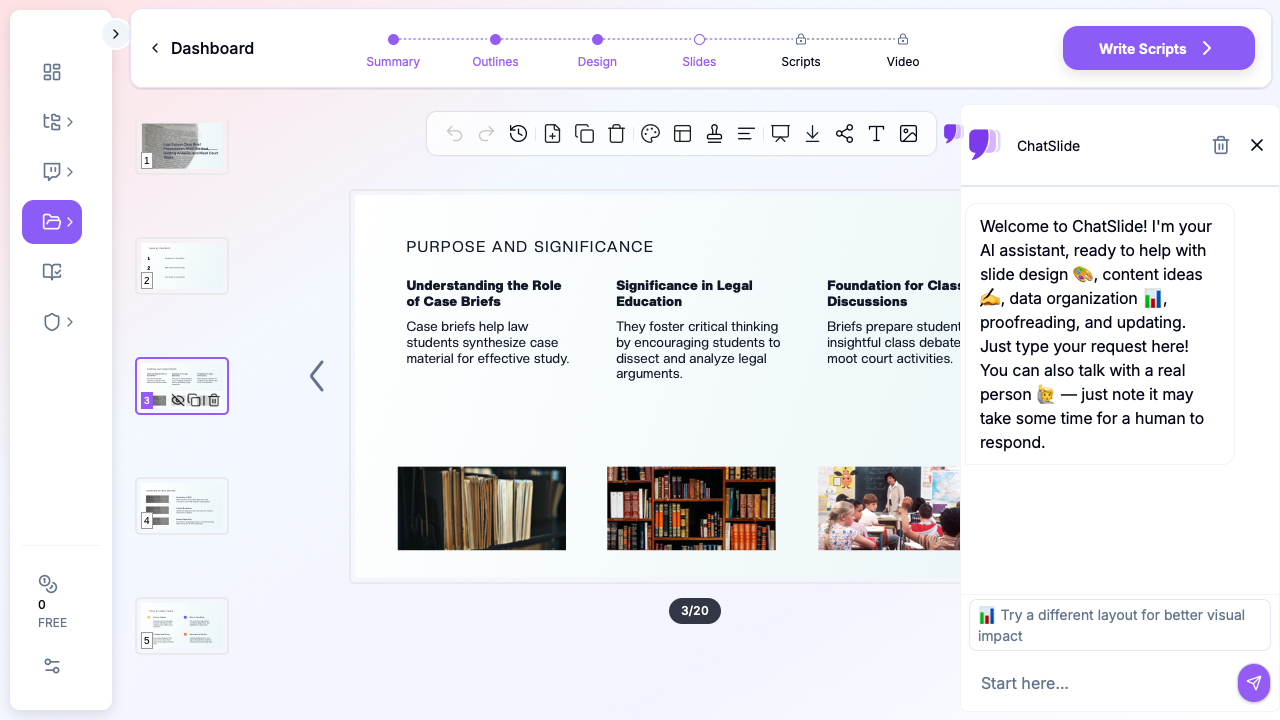
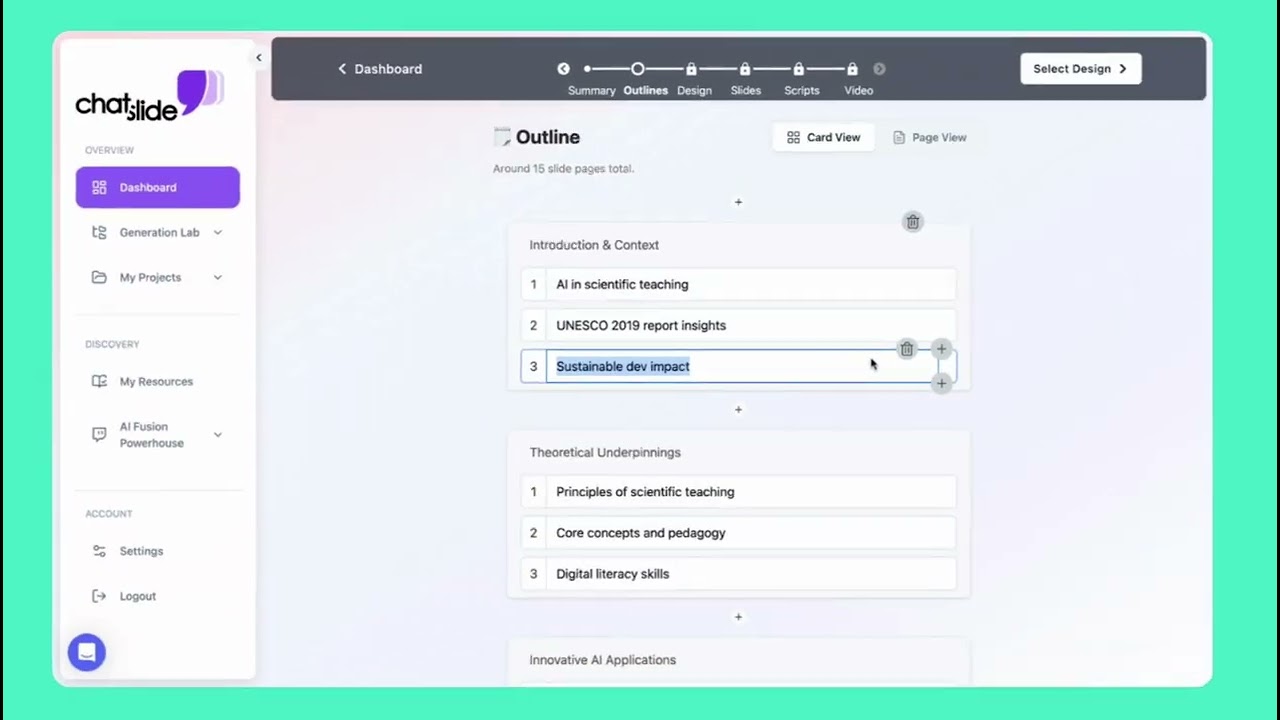
ChatSlide generates an editable outline before it builds slides. This is where trial judgment comes in. Reorder sections so the narrative leads with the strongest ground, cut anything that assumes evidence not yet admitted, and make sure the chronology section lists the specific dated events you intend to show. Set the section count to match the argument — six to eight sections covers most openings.
4. Build the Chronology and Exhibit Slides
Use timeline layouts for the chronology and one slide per key document. Paste the operative language of each exhibit onto its slide and label it with the admitted exhibit number. Where a summary chart aggregates voluminous records, keep the underlying documents cited on the slide so the foundation is visible.
5. Export to PowerPoint or PDF
Export the finished deck to PPTX for editing and courtroom playback, or to PDF for the version exchanged with opposing counsel and the court before trial. Because the export is native PowerPoint, the trial team can make the inevitable morning-of edits — a witness order change, an exhibit ruled out in limine — without touching the original tool.
Confidentiality and Protective Orders
Litigation materials carry obligations that ordinary business decks do not:
- Check the protective order before uploading. Documents designated confidential or attorneys'-eyes-only under a protective order may be restricted in how they can be processed. Review the order's terms and your firm's technology policies before uploading designated material, and work from redacted or non-designated versions where possible.
- Redact before you build. If an exhibit will be shown publicly in court in redacted form, build the slide from the redacted version so an unredacted image never sits in the deck.
- Mind privilege. Work product describing case strategy is fine as your own input; privileged communications should be handled under the same care you apply to any vendor or cloud tool, per your firm's policy.
- Version-control the courtroom deck. Keep the deck that matches the court's rulings clearly labeled. An old slide showing an excluded exhibit is a mistrial motion waiting to happen.
Tips for Trial Presentations That Land
Build the closing skeleton before trial starts. You cannot finish the closing deck until the evidence is in, but you can build the element-by-element structure in advance and drop admitted exhibits into it each evening.
Rehearse with the deck, not at it. Slides support the advocate; they do not replace the advocacy. If a slide requires you to read it aloud, it has too many words.
Prepare a no-technology fallback. Export a PDF and print the key demonstratives. Courtroom AV fails, and the lawyer who shrugs and keeps going wins the moment.
Keep a parallel bench version. For a bench trial or motion argument, the same deck should get denser — judges tolerate (and expect) record citations on the slide that a jury version should omit.
Related Legal Presentation Guides
Trial decks are one part of a litigation practice's presentation work. See our companion guides:
- How to Create a Case Review Presentation with AI — internal case evaluations and client status updates
- How to Create a CLE Presentation with AI — continuing legal education training slides
- Law School Case Brief Presentation with AI — IRAC-structured case analysis
For an overview of how legal teams use ChatSlide — from case briefs to client decks — see the AI presentation maker for legal professionals page.
Get Started
The record is already written; the deck should not take a week. Upload the brief, shape the outline, and walk into the courtroom with a presentation that matches the quality of the argument. Start with ChatSlide — free to start, with PowerPoint and PDF export built in.