
Quick Answer: Click into a text box, then press Ctrl+Shift+8 (⌘+Shift+8 on Mac) or click the Bulleted list button in the toolbar (you may need to click the ⋮ More button to see it). Press Enter for a new bullet, Tab to demote it to a sub-bullet, Shift+Tab to promote it back. To change the bullet symbol, select the lines and use Format → Bullets & numbering → List options.
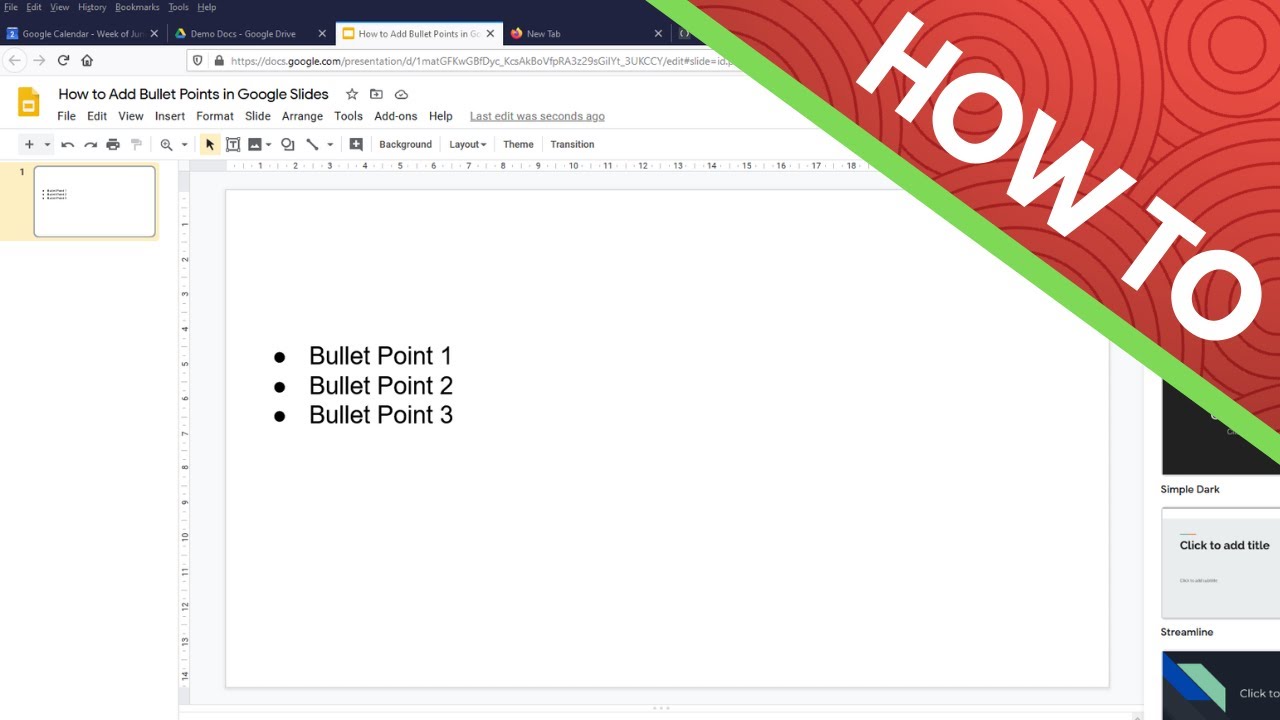
The three ways to start a bulleted list
- Keyboard (fastest): click in a text box and press Ctrl+Shift+8 (numbered lists: Ctrl+Shift+7).
- Toolbar: the Bulleted list icon sits near the right end of the toolbar — on narrow windows it hides behind the ⋮ More overflow button, which is why half the internet thinks the button disappeared.
- Menu: Format → Bullets & numbering → Bulleted list, which also shows the six preset symbol styles.
Layout placeholders from themes ("Click to add text") usually come pre-bulleted — typing in them starts a list automatically. Plain inserted text boxes don't, which is the other half of the confusion.
Two small behaviors worth knowing: press Enter twice on an empty bullet to end the list, and the Format menu also offers checklists (checkbox lists) alongside bullets and numbers.
On mobile (Android/iOS): tap into the text, tap the Format (A) icon, and the bulleted/numbered list buttons are under the Paragraph tab. On a Chromebook, everything above works exactly as on desktop, including Ctrl+Shift+8.
Sub-bullets: Tab and Shift+Tab
With the cursor on a bullet line:
- Tab (or Ctrl+]) demotes the line one level — a sub-bullet with a different symbol.
- Shift+Tab (or Ctrl+[) promotes it back up.
- Google Slides supports multiple nesting levels, each inheriting its symbol from the list preset.
If Tab inserts a literal tab character instead, your cursor is in a text box whose content isn't a list yet — start the list first, then indent.
Changing bullet symbols, color, and spacing
- Symbol: select the list → Format → Bullets & numbering → List options → More bullets for the full character picker (arrows, checkmarks, any Unicode symbol).
- Color: the bullet inherits the first character's text color. To recolor bullets independently, select just the bullet's line text and change color — or select the list and use text color for a uniform look.
- Spacing: Format → Line & paragraph spacing controls the gap between bullets; hanging-indent position is dragged on the ruler (View → Show ruler).
Fixes for the classic annoyances
Bullets don't appear when I paste text. Pasted multi-line text arrives as plain paragraphs. Select all of it, then apply the list — every line becomes its own bullet.
A bullet shows but the text won't indent under it. Drag the two ruler markers (hanging indent) for that placeholder, or fix it once for every slide in View → Theme builder.
Bullets look different on one slide. That slide uses a different layout. Apply consistent styling in the theme builder rather than slide-by-slide.
Everything turned into one giant bullet. You selected the text box border (not the text) before applying the list. Double-click into the text first.
When the bullets are the symptom, not the problem

If you're hand-typing dozens of bullet slides from a document, the faster path is to let AI structure it: ChatSlide turns a PDF, Word file, or topic into a deck with sensible bullet hierarchy and speaker notes already in place, exportable to Google Slides or editable PowerPoint. And if your slides are drowning in bullets, our guide to alternatives to bullet points covers layouts that present better.
FAQ
What's the bullet point shortcut in Google Slides? Ctrl+Shift+8 (Windows/ChromeOS) or ⌘+Shift+8 (Mac). Numbered list: Ctrl/⌘+Shift+7.
How do I make a sub-bullet? Press Tab at the start of a bullet line; Shift+Tab brings it back up a level.
Can I use custom symbols or emoji as bullets? Yes — Format → Bullets & numbering → List options → More bullets opens a full character picker, and emoji work.
Why is the bullet button missing from my toolbar? It's behind the ⋮ More button on narrow windows, and it's disabled entirely until your cursor is inside a text box.