Quick Answer: A new-hire onboarding deck covers 6 sections: (1) Welcome + company story (mission, founding, today), (2) Culture & values with examples, (3) Org chart + key people, (4) Benefits & payroll (PTO, 401k, healthcare enrollment deadlines), (5) IT & access setup (logins, SSO, equipment), (6) 30/60/90-day expectations. Target 20–30 slides for a 2-hour session. Onboarded employees with a structured deck are 58% more likely to stay 3+ years (SHRM). Drop your employee handbook or benefits PDF into ChatSlide — it generates the deck and adds AI-narrated avatar videos for asynchronous onboarding.
The First Day Problem
A new hire's first day sets the tone for their entire experience at your company. Yet many HR teams spend weeks manually building onboarding presentations that cover everything from company history to benefits enrollment to IT setup procedures.
The stakes are high. Employees who go through a structured onboarding program are far more likely to stay with a company long-term. But creating and maintaining comprehensive onboarding materials is a constant challenge — policies change, benefits get updated, team structures shift, and your deck is outdated before the next cohort arrives.
What if you could generate a polished, professional onboarding presentation in minutes instead of weeks?
What Makes Great Onboarding Presentations
Before diving into the how, it helps to understand what separates an effective onboarding deck from a forgettable one.
Cover the Full New Hire Journey
Strong onboarding presentations walk new employees through a clear sequence: welcome and company overview, team structure and culture, role-specific expectations, benefits and policies, tools and systems, and what to expect in the first 30/60/90 days. Skipping any of these creates knowledge gaps that lead to confusion and frustration.
Balance Information with Engagement
Nobody wants to sit through 60 slides of dense policy text. Effective onboarding decks use visuals, break content into digestible sections, and alternate between informational slides and interactive elements like Q&A prompts or team introduction activities.
Keep It Current
The best onboarding programs treat their materials as living documents. Benefits packages change annually, org charts shift quarterly, and tools get replaced. Your presentation needs to be easy to update without rebuilding from scratch.
Building Your Onboarding Deck with ChatSlide
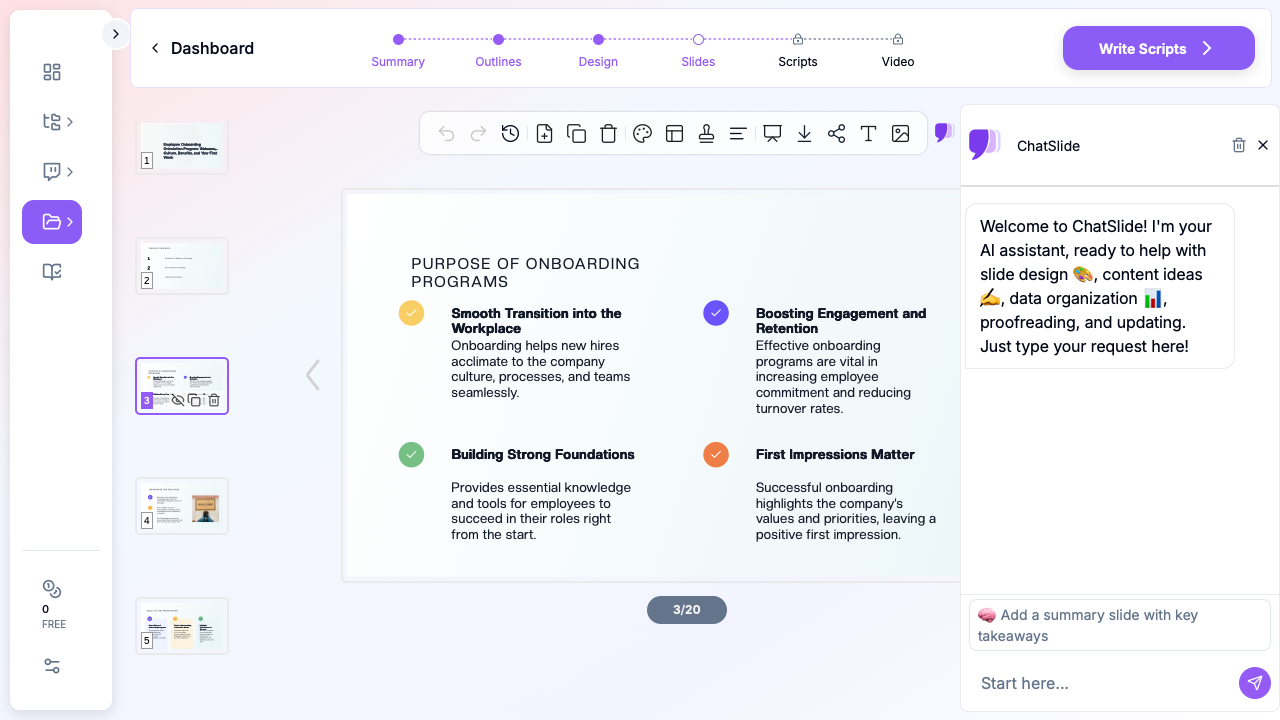
ChatSlide lets you generate a complete onboarding presentation by describing your topic and audience. Here is a practical walkthrough for HR teams.
Step 1: Define Your Onboarding Scope
Start by entering your topic. Be specific about what your onboarding covers. Instead of just "employee onboarding," try something like:
- "New hire orientation: company culture, benefits overview, IT setup, and first-week schedule"
- "Sales team onboarding: CRM training, territory assignments, and quota expectations"
- "Remote employee onboarding: communication tools, time zone protocols, and virtual team building"
The more specific your description, the more targeted your slides will be.
Step 2: Choose the Right Scenario
Select the Training > Onboarding scenario type. This tells ChatSlide to structure your content with a training flow — progressive disclosure of information, clear section breaks, and built-in recap points.
Set your audience to "New employees" or "New hires and HR managers" depending on whether you are building a self-guided deck or a presenter-led session.
Step 3: Refine Your Outlines
ChatSlide generates an outline with sections covering the key onboarding topics. Review and adjust these before generating slides:
- Welcome & Company Overview — mission, values, history, leadership team
- Team Structure — org chart, reporting lines, key contacts
- Role Expectations — responsibilities, goals, success metrics
- Benefits & Policies — health insurance, PTO, remote work policy, code of conduct
- Tools & Systems — email, Slack, project management tools, VPN setup
- Your First 30 Days — training schedule, check-in meetings, milestones
You can reorder sections, add custom ones (like a department-specific module), or remove anything that does not apply.
Step 4: Generate and Customize Slides
Once your outlines are set, generate slides. ChatSlide creates a complete deck with professional layouts, relevant images, and structured content for each section.
After generation, you can:
- Edit any slide's text directly in the editor
- Swap images for your own company photos or team pictures
- Add your company logo and brand colors through the design panel
- Insert additional slides for department-specific content
Step 5: Create Supporting Materials
Use ChatSlide's script generation feature to create presenter notes for each slide. This is especially useful if multiple HR team members will be delivering the same onboarding session — it ensures consistency across presenters.
You can also export the deck as a PDF to share with new hires before their start date, giving them a head start on the information.
Adapting Onboarding for Different Scenarios
Multi-Location Onboarding
If your company has offices in different cities or countries, create a base onboarding deck and then generate location-specific versions. ChatSlide supports multiple languages, so you can create localized versions for international offices while keeping the core content consistent.
Department-Specific Modules
Start with a company-wide onboarding deck, then create supplementary decks for each department. Engineering teams need different tool training than marketing teams. Sales teams need CRM and pipeline training. Finance teams need compliance and reporting system walkthroughs.
Remote vs. In-Person
Remote onboarding presentations need extra attention to communication norms, virtual meeting etiquette, and async collaboration tools. When generating your deck, specify "remote employees" as your audience to get content tailored for distributed teams.
Keeping Your Onboarding Current
One of the biggest advantages of using AI to generate onboarding materials is the ease of updates. When your benefits package changes or you adopt a new project management tool, you do not need to manually hunt through 50 slides to find and update every reference.
Instead, regenerate the affected sections with updated information. ChatSlide preserves your overall structure while refreshing the content, so you maintain consistency without starting over.
Tips for Effective Onboarding Presentations
Front-load the essentials. Put the information new hires need on day one (IT setup, building access, key contacts) at the beginning. Save deeper cultural and strategic content for later slides.
Include real examples. When explaining your company values, show how they play out in actual decisions. When describing career paths, reference real role progressions. Specific examples are more memorable than abstract principles.
Build in interaction points. Every 5-7 slides, add a discussion prompt, a quick quiz, or a "meet your teammate" activity. This prevents information overload and helps new hires absorb what they have learned.
Create a take-home version. Export a condensed PDF version that new hires can reference later. Nobody remembers everything from day one — give them a resource they can return to.
Get Started
Building a comprehensive onboarding presentation no longer requires weeks of work. With ChatSlide, you can generate a professional new hire orientation deck in minutes, customize it for your company, and keep it updated as your organization evolves.
Create your onboarding presentation now — your next cohort of new hires will thank you.