
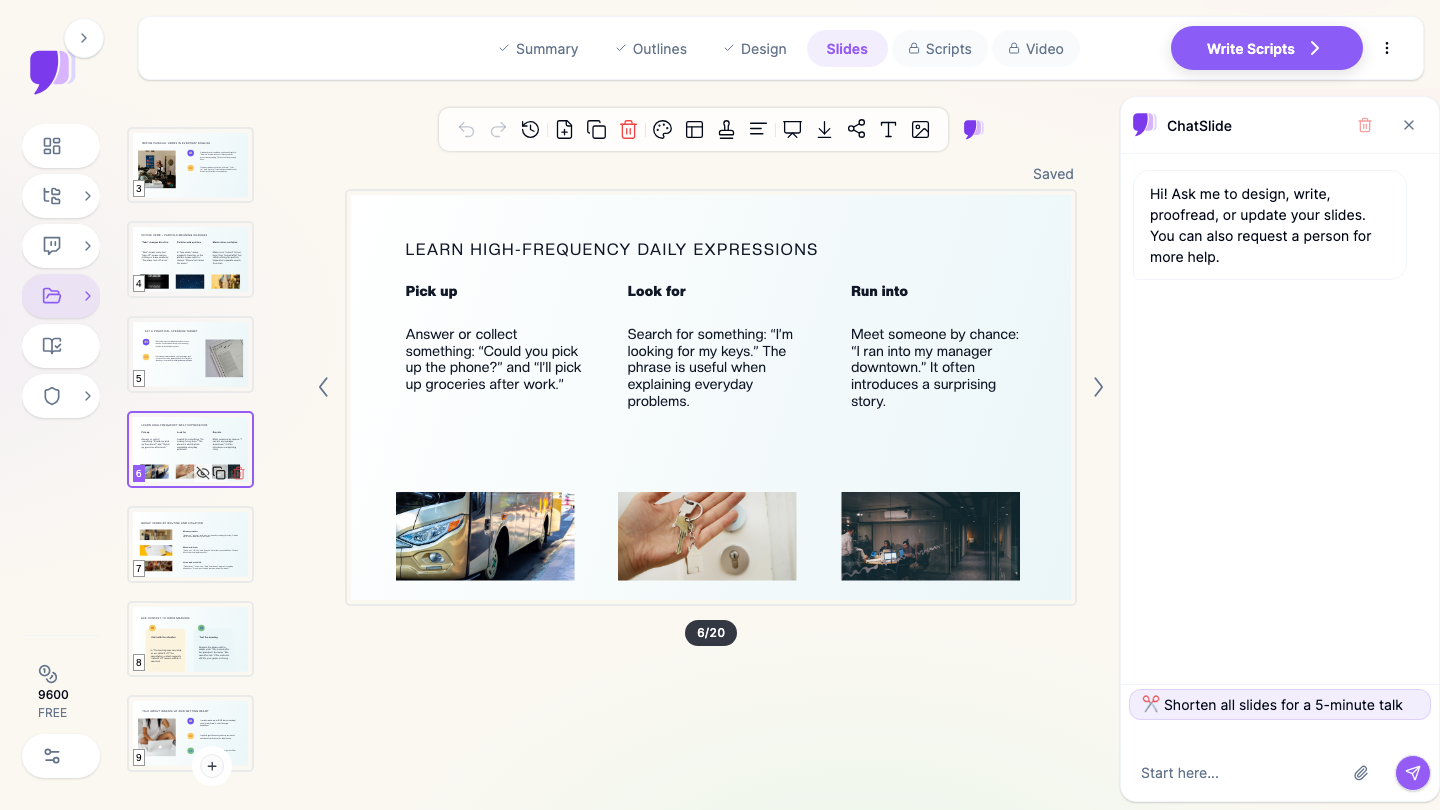
Quick Answer: ChatSlide is the fastest way for English teachers to turn a target-language point into a finished lesson deck. Type "phrasal verbs for everyday conversation, B1 adult class, 20 slides" — or upload the coursebook pages, a scanned handout, or last term's PPTX — and get structured slides with example sentences, images, and speaker notes in under two minutes. It generates in over 30 languages for bilingual glosses, exports to editable PowerPoint or Google Slides, and turns the same lesson into a narrated video for absent or online students. Used at 750+ universities and free to start, no credit card.
The ESL Lesson Prep Problem
English teachers build more slide decks than almost anyone. A single week can mean a grammar lesson, a vocabulary set, a conversation warmer, a listening lead-in, and a review — each needing clear staging, example sentences at the right level, and images that carry meaning without a wall of text. Coursebook publishers supply slides for their own units; the moment you teach a supplementary point, a business-English client's actual vocabulary, or a level the book does not fit, you are building from scratch.
Level control is what makes it slow. The same target language has to be presented one way for A2 and another for B2: shorter sentences, higher-frequency words, fewer abstractions, more visual support. Rewriting a deck down a level by hand is nearly a rebuild.
And the deck rarely gets used only once. It has to survive being reused next term with a different cohort, handed to a colleague covering your class, and posted to the LMS for the student who missed the lesson.
What Makes ChatSlide Powerful for English Teachers
Tell It the Level, Not Just the Topic
The prompt carries CEFR level, learner age, and lesson length: "past simple irregular verbs, A2 teenagers, 45-minute lesson, 15 slides." Grading language is the part of ESL prep that eats the most time, and it is the part the AI handles best — the same target point comes back with shorter sentences and higher-frequency vocabulary at A2 than at B2.
Upload the Coursebook Page or Your Old Deck
Most teachers already have raw material: a photocopied page, a PDF unit, a scanned handout from the resource file, last year's PowerPoint. Upload it and ChatSlide builds the lesson around it. OCR reads scanned pages and photos, so a picture of a worksheet taken on your phone becomes slide content instead of something you retype.
Example Sentences and Contexts Generated With the Slides
Every target item comes with usable example sentences in a real context, not a bare definition list. For phrasal verbs, collocations, or functional language, the examples are the lesson — and they are the slowest thing to write well at nine o'clock the night before.
Bilingual Glosses in 30+ Languages
ChatSlide generates in over 30 languages, so a monolingual class can get L1 glosses on the vocabulary slides, or a translated instruction line for low levels, from the same source material. Teachers running the same lesson across two language groups generate it twice rather than translating a finished deck slide by slide.
Images That Carry Meaning
Vocabulary and functional language teach better with pictures than definitions. Slides come with supporting images already placed, and you can regenerate any one that misses. For concrete lexical sets — food, transport, workplace objects — this replaces the image-search tab entirely.
Speaker Notes for Staging
Every slide gets presenter notes. For ESL that is where the staging lives: the concept-checking questions, the drill, the pair-work instruction, the anticipated problem. It is also what makes a deck safe to hand to a cover teacher.
Export to PowerPoint, Google Slides, PDF, or Narrated Video
Decks export to editable PPTX and PDF, so they drop into whatever your school runs, and can be exported as a narrated video — the same lesson becomes something a student who missed class or an online learner watches on their own.
How ChatSlide Builds Your ESL Lesson Deck
1. Describe the lesson or upload the source. Type the target language, level, age group, and slide count — or drop in the coursebook pages, your syllabus, or last term's deck.
2. Review the outline. ChatSlide proposes the lesson shape before writing slides. This is where you enforce teaching order: lead-in, presentation of the target language, controlled practice, freer practice, review. Reorder or drop sections in one pass.
3. Generate slides with images and notes. The deck is built with layouts chosen per content type — comparison blocks for confusable pairs, sequential blocks for a drill, example-and-image blocks for vocabulary — plus staging notes throughout.
4. Edit and export. Use the AI editing tools to shorten a dense slide, grade a sentence down a level, swap a layout, or regenerate an image, then export to PPTX, PDF, or video.
Use Cases for ESL and EFL Teachers
Grammar lessons. A target structure with form, meaning, and use, worked examples, and a controlled-practice sequence. Building one by hand is 90 minutes of evening; generating a draft and editing the examples is twenty minutes. Time saved: roughly 60–80 minutes per lesson.
Vocabulary and lexical sets. Ten to fifteen items with definitions, example sentences, images, and a matching or gap-fill practice slide. This is the format where generated images save the most time.
Conversation and speaking classes. Discussion prompts, functional language for agreeing and disagreeing, role-play cards, and a closing reflection — a format that needs constant new content because you cannot rerun last month's topics with the same group.
Business and exam-prep English. A client's own sector vocabulary, meeting and email language, or IELTS and Cambridge task types. Upload the company's materials or the exam spec and build the lesson around what the learners actually need.
Flipped and asynchronous lessons. Export the deck as a narrated video so students meet the target language before class and the contact hour goes on practice instead of presentation.
Language Schools and Departments. For schools running the same syllabus across branches or teams sharing a materials bank, ChatSlide's Enterprise plan adds SSO, centralized team billing, shared brand templates so every lesson matches school branding, and team collaboration on a shared deck library — contact us to set it up.
ESL Presentation Tools Compared (2026)
| Capability | ChatSlide | Gamma | Tome | Beautiful.ai |
|---|---|---|---|---|
Generate at a specified CEFR level | Yes | No | No | No |
Upload coursebook PDF / old PPTX as source | Yes | Limited | Limited | No |
OCR for scanned worksheets and handouts | Yes | No | No | No |
Images placed per vocabulary item | Yes | Basic | Basic | Template images |
Generate in 30+ languages for L1 glosses | Yes | Partial | Partial | Limited |
Speaker notes for lesson staging | Yes | Partial | Partial | No |
Export to editable PowerPoint | Yes | Yes | Limited | Yes |
Export as narrated video for absent students | Yes | No | No | No |
Free tier | Yes | Yes | Yes | Trial only |
Time Comparison: Manual vs. AI-Assisted
| Task | By hand | With ChatSlide |
|---|---|---|
Plan a 20-slide grammar lesson from a coursebook unit | 30–40 min | 5 min (review generated outline) |
Write graded example sentences | 40–60 min | 2 min generation + 15 min editing |
Find and place images for a lexical set | 30 min | Included, regenerate as needed |
Write staging and CCQs into notes | 30 min | Included, edit as needed |
Regrade the same lesson for a lower level | 60–90 min | Regenerate from the same source |
Produce an asynchronous version for absentees | 60 min | Video export |
Total per lesson | 3–4 hours | 35–45 min |
What a Strong ESL Lesson Deck Includes
Whatever tool builds the slides, the teaching structure is what makes the lesson work.
Lead in before you present. One slide that activates the topic — an image, a question, a short personal prompt — earns you the attention the target language needs. Opening on a grammar rule loses the room before you start.
Show meaning before form. Learners should meet the target language in a context they can understand first, then see how it is built. A slide that opens with "subject + had + past participle" teaches notation, not English.
Keep one idea per slide and under about 20 words. ESL slides carry a heavier processing load than L1 slides. The detail belongs in your notes and your board work, not on the screen.
Put example sentences in a real context. "Turn down" learned as "reject or reduce" is a dictionary entry; learned as "Please turn down the music" and "She turned down the job" it is language. Two contrasting examples beat one definition.
Anticipate the problem on the slide that causes it. Confusable pairs, L1 interference, pronunciation traps — build the contrast into the deck rather than improvising it when it comes up.
Build in practice, not just presentation. Controlled practice slides (gap-fill, matching, transformation) and a freer-practice prompt should be in the deck. A presentation-only deck quietly turns a lesson into a lecture.
Close with a review the learners can take away. A summary slide of the target items is what makes the deck useful as a study resource after the lesson.
Best Practices
Do
- State the level, age group, and lesson length in the prompt. "B1 adult evening class, 45 minutes" changes sentence length, vocabulary, and pacing substantially.
- Upload the coursebook pages or syllabus you are supplementing — the AI builds around your scope and sequence instead of inventing its own.
- Read and edit the example sentences. They are the part of an ESL deck that has to be exactly right.
- Use the video export for the students who miss class, rather than emailing them the slides.
- Regenerate the same lesson at a lower level for a mixed-ability group instead of rewriting it.
Don't
- Don't ship a generated deck without checking that every example is natural and level-appropriate. A plausible-sounding sentence no native speaker would say is worse than no example.
- Don't let the AI choose the practice stage for you — controlled and freer practice are your methodology decisions.
- Don't put learner names, class recordings, or student work into uploads and slides without permission.
- Don't leave the speaker notes unread. They are generated staging suggestions, not a lesson plan you have approved.
ESL Lessons vs. General Teaching Decks
These are different decks. If you are building a subject lecture for a school or university course rather than a language lesson, the teacher lecture presentation guide covers course lectures and class slides. If you are designing a course rather than teaching a single lesson — modules, objectives, assessment — see the instructional design presentation guide. For workplace training programs in any subject, see the corporate training presentation guide. This guide covers the ESL slice specifically: CEFR-graded language, target-language staging, lexical sets, and conversation-class formats.
Frequently Asked Questions
Can ChatSlide generate a lesson at a specific CEFR level? Yes. Put the level in the prompt — "A2", "B1 adult class", "upper-intermediate teenagers" — and it grades sentence length and vocabulary accordingly. You can also regenerate an existing deck a level down.
Can I build a lesson from my coursebook pages? Yes. Upload the PDF, or a scan or phone photo of the page — OCR reads scanned material — and ChatSlide builds the lesson around that content instead of inventing its own syllabus.
Can it add L1 translations for my class? Yes. ChatSlide generates in over 30 languages, so you can produce glossed vocabulary slides or translated instructions for a monolingual group from the same source.
Does it write example sentences, or just definitions? It writes example sentences in context alongside the target items. Editing those examples is the main thing worth your time on a generated ESL deck.
Can I turn a lesson into a video for students who missed class? Yes. Decks export as a narrated video, which also works well for flipped lessons where learners meet the language before the contact hour.
Will it export to PowerPoint or Google Slides? Yes. Decks export to editable PPTX and PDF, so they open in PowerPoint, Google Slides, or Keynote and drop into your school's template.
Is there a free plan? Yes. You can start free with no credit card. Paid plans add higher limits and advanced export options.
Can our school keep every teacher's lessons on the same template? Yes. Enterprise plans include shared brand templates and a team deck library so materials stay consistent across teachers and branches — contact us.
Get Started
Take the lesson you are teaching tomorrow — the phrasal verbs set, the past simple review, the conversation class you have not planned yet — describe the level and upload the coursebook page, and see what comes back in two minutes. Editing graded examples is a different job from writing them from a blank slide at midnight.
Make your ESL lesson slides with ChatSlide → Free to start, no credit card required.