Quick Answer: ChatSlide is the AI presentation maker built for special education teachers, inclusion coordinators, and teacher-education faculty. Trusted across 750+ universities and schools, it turns a topic prompt, a course reading, or an existing PowerPoint into a structured, classroom-ready deck in under two minutes — with three input modes, real data charts for progress monitoring, per-slide speaker notes, and 19 AI editing tools. It's free to start and exports to PowerPoint, PDF, and Keynote, and any deck can become a narrated video lesson.
The Special Education Presentation Problem
Special education asks one person to be several presenters at once. The same week can require a graduate-level lecture on models of inclusive curricula, a professional-development session showing colleagues how to adapt physical education for students with hearing impairment, a gifted-program planning deck for administrators, and a parent-facing presentation that explains a service model without jargon. Each audience needs different language, different depth, and different visuals — and every one of them can tell when a deck was thrown together at 11pm.
The expertise is never the problem. The friction is converting deep knowledge of differentiation, accommodations, and evidence-based practice into slides, over and over, for audiences that range from undergraduates to school boards.
What Makes ChatSlide Powerful for Special Education
Three input modes. Start from a topic prompt ("teaching adapted physical education to students with hearing impairment — what it is, causes, and activity modifications"), upload an existing PowerPoint to restyle, or drop in a course reading, a chapter PDF, or a program document and let ChatSlide draft the outline from it.
Structured prompts stay structured. If you already know your subtopics — say, six models of inclusive curricula from differentiation to process-based approaches — put them in the prompt and ChatSlide builds the outline around your structure instead of inventing its own.
OCR on uploaded documents. Upload a scanned textbook chapter, a district policy document, or a figure-heavy PDF and ChatSlide pulls the text and images out, so your source material lands in the deck instead of being retyped.
Real data charts. Progress-monitoring data, assessment distributions, caseload numbers, and program-evaluation results become clean charts rather than decorative graphics — useful for administrator briefings and program-planning decks.
Speaker notes. ChatSlide drafts per-slide notes, so a PD session or a guest lecture comes with a script — and a co-teacher or paraprofessional can deliver the same session consistently.
Plain-language rewrites. The AI editing tools rephrase a slide for a different audience in one step — the same content as a graduate lecture, a staff PD, or a family-night presentation.
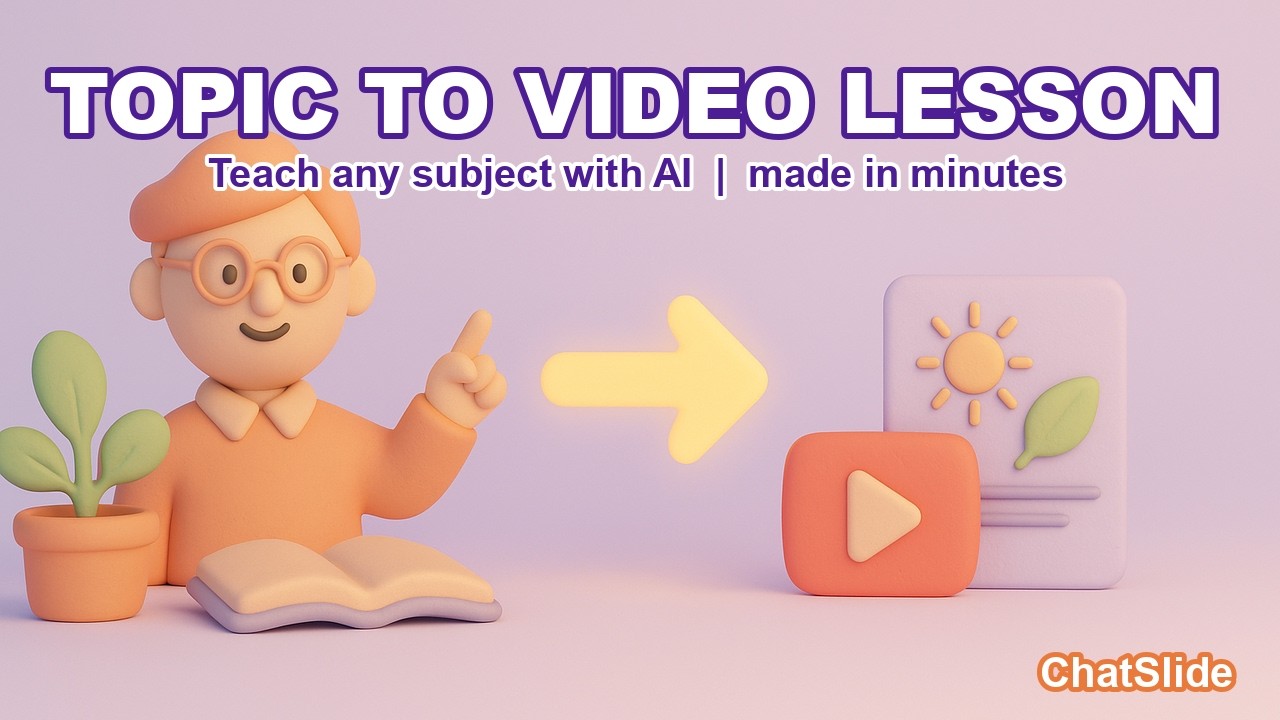
Video lessons. Any deck can be exported as a narrated video with an AI presenter — useful for asynchronous PD, flipped teacher-education courses, and families who could not attend a session.
How ChatSlide Builds Your Special Education Deck
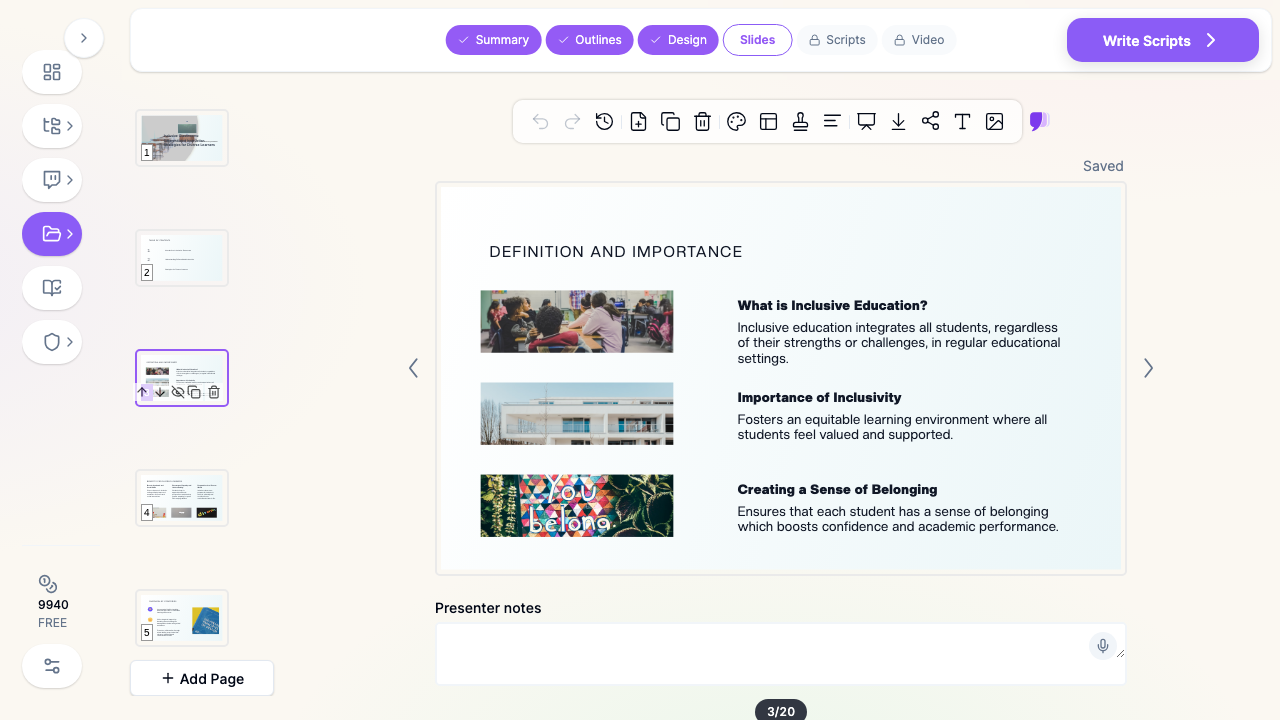
1. Start with your topic or source material. A prompt with your subtopics, an existing deck, or a reading — ChatSlide reads it and drafts a structured outline.
2. Refine the outline before generating slides. Reorder sections so the session follows your instructional logic — rationale, framework, strategies, examples, implementation. Fixing structure at the outline stage is far faster than reworking finished slides.
3. Generate slides with relevant imagery. ChatSlide builds each slide with a clean layout and classroom-appropriate visuals. Swap any image for your own — real classroom photos (with permissions), visual supports, or program materials.
4. Export to your format. PowerPoint or PDF for a university course or PD handout, Keynote for a conference session, or a narrated video for asynchronous delivery.
Use Cases for Special Education Professionals
University and teacher-education lectures. A 20-slide session on models and practices in inclusive curricula — differentiation, learning without limits, process-based approaches — for pre-service teachers. Time saved: an evening of outlining and formatting per lecture.
Professional development for colleagues. Showing general-education and PE colleagues how to modify activities for students with hearing impairment, low vision, or mobility differences — concrete strategies, not abstractions. Time saved: a reusable PD template across topics.
Gifted and talented program planning. Identification models, service-delivery options, and program-evaluation data presented to administrators and school boards that need the evidence to be legible. Time saved: program document to briefing deck in minutes.
IEP meetings and family sessions. Plain-language decks that walk a family through a service model, an accommodation plan, or a transition pathway — without student-identifiable data on the slides. Time saved: one professional deck restyled for a family audience.
Conference and in-service presentations. A session for a state CEC chapter or district institute day, built from the same materials as your coursework. Time saved: hours of reformatting.
Special Education AI Tools Compared (2026)
| Capability | ChatSlide | Gamma | Tome | Beautiful.ai |
|---|---|---|---|---|
Reads uploaded readings, PPTX, and PDFs | Yes | Partial | Partial | No |
OCR on scanned chapters and policy documents | Yes | No | No | No |
Keeps your subtopic structure from the prompt | Yes | Partial | Partial | No |
Real data charts from progress-monitoring numbers | Yes | Partial | No | Partial |
Per-slide speaker notes | Yes | Partial | No | No |
Narrated video lesson export | Yes | No | No | No |
PowerPoint + Keynote export | Yes | Partial | Partial | Partial |
Free tier | Yes | Yes | Yes | Limited |
Time Comparison: Manual vs. AI-Assisted
| Task | Manual | With ChatSlide |
|---|---|---|
Outline a teacher-education lecture | 1–2 hours | 2 minutes |
Build a PD deck from a chapter or policy PDF | 3–4 hours | 5 minutes |
Restyle a graduate lecture for a family audience | 1–2 hours | Minutes |
Chart progress-monitoring or program data | 1 hour | Minutes |
Turn a session into a narrated video | Half a day | Minutes |
What a Strong Special Education Presentation Includes
A rationale before a framework. Whether the audience is pre-service teachers or a school board, the "why" — equity, belonging, outcomes — earns attention for the "how." A single slide on what inclusive education actually means prevents an hour of talking past each other.
Concrete strategies over labels. "Differentiation" is a category; "three ways to modify a striking-and-fielding game for a student with hearing impairment" is a strategy. The decks that change practice are the ones with examples teachers can run tomorrow.
The continuum made visible. Service-delivery models, least-restrictive-environment decisions, and gifted-program options are easier to discuss when they sit on one visual continuum instead of scattered paragraphs.
Person-first, asset-based language. Slides model the language the presenter wants the audience to use. This is doubly true for decks that families will see.
Evidence with its source. Claims about what works — co-teaching models, explicit instruction, enrichment approaches — belong next to their citations, especially in graduate coursework.
An implementation slide. Every PD session should end with what changes Monday: the first step, who supports it, and how progress will be checked.
Best Practices (Do's and Don'ts)
Do name your subtopics in the prompt when you already have a structure — ChatSlide will keep it.
Do build one master deck per topic and restyle it per audience — lecture, PD, family night — instead of maintaining three diverging files.
Do replace generic imagery with your own classroom photos and visual supports where you have permission to use them.
Do keep student-identifiable information — names, IEP details, evaluation data — out of slides and uploads entirely; present patterns and anonymized examples instead.
Don't put a full accommodation matrix on one slide — split it by category and keep the detail in a handout.
Don't let a deck about inclusion look exclusionary — check that imagery reflects the range of learners the session is about.
Don't end a PD session on theory — end on the strategy the audience will try first.
Special Education for Schools, Districts, and Programs
For a special education department, a teacher-preparation program, or a district PD team, ChatSlide scales past the individual presenter. Shared brand templates keep every campus's PD materials consistent, team collaboration lets a department co-build coursework and in-service sessions, and centralized billing plus SSO simplify rollout across a district or a university program. Sessions can be exported as narrated video for asynchronous PD libraries and make-up sessions. For district-level deployment, SSO, and centralized administration, contact us.
Frequently Asked Questions
Can ChatSlide build slides from a textbook chapter or course reading? Yes. Upload the PDF — including scanned documents, via OCR — and ChatSlide drafts a structured outline from it that you refine before generating slides.
Will it follow the subtopics I already have? Yes. Put your subtopics in the prompt and the outline is built around your structure.
Can I make a family-friendly version of a professional deck? Yes. The AI editing tools rephrase slides in plain language, so one deck becomes a lecture, a PD session, and a family-night presentation.
Should I put IEP or student data into it? No. Keep student-identifiable information out of slide content and uploads; use anonymized examples and aggregate data. For district agreements and deployment questions, contact us.
Can it make a video version of a session? Yes. Any deck can be exported as a narrated video with an AI presenter, for asynchronous PD or families who missed the session.
Is it free? You can start for free. Free decks are watermarked and viewable or shareable online; PDF, PowerPoint and Keynote export are on the paid tiers.
What formats can I export? PowerPoint, PDF, Keynote, and narrated video.
Related Guides
This guide covers special education, inclusive education, and gifted programming. For general classroom lecture decks, see our teacher lecture presentation guide. For independent-living and functional skills content, see the life skills education guide, and for staff sessions on equity and belonging more broadly, the DEI training presentation guide.
Get Started
Special education asks its practitioners to teach three audiences in the same week — future teachers, current colleagues, and families — about the most individualized work in a school. The hours spent formatting slides are hours away from students.
With ChatSlide, turn your expertise in inclusive curricula, adapted instruction, and gifted programming into structured, audience-ready slides in minutes — whether you're lecturing pre-service teachers, running Monday's PD, or planning a program review.
Make your special education presentation with ChatSlide — free to start, no credit card required.