
Quick Answer: ChatSlide is an AI presentation maker for instructional designers and graduate education students, used across 750+ universities. It turns a module outline, a syllabus PDF, or a single topic prompt into a structured course-module deck in under two minutes — with drafted speaker notes, narrated-video export for asynchronous learners, and PowerPoint or PDF download. Free to start, no credit card.
The Instructional Design Problem
Course design work is mostly invisible. Before a single learner sees a module, someone has written the objectives, sequenced the activities, chosen the icebreaker that will make a cohort of strangers actually type in the discussion board, and mapped every piece of it to an assessment. Then all of that has to be presented — to a faculty committee, a graduate seminar, a client, or the learners themselves.
The slides are where the work stalls. A module walkthrough deck has to show the objective, the activity, the interaction pattern, and the assessment alignment on every screen, and it has to look like it was designed by someone who designs learning for a living. Building that by hand, one text box at a time, for every module in a program, is the part of the job nobody budgeted for.
Generic templates do not help, because they have no concept of a learning objective, an engagement sequence, or an alignment map. You end up formatting instead of designing.

This guide covers instructional design and course development specifically — module walkthroughs, engagement and icebreaker design, and faculty development. If you're building a lecture to deliver rather than a module to design, our teacher lecture presentation guide is the closer fit, and our corporate training guide covers the workplace L&D side.
What Makes ChatSlide Powerful for Instructional Design
Three Input Modes That Match How Course Design Actually Starts
You almost never start from nothing. ChatSlide takes content three ways, and they combine:
- File upload — a syllabus, a module map, a design document, an accreditation rubric, a scanned handout, or the PowerPoint the previous designer left behind. Scanned pages and images are read with OCR.
- Web and video URLs — link a published framework, an open course page, or a recorded session and ChatSlide extracts the content.
- Text prompt — "week one online module: icebreaker activity, learning objectives, and discussion design for a graduate education course" is enough for a full first draft.
Outline-First, Because Sequence Is the Design
ChatSlide drafts the outline before rendering slides, which is exactly the level instructional designers want to work at. Reorder the sequence — hook, objectives, activity, practice, assessment — while it is still a list, and only then generate. Restructuring an outline is a minute of work; restructuring twenty finished slides is an afternoon.
Speaker Notes Drafted for Every Slide
Course decks get handed off constantly — to a facilitator, an adjunct, a teaching assistant, or a subject-matter expert who was not in the design meeting. ChatSlide drafts per-slide notes, so the deck carries its own facilitation guidance instead of living in your head.
Narrated Video Export for Asynchronous Modules
The same project can be exported as a narrated video, with an AI voice or an avatar presenter. For online and blended programs, that turns a module deck into an asynchronous lesson without a recording session, a script rewrite, or a scheduling round with the SME.
Editing in Plain Language
Refine with instructions rather than formatting: "rewrite the objectives in measurable terms", "turn slide 6 into a two-column activity-and-assessment table", "add a slide on accessibility considerations", "make every slide three bullets or fewer". Batch edits apply the change across the whole module.
Consistent Look Across a Whole Program
Modules built weeks apart tend to drift visually. Applying one design across the deck — and reusing it for the next module — keeps a program looking like a program, which matters when a review committee sees all twelve modules in one sitting.
How ChatSlide Builds Your Course Module Deck
1. Bring your source material or your topic. Upload the syllabus and module map, or describe the module and its audience.
2. Shape the outline. Put it in instructional sequence before anything renders.
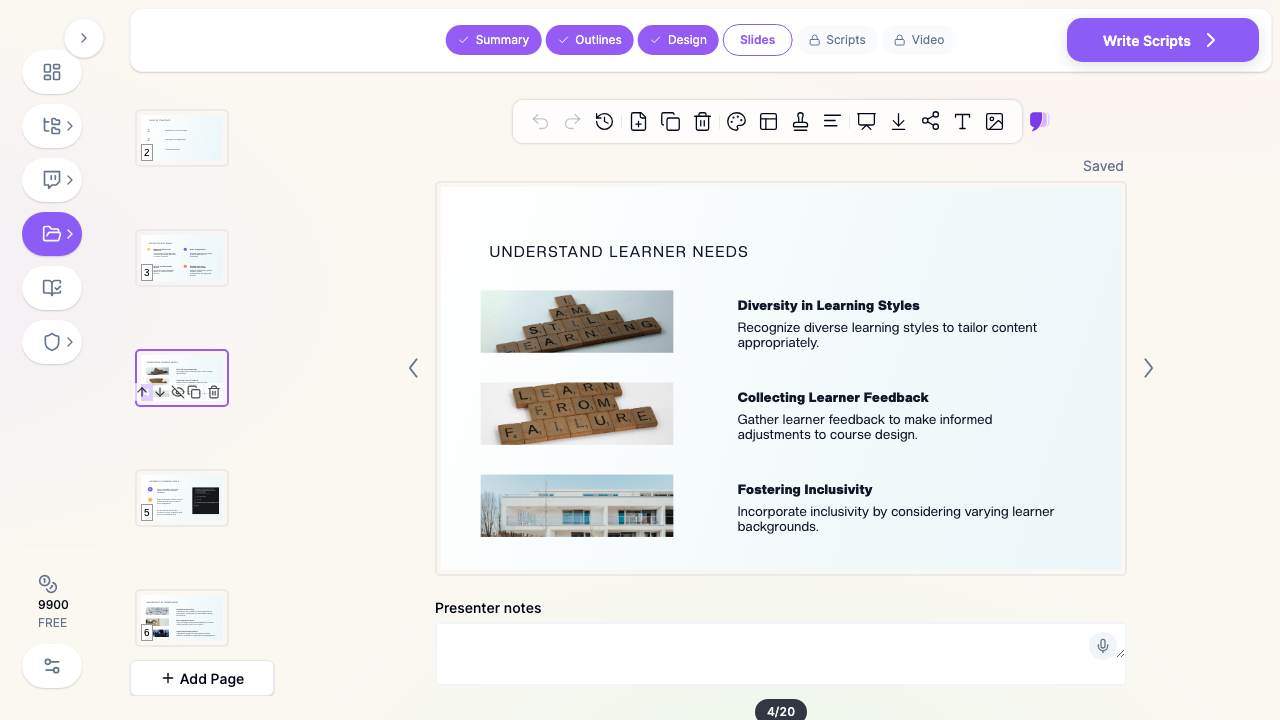
3. Generate slides with imagery and notes. Each slide arrives laid out, with supporting visuals and drafted facilitation notes.
4. Export the way the course needs it. PowerPoint for the committee, PDF for the design document, narrated video for the LMS.
Use Cases for Instructional Designers and Education Graduate Students
1. Online Module Walkthroughs
The challenge: Presenting a module's objectives, activities, and assessments to faculty or a client for sign-off.
How ChatSlide helps: Generate the walkthrough from the module map, then use plain-language edits to add the alignment table the reviewers always ask for.
Time saved: From 3-4 hours to about twenty minutes.
2. Icebreaker and Engagement Design
The challenge: Week-one activities — a collaborative board, an introductions thread, a low-stakes poll — need slides that explain the activity, the purpose, and the participation expectation without sounding like a syllabus quote.
How ChatSlide helps: Draft the activity slides from a prompt describing the tool and the cohort, then tune the tone for the learners you actually have.
Time saved: From 2 hours to 10 minutes.
3. Graduate Coursework in Education
The challenge: EdD, MEd, and instructional-design coursework assigns weekly deliverables that are themselves presentations — a designed module, a needs analysis, a theory application.
How ChatSlide helps: Turn the assignment brief and your reading notes into a structured, presentable deck, so the effort goes into the design argument rather than the slide formatting.
Time saved: From an evening to under an hour.
4. Faculty Development and Training-the-Trainer
The challenge: Teaching faculty how to use a new design model, rubric, or platform — where the deck itself is judged as an example of good design.
How ChatSlide helps: Build the session deck with consistent structure and drafted facilitation notes so other trainers can deliver the same workshop.
5. Needs Analysis and Program Reporting
The challenge: Survey results and completion data that have to be shown, not described.
How ChatSlide helps: Provide the numbers and ChatSlide builds charts from your actual data rather than decorative placeholders.
6. Design Teams and Learning Organizations
For a program office or L&D team producing modules across several designers, ChatSlide's Enterprise plan adds SSO, centralized team billing, shared brand templates, and team collaboration so an entire curriculum stays visually and structurally consistent — contact us.
Instructional Design Tools Compared (2026)
| Feature | ChatSlide | Gamma | Tome | Beautiful.ai |
|---|---|---|---|---|
Input modes | 3 (file, URL, prompt) | Text prompt | Text prompt | Text prompt |
Upload a syllabus, rubric, or old PPTX | Yes | Limited | Limited | No |
OCR for scanned handouts | Yes | No | No | No |
Editable outline before generation | Yes | Limited | Limited | Template-based |
Speaker / facilitation notes drafted | Yes | Limited | Limited | Limited |
Narrated video export | Yes | No | No | No |
Charts from your real course data | Yes | Basic | Basic | Template-based |
PowerPoint export for LMS upload | Yes | Yes | Limited | Yes |
Team templates and SSO | Enterprise | Limited | Limited | Limited |
Free tier | Yes | Yes | Yes | Yes |
Time Comparison: Manual vs. AI-Assisted
| Task | Manual | With ChatSlide |
|---|---|---|
Structuring a 20-slide module deck | 1 hour | 5 minutes |
Drafting slide content | 2-3 hours | 2 minutes |
Sourcing and placing visuals | 1 hour | Included in generation |
Writing facilitation notes | 1-1.5 hours | Drafted automatically |
Producing a narrated version | 2-3 hours | Minutes via video export |
Visual cleanup and consistency | 1 hour | 15 minutes of edits |
What a Strong Instructional Design Presentation Includes
Measurable objectives up front. Stated in learner terms and in verbs you can actually assess. Everything after this slide is judged against it.
A visible learning sequence. Hook, objective, instruction, practice, feedback, assessment. When the deck follows the sequence, reviewers can see the design instead of reconstructing it.
The activity described from the learner's side. What the learner does, in what tool, for how long, and what counts as done. Design decks fail most often by describing the intent rather than the action.
Explicit alignment. One table mapping objective to activity to assessment answers most committee questions before they are asked.
Interaction and engagement made concrete. Name the interaction pattern — learner-to-learner, learner-to-content, learner-to-instructor — rather than asserting that the module is "engaging".
Accessibility as a design slide, not a footnote. Captions, alt text, contrast, and pacing belong in the design, and showing them signals a designer who ships usable courses.
Evidence for the choices. A short line on the model or research behind the sequence turns a preference into a rationale.
Best Practices
Do's
- Design the outline before the slides. It's the cheapest place to fix sequence.
- Write objectives in measurable verbs and let every later slide trace back to one.
- Show one activity per slide with its purpose and its participation expectation.
- Keep facilitation guidance in the speaker notes so the deck survives a handoff.
- Reuse one design across a program so the twelfth module matches the first.
Don'ts
- Don't ship a first draft — the plain-language editing pass is what makes it yours.
- Don't put the alignment map in an appendix; reviewers look for it early.
- Don't describe engagement in adjectives when you can name the interaction.
- Don't upload student records or identifiable learner data to any cloud tool.
Frequently Asked Questions
Can I build a module deck from just a topic prompt?
Yes. Naming the module, the audience, and the slide count produces a structured draft. Uploading your syllabus or module map makes the draft much closer to your actual course.
Can I upload an existing course deck and restructure it?
Yes. Upload the PowerPoint and ChatSlide reads it as source material, so you can reorganize and refresh an inherited course rather than rebuild it.
Does it produce speaker notes I can hand to a facilitator?
Yes — notes are drafted per slide, which is what makes a deck usable by someone who was not in the design meeting.
Can I turn a module into an asynchronous video lesson?
Yes. The same project exports as a narrated video with an AI voice or avatar presenter, which suits online and blended programs.
Will the slides upload cleanly to my LMS?
Export to PowerPoint or PDF and upload as you normally would. The video export covers the case where you want the module to play inside the course shell.
Is it useful for graduate education coursework?
Yes. EdD, MEd, and instructional-design programs assign presentation deliverables constantly, and drafting the structure quickly leaves the time for the design argument itself.
Can my design team share templates?
Yes. Enterprise adds shared brand templates, SSO, team billing, and collaboration so a whole curriculum stays consistent — contact us.
Is it free?
There is a free tier with no credit card required. Paid plans start at $14.90/month for higher limits and additional export options.
Get Started
Instructional design is the work of turning subject expertise into something a learner can actually complete. Formatting slides is not that work.
With ChatSlide, turn a syllabus, a module map, or a one-line brief into a structured course-module deck in minutes — with facilitation notes written and a narrated version one export away.
Start building your instructional design presentation with ChatSlide. Free to start, no credit card required.