
Quick Answer: ChatSlide.ai turns your civil engineering report, design brief, or site notes into a polished 15–20 slide deck in under 2 minutes. Upload a PDF or Word draft and the AI extracts your scope, methods, and results, builds charts from your project data, and applies a clean technical design. Used by students and engineers at 750+ universities and firms. Free to start, exports to PowerPoint, PDF, and Keynote.
The Civil Engineering Presentation Problem
Civil engineering work is dense. A single project spans surveying, geotechnical analysis, structural design, cost estimation, scheduling, and site execution — and every stage produces its own drawings, tables, and reports. When it comes time to present, whether that is a co-op placement check-in, a design review, or a project-execution update to stakeholders, you are stuck compressing all of it into a deck that a mixed audience can follow.
That audience is rarely just other engineers. Project owners, planning officials, safety officers, and clients sit in the room too, and they need the takeaway without the equations. Building that deck by hand usually means several hours of copying figures out of PDFs, redrawing charts, and reformatting AutoCAD screenshots to fit a slide.
ChatSlide skips that. You bring the source material, it builds the deck.
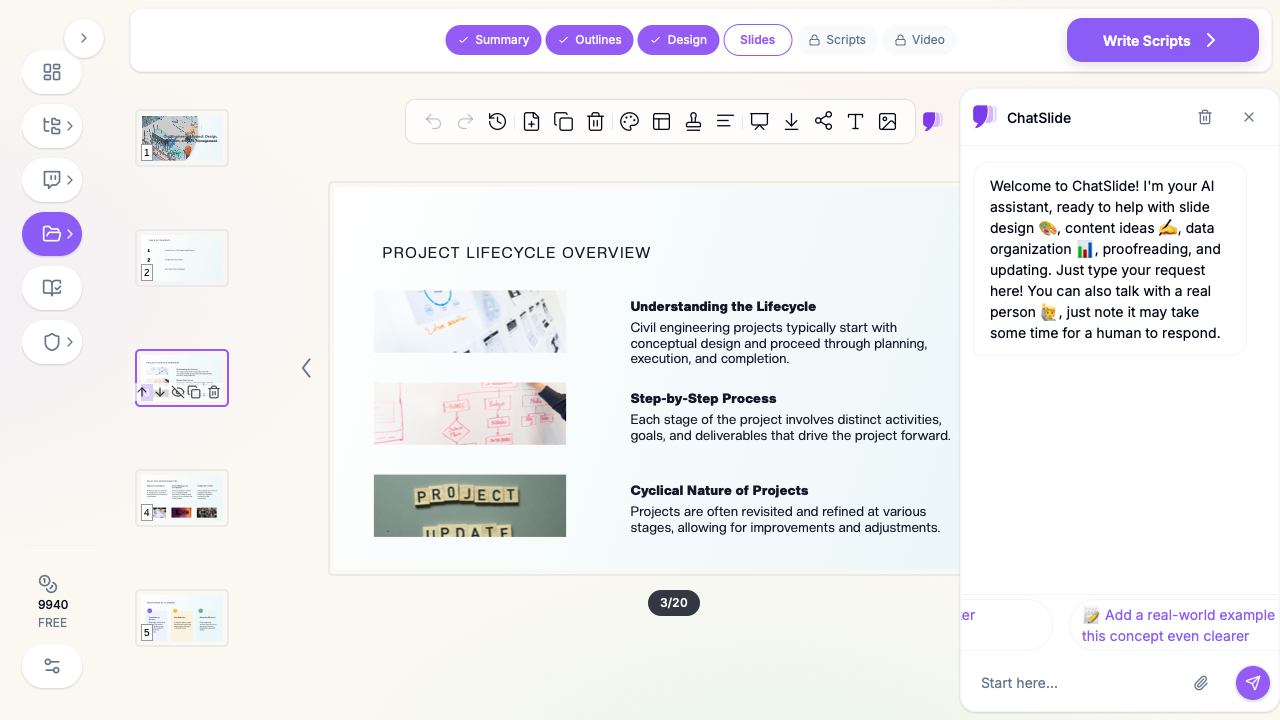

What Makes ChatSlide Powerful for Civil Engineering
3 Input Modes
Start from a topic ("scope and phasing of a highway overpass project"), paste an outline, or upload your existing material — a design report, a co-op assignment brief, a specification, or a scope-of-work document. Most civil engineering decks start from a file you already have.
Reads Your Drawings and Reports (OCR)
Upload scanned drawings, permit documents, or a PDF report and ChatSlide's OCR pulls the text and figures out. Site photos, plan views, and detail callouts can be extracted and placed onto slides instead of screenshotted and cropped by hand.
Real Data Charts
Cost breakdowns, schedule milestones, load calculations, soil test results, traffic counts — paste the numbers or upload the spreadsheet and ChatSlide generates real, editable charts. No pasting a blurry Excel screenshot into a slide.
Research Search
Presenting on codes, standards, or a design approach? The Research tab pulls references so you can cite the relevant standard or a comparable case study directly in the deck.
Speaker Notes
Every slide gets generated speaker notes — useful for a co-op check-in where you are talking to a supervisor, or a design review where you need to defend a decision without reading off the slide.
19 AI Editing Tools
Rewrite a bullet to be less jargon-heavy for a client audience, split a dense slide, adjust a chart, or restyle the whole deck to your firm's colors — all inside the editor, no PowerPoint round-trip.
How ChatSlide Builds Your Civil Engineering Deck
- Upload your source. Drop in your design report, co-op assignment, spec, or scope document (PDF, Word, or PowerPoint). Or type a topic if you are starting fresh.
- The AI extracts and outlines. ChatSlide reads the document, pulls the scope, methods, results, and figures, and proposes a slide-by-slide outline you can edit before generating.
- Generate the deck. It builds the slides with your figures, real charts from your data, a clean technical design, and speaker notes — typically in under two minutes.
- Refine and export. Tweak wording, swap images, adjust charts, then export to PowerPoint, PDF, or Keynote.
Use Cases for Civil Engineering Students and Engineers
- Co-op / internship placement check-in. You are a few months into a placement and need a 15-minute update on what you have worked on. Upload your assignment brief and notes, get a structured deck with speaker notes. Saves ~4 hours.
- Senior design / capstone review. Compress a semester of design work into a defense-ready deck covering problem, methods, analysis, and results. Saves ~6 hours.
- Design review with stakeholders. Turn a design report into a slide deck that walks owners and reviewers through options, trade-offs, and the recommended approach. Saves ~3 hours.
- Project execution update. Site progress, schedule status, cost-to-date, and risks for a project management review — generated from your status report and tracker. Saves ~3 hours.
- Tender / proposal presentation. Pull your scope, methodology, and team qualifications from the proposal document into a client-facing pitch deck. Saves ~4 hours.
Civil Engineering AI Tools Compared (2026)
| Capability | ChatSlide | Gamma | Tome | Beautiful.ai |
|---|---|---|---|---|
Upload report/spec → slides | Yes | Partial | Partial | No |
OCR of drawings & scanned PDFs | Yes | No | No | No |
Real charts from project data | Yes | Limited | Limited | Yes |
Extracts figures from your docs | Yes | No | No | No |
Generated speaker notes | Yes | Limited | No | No |
PowerPoint / Keynote export | Yes | Yes | Limited | Yes |
Free tier | Yes | Yes | Yes | Limited |
Time Comparison: Manual vs. AI-Assisted
| Task | Manual (PowerPoint) | With ChatSlide |
|---|---|---|
Pull scope & figures from report | 2–3 hrs | Automatic on upload |
Build charts from project data | 1–2 hrs | Automatic |
Lay out and design slides | 2–3 hrs | Automatic |
Write speaker notes | 1 hr | Automatic |
Refine and export | 30–45 min | 15–20 min |
Total | 6–9 hrs | ~20 min |
What a Strong Civil Engineering Presentation Includes
- Project overview and objectives — what is being built, where, and why, in one or two slides a non-engineer can follow.
- Scope and constraints — site conditions, code requirements, budget, and schedule boundaries.
- Methods and analysis — the design approach, key calculations, and standards applied, at the depth your audience needs.
- Results and figures — drawings, models, test results, and the data that supports your decisions.
- Execution and risk — phasing, schedule, cost status, and the risks you are managing.
- Conclusions and next steps — the recommendation or the state of the work, and what happens next.
Best Practices
Do:
- Lead each section with the takeaway, then show the supporting figure.
- Keep one idea per slide — split dense drawings across slides rather than shrinking them.
- Use real charts for cost, schedule, and test data so reviewers can read the numbers.
- Tailor jargon to the room; a client review is not a design charrette.
Don't:
- Paste full-page drawings unreadable at slide size — crop to the relevant detail.
- Read calculations off the slide; put them in speaker notes.
- Overload the title slide with every stakeholder logo at the expense of the project name.
Civil Engineering for Teams and Firms
For engineering firms and departments running many projects, ChatSlide's Enterprise plan adds shared brand templates so every proposal and review deck matches your firm's standards, team collaboration for multi-author decks, SSO, and centralized billing. Contact us to set it up for your team.
Frequently Asked Questions
Can ChatSlide read my design report or spec? Yes. Upload a PDF, Word, or PowerPoint file and it extracts the text, figures, and tables, then builds an outline you can edit before generating.
Does it handle drawings and scanned documents? Yes — OCR pulls text and figures out of scanned drawings and PDF reports so they can be placed on slides.
Can it make charts from my project data? Yes. Paste your numbers or upload a spreadsheet and it generates real, editable charts for cost, schedule, and test data.
Is it free? Yes, there is a free tier to start. PDF export is free; PowerPoint and Keynote export and higher volumes are on paid plans.
Can I export to PowerPoint? Yes — export to PowerPoint, PDF, or Keynote and keep editing in your own tool.
Is it good for a co-op or internship presentation? Yes. Upload your assignment brief and notes and it produces a structured update deck with speaker notes, which is one of the most common civil engineering student use cases.
Get Started
Make your civil engineering presentation with ChatSlide — upload your report or type your topic and get a defense-ready deck in minutes. Start free, no credit card required.