
Why Graphic Design Presentations Are Uniquely Challenging
Teaching graphic design is a visual discipline — yet most presentation tools produce slides that look like they were designed by someone who has never opened Photoshop. The irony is painful.
Whether you're an instructor building a semester-long design fundamentals course, a creative director onboarding junior designers, or a workshop leader teaching typography at a conference, your slides need to demonstrate the very principles you're teaching. A presentation about visual hierarchy that has terrible visual hierarchy undermines your credibility before you say a word.
The typical workflow — building slides manually in PowerPoint or Keynote while curating stock images of color wheels and grid systems — can eat an entire weekend for a single lecture. And the result often still looks generic.
What ChatSlide Changes for Design Educators
ChatSlide approaches presentation creation differently. Instead of starting from a blank canvas, you describe your topic and audience, and the AI generates structured content with relevant imagery already integrated.
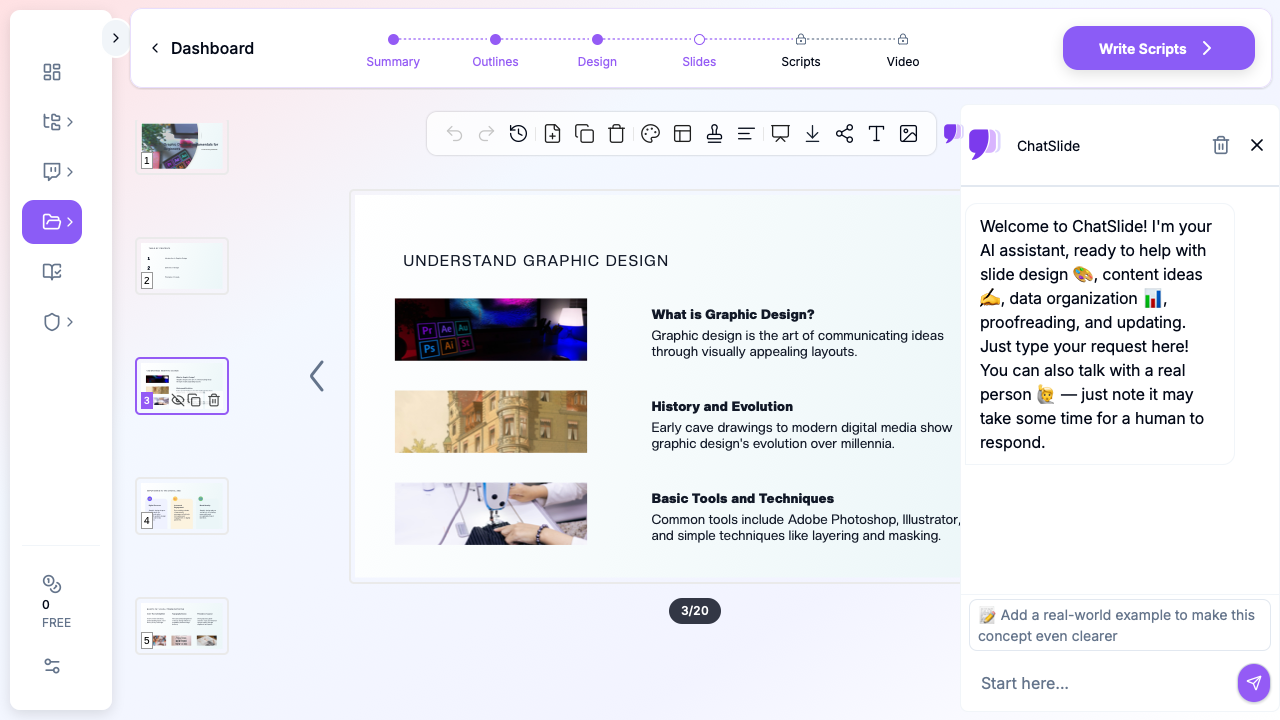

For graphic design courses specifically, this means:
- Content structure that follows pedagogical flow — the AI understands that design fundamentals should progress from basic elements (line, shape, color) to principles (balance, contrast, hierarchy) to application (layout, composition, branding)
- Relevant imagery built in — instead of hunting for stock photos of Bauhaus posters or grid overlays, the slides come with contextually appropriate visuals
- Consistent visual language — your slides maintain a cohesive look that demonstrates good design practice, rather than the Frankenstein aesthetic of manually assembled decks
Step-by-Step: Building a Graphic Design Course Deck
1. Define Your Scope and Audience
Start by specifying exactly what you're covering. "Graphic design fundamentals" is broad — narrow it down:
- For a college intro course: Focus on elements and principles of design, color theory basics, typography classification, and simple layout composition
- For a professional workshop: Emphasize practical application — brand identity systems, responsive design grids, accessible color palettes
- For a creative team onboarding: Cover your specific brand guidelines, design system components, and tool workflows
In ChatSlide, enter your topic with this level of specificity. "Graphic Design Fundamentals: Visual Principles, Typography, and Color Theory for Beginning Designers" will produce far better results than just "Graphic Design."
2. Review and Refine the Structure
The AI generates an outline with sections and subpoints. For a design fundamentals course, you'll typically see:
- An introduction to what graphic design is and why it matters
- Core visual elements (line, shape, texture, space)
- Color theory (color wheel, schemes, psychological associations)
- Typography fundamentals (typeface classification, pairing rules, readability)
- Layout and composition (grids, white space, visual hierarchy)
- Practical application and next steps
Review this outline and adjust. Maybe you want to add a section on design history, or remove the color theory section because you're covering it in a separate lecture.
3. Generate and Customize Slides
Once your outline is set, ChatSlide generates full slides with content and imagery. Each slide follows a consistent design template — which, for a design course, is itself a teaching opportunity.
You can customize:
- Slide content — edit text, adjust bullet points, add or remove information
- Visual elements — swap images, adjust layouts
- Presentation flow — reorder slides, add transitions between major sections
4. Export and Present
Export your deck as PowerPoint, PDF, or present directly from ChatSlide. For design courses, the PowerPoint export is particularly useful since you can further customize in your preferred design tool.
Tips for Effective Graphic Design Presentations
Show, don't just tell. Every principle you teach should be visible in your slides. When you discuss contrast, make sure your slides demonstrate strong contrast. When covering alignment, let your layout be impeccably aligned.
Use real examples. Supplement the AI-generated content with screenshots of actual design work — both good and bad examples. Students learn faster from concrete comparisons than abstract principles.
Keep text minimal. Design courses should be image-heavy. Use your slides as visual anchors for verbal explanation, not as text walls. If a slide about white space is crammed with text, you've already lost.
Build in exercises. Add blank or partially complete slides where students can practice. A slide showing "Fix this layout" with an intentionally broken design is worth more than three slides of theory.
Progress from simple to complex. Start with single-principle demonstrations (just color, just typography) before combining multiple principles in complex layouts.
Common Use Cases
- University design courses — semester-long curricula from Design 101 to advanced visual communication
- Corporate design team onboarding — getting new designers up to speed on brand systems and design standards
- Professional development workshops — half-day or full-day sessions on specific skills like typography or color theory
- Conference talks and guest lectures — one-off presentations on design trends, tools, or techniques
- Online course creation — building slide-based video content for platforms like Udemy or Skillshare
Get Started
Building a professional graphic design course presentation doesn't require spending more time on your slides than on your actual teaching content.
Try ChatSlide to generate your next design lecture deck. Start with your topic, refine the AI-generated outline, and have presentation-ready slides in minutes instead of hours.
For more on creating effective training presentations, see our guides on corporate training presentations and teacher lecture slides.